
VMware VCF Operations
VMware Cloud Foundation Operations (formerly vRealize / Aria Operations) is an infrastructure operations management platform that provides monitoring, capacity planning, troubleshooting, and inventory visibility for vSphere and VCF environments.
Use Cases the Adapter Solves
- Monitor virtual infrastructure inventory: Bring VMware virtual machines and hosts into a single asset inventory.
- Track operational health: Review resource health, power state, and related-resource information when investigating infrastructure status.
- Prioritize active alerts: Collect active VMware VCF Operations alerts with their severity and affected resource information.
Asset Types Fetched
- Devices
- Alert Findings
Data Retrieved through the Adapter
Devices - fields such as: Hostname, Device Name, Operating System, Power State
Alert Findings - fields such as: Alert ID, Finding Name, Finding Severity, Resource ID
Before You Begin
Required Ports
- TCP port 443 (HTTPS)
Authentication Methods
Username and password authentication.
APIs
Axonius uses the VMware VCF Operations API. The following endpoints are called:
POST /suite-api/api/auth/token/acquire- Acquires a session token.GET /suite-api/api/resources- Retrieves VMware resources.GET /suite-api/api/resources/properties- Retrieves properties for each resource when enabled.POST /suite-api/api/alerts/query- Retrieves alerts for the configured resource kinds.
Required Permissions
A VCF Operations user (local or from an imported auth source) with read access to inventory, properties and alerts. Read-only role is sufficient; exact privilege names can be found via GET /suite-api/api/auth/currentuser/permissions.
Supported From Version
Supported from Axonius version 10.0.1
Setting Up VMware VCF Operations to Work with Axonius
- Identify the HTTPS base URL for the VCF Operations appliance.
- Obtain the user name and password for an account that can access the required API endpoints.
- If the account belongs to an imported LDAP, Active Directory, or vIDM source, obtain the exact authentication-source name.
Connecting the Adapter in Axonius
- Navigate to the Adapter Catalog, search for VMware VCF Operations, and select the adapter.
- Click Add Connection.
- Provide the following parameters.
Required Parameters
- Host Name or IP Address - The VCF Operations appliance host, including the
https://prefix. Do not add/suite-apior another path. Example:https://vcf-ops.example.com - User Name - The user name for the VCF Operations account.
- Password - The password for the VCF Operations account.
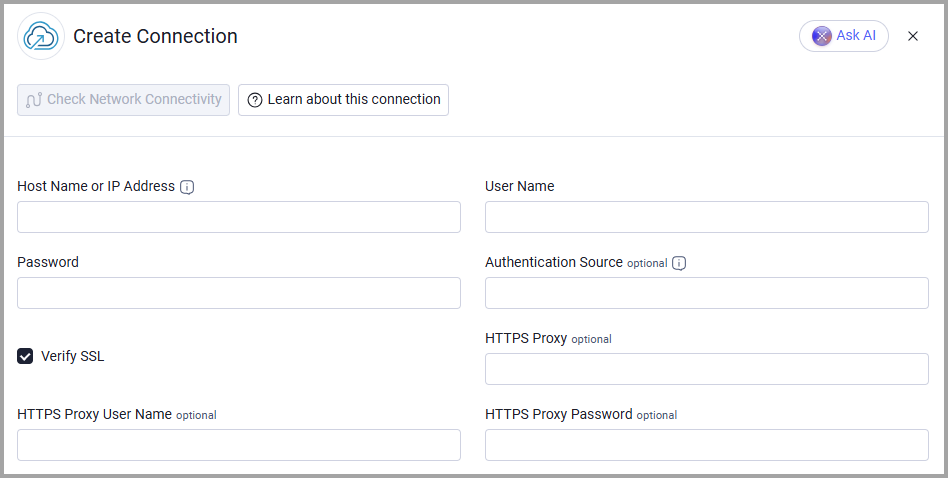
Optional Parameters
- Authentication Source - The name of the imported LDAP, Active Directory, or vIDM source for the user. Leave this empty for a local VCF Operations user.
- Verify SSL - Select whether to verify the SSL certificate of the server against the CA database inside of Axonius. For more details, see SSL Trust & CA Settings.
- HTTPS Proxy - Connect the adapter to a proxy instead of directly connecting to the host.
- HTTPS Proxy User Name - The user name for the configured HTTPS Proxy.
- HTTPS Proxy Password - The password for the configured HTTPS Proxy.
To learn more about common adapter connection parameters and buttons, see Adding a New Adapter Connection.
Advanced Settings
Note:
Advanced settings can either apply to all connections for this adapter, or to a specific connection. Refer to Advanced Configuration for Adapters.
To learn more about Adapter Configuration tab advanced settings, see Adapter Advanced Settings.
- Resource Kinds - Select the VMware resource kinds to fetch as devices and use to scope alerts. The default is VirtualMachine and HostSystem; an empty list uses those defaults.
- Skip resources in NOT_EXISTING state - Exclude resources that VCF Operations still lists after they were deleted from vCenter. This is enabled by default.
- Resource Properties - Enable retrieval of each resource's property list. This is disabled by default and makes one request per fetched resource.
- Resource properties request workers - Set the number of parallel resource-property requests. The default is 5; supported values are 1 through 20.
- Alerts - Enable or disable alert retrieval. This is enabled by default.
- Fetch active alerts only - Exclude suspended and cancelled alerts. This is enabled by default.
Updated about 1 hour ago