
Microsoft AD - Rename group
Microsoft AD - Rename group renames the Active Directory groups returned by the selected query or the group assets selected on the relevant asset page. The action renames the group and, when the group has a display name, the display name too. It then renames the DN of the group in the same OU.
See Creating Enforcement Sets to learn more about adding Enforcement Actions to Enforcement Sets.
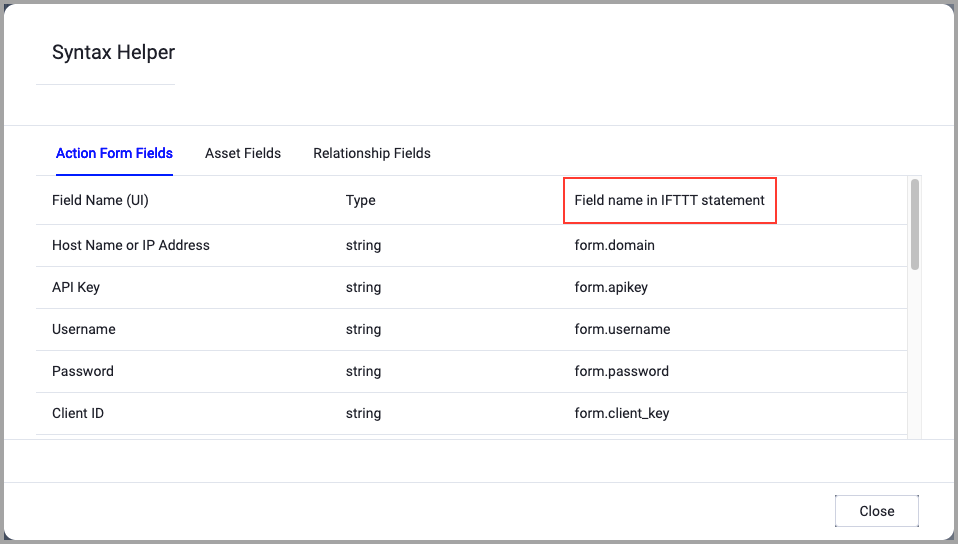
When accessing an enforcement action using the API, you must use the backend form of field names.
Use the Syntax Helper to find the correct name. In the enforcement action, enable Configure Dynamic Values and select Syntax Helper.
Note
- Not all asset types are supported for all Enforcement Actions.
- See Actions supported for Activity Logs, Adapters Fetch History, and Asset Investigation modules.
- See Actions supported for Aggregated Security Findings.
- See Actions supported for Software.
Required Fields
These fields must be configured to run the Enforcement Action.
- Action name - The name of this Enforcement Action. The system sets a default name. You can change the name.
- Configure Dynamic Values (optional) - Toggle on to enter a Dynamic Value statement. See Creating Enforcement Action Dynamic Value Statements to learn more about Dynamic Value statement syntax.
- Use stored credentials from the Active Directory adapter - Select this option to use credentials from the adapter connection. By default, the first connection is selected.
-
When you select this option, the Select Adapter Connection drop-down becomes available. Select the adapter connection to use for this Enforcement Action.
-
Note
To use this option, you must successfully configure an Active Directory adapter connection.
-
Compute Node - The Axonius node to use when connecting to the specified host. For more details, see Working with Axonius Compute Nodes.
- New Group Name - The new name of the group. The display name, when set, is renamed too.
Additional Fields
These fields are optional.
- New Pre-Windows 2000 Group Name - The new pre-Windows 2000 name (
sAMAccountName) of the group. If you leave this field empty, Axonius keeps the current pre-Windows 2000 group name.
Connection and CredentialsWhen Use stored credentials from the adapter is toggled off, some of the connection fields below are required to create the connection, while other fields are optional.
DC Address - The address of the Domain Controller (DC). Can be either an IP address or a valid DNS name that Axonius can communicate with via the Required Ports.
Port - You can configure the DC Address field with a customized LDAP port. To add the customized LDAP port enter a DC Address and a port number separated with a colon in the following format DC_NAME:PORT_NUMBER. When you use this format you direct the system to use the value following DC_NAME: as a custom port.
Fallback DC Address, Fallback Port - Enter a secondary DC address and port as a secondary server to be connected if the first one fails.
SASL Mechanism - SASL authentication is supported. The following authentication methods are available: No SaSL, External, GSSAPI, Digest MD5 and Plain. Each method requires different authentication parameters:
No SASL - Authenticate using User Name and Password
External - Authenticate using User Name
GSSAPI - Optional authentication using UserName
Digest MD5 - Authenticate using Username, Password, Enable signing, and Realm (optional) Authorization ID (optional)
Plain - Authenticate using Username/Authentication ID and Password and Authorization ID (optional)
Parameters depending on the SASL Mechanism selection
a. Username and Password - A user with regular LDAP query rights and its password. Enter the userPrincipalName (username@domain) OR domain\username. When connecting over SSL, the username must be in the format username@domain.
b. Authentication ID - Use for SASL Plain Mechanism.
c. Realm - The LDAP Realm.
d. Authorization ID (authzid) - The SASL authzid.
e. Enable signing - Enable LDAP signing, refer to LDAP Signing for AD.DNS Server Address - Axonius assumes that Domain Controller listed in each connection is also a DNS server. If your Domain Controller does not have the DNS role installed and you would like to use a different system for name resolution of discovered assets you can enter an alternate IP address here (even if it is installed, but you enter a field here, Axonius will use it). Please note that this setting is only used for discovered assets and will not affect resolution of the Domain Controller name entered in the connection configuration. This configuration value is used in conjunction with the Enable IP Resolving advanced setting.
Alternative DNS Suffix - Replace the device original DNS suffix for DNS resolving. For example, if the device name is windows8.acme.corp , and the Alternative DNS Suffix defined is 'acme-corp.lan', DNS resolving will be done for windows8.acme-corp.lan.
Use SSL for connection (optional, default: Unencrypted) - Select either Unencrypted (LDAP) or Verified / Unverified to use LDAPS (LDAP over SSL). Note that the DC Address in the adapter configuration must be the FQDN provided by the certificate.
CA File - If you choose the Verified option to use LDAPS (LDAP over SSL), you need to add SSL certificates (PEM format CA file) to the credentials.
SSL cipher - Enter an SSL cipher to use for the TLS object of the connection. Using a stronger cipher can solve connection failures when using the default cipher.Examples of OpenSSl ciphers.
Do Not Fetch Users - Select this option if you do not want to fetch users.
Fetch Disabled Devices and Fetch Disabled Users - Select to fetch disabled devices or users. By default, Axonius fetches only enabled devices and users.
Filter Deleted Devices - By default Axonius fetches deleted devices. Select this option to not fetch deleted devices.
Filter Deleted Users by default Axonius fetches deleted users. Select this option to not fetch deleted users.
Connect to Global Catalog (GC) - Select this option if the configured DC has a Global Catalog role.
Organizational units include list - Set one or more OUs so Axonius will fetch entities that reside only in the listed organizational units. Each item in the list should represent an 'OU' value of the desired OU DN. For example, for OU DN (“Ireland Office/acme/corp , New York Office/acme/corp”), specify the organizational units of Acme corporation of the Ireland Office and New York Office.
Organizational units to exclude - Set one or more OUs so that Axonius will not fetch entities that belong to the specified organizational units. Each item in the list should represent an 'OU' value of the OU DN that should be excluded. For example, for OU DN (“Ireland Office/acme/corp , New York Office/acme/corp”), specify the organizational units of Acme corporation of the Ireland Office and New York Office.
Search Base - When you enter a path, a search only happens under the path configured. This option should not generally be configured and fetch should normally be for the complete domain. It can be useful in a case where there might be more than one AD subdomain, and you only want to fetch resources for a specific subdomain.
-
Gateway Name - Select the Gateway through which to connect to perform the action.
Note
- The action first checks that the object at the group's distinguished name (DN) is a group. If it is not, the action fails for that asset with the message
no group found at <DN>.- If Active Directory refuses the new name, the action fails and the old names stay.
After the action renames a group, Axonius fetches the group again, so the group asset shows the new name soon after.
Results
The Enforcement Set run page shows one line for each group:
- Success -
Group <DN> renamed to <new DN>. - Failure:
Failed to rename group (no group found at <DN>)Failed to rename group (<LDAP error>)Failed to rename group <DN> (<LDAP error>)- Active Directory refused the change to the DN. Axonius restores the attributes it changed.
Example: Rename the group zz Finance Team to zz Finance Team EMEA and keep its current pre-Windows 2000 name.
Required Ports
Axonius must be able to communicate via the following ports:
- TCP/UDP port 389, when Use SSL for connection is Unencrypted.
- TCP port 636, when Use SSL for connection is Verified or Unverified (LDAPS).
If you choose to use the stored credentials from the adapter then refer to Required Ports for information about all additional ports required.
Required Permissions
The account that Axonius uses to connect must have the Write permission on the sAMAccountName and displayName attributes of the group, and the Rename permission on the group.
The stored credentials, or those provided in Connection and Credentials, must have the necessary permissions to perform this enforcement action.
For more details about other enforcement actions available, see Action Library.
Updated 7 days ago