
Microsoft Intune - Set Primary User by UPN
Microsoft Intune - Set Primary User by UPN sets the primary user of a managed device in Microsoft Intune from a User Principal Name (UPN) for:
- Assets returned by the selected query or assets selected on the relevant asset page.
Axonius looks up the user by the UPN in Microsoft Graph, then sets that user as the primary user of each device.
The Microsoft Intune adapter also fetches the Primary User UPN field, in the Intune Primary Users group, next to Primary User Display Name. You can use it, for example, in a query to find devices by their current primary user.
See Creating Enforcement Sets to learn more about adding Enforcement Actions to Enforcement Sets.
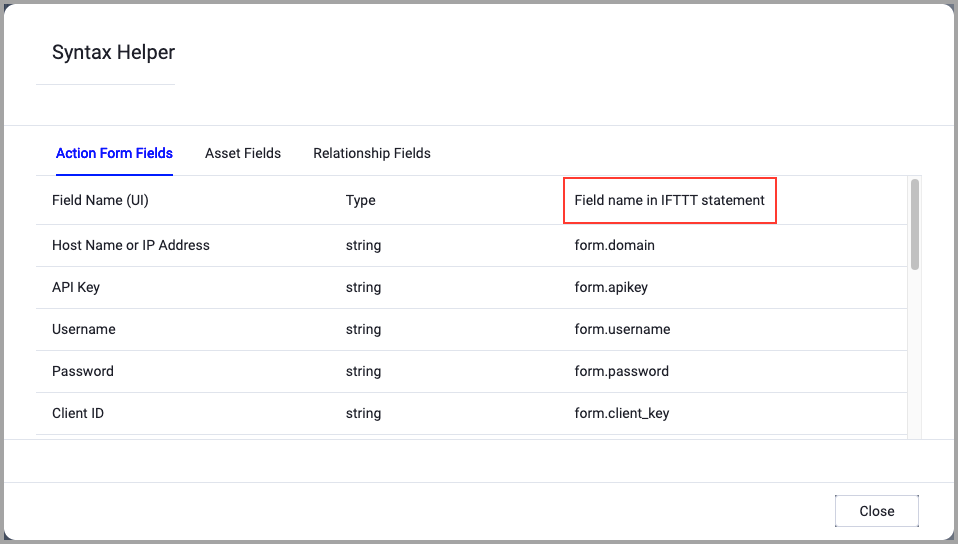
When accessing an enforcement action using the API, you must use the backend form of field names.
Use the Syntax Helper to find the correct name. In the enforcement action, enable Configure Dynamic Values and select Syntax Helper.
Note
- Not all asset types are supported for all Enforcement Actions.
- See Actions supported for Activity Logs, Adapters Fetch History, and Asset Investigation modules.
- See Actions supported for Aggregated Security Findings.
- See Actions supported for Software.
Required Fields
These fields must be configured to run the Enforcement Action.
- Action name - The name of this Enforcement Action. The system sets a default name. You can change the name.
- Configure Dynamic Values (optional) - Toggle on to enter a Dynamic Value statement. See Creating Enforcement Action Dynamic Value Statements to learn more about Dynamic Value statement syntax.
-
Use stored credentials from the Microsoft Intune adapter - Select this option to use credentials from the adapter connection. By default, the first connection is selected.
-
When you select this option, the Select Adapter Connection drop-down becomes available. Select the adapter connection to use for this Enforcement Action.
Note
If you do not select the Use stored credentials from the Microsoft Intune adapter option, you must provide the connection parameters below.
-
-
Compute Node - The Axonius node to use when connecting to the specified host. For more details, see Working with Axonius Compute Nodes.
-
User Principal Name (UPN) - The UPN (email address) of the user to set as the primary user on the device. For example,
[email protected].
Additional Fields
This Enforcement Action does not have additional optional fields.
Connection and CredentialsWhen Use stored credentials from the adapter is toggled off, some of the connection fields below are required to create the connection, while other fields are optional.
- Azure Client ID - The Application (client) ID of the registered Azure AD application used for authentication.
- Azure Client Secret - The client secret value for the registered Azure AD application.
- Azure Tenant ID - The Directory (tenant) ID of your Azure AD tenant.
Verify SSL (Optional) (default: enabled) - Selects whether to verify the SSL certificate of the server against the CA database inside of Axonius. For more details, see SSL Trust & CA Settings. This setting is enabled by default on all new adapter settings. If you need to disable SSL verification, make sure you disable this setting.)
HTTPS Proxy (optional) - Connect the adapter to a proxy instead of directly connecting it to the domain.
HTTPS Proxy Password (optional) - The password to use when connecting to the server using the HTTPS Proxy.
HTTPS Proxy User Name (optional) - The user name to use when connecting to the server using the HTTPS Proxy.
Gateway Name - Select the Gateway through which to connect to perform the action.
APIs
Axonius uses the Microsoft Graph API:
- GET
/beta/users/{UPN}?$select=id- Look up the user by UPN. - POST
/beta/deviceManagement/managedDevices/{id}/users/$ref- Set the primary user of the device.
Required Ports
Axonius must be able to communicate via the following ports:
- TCP port 443
Required Permissions
The stored credentials, or those provided in Connection and Credentials, must have the following permission(s) to perform this Enforcement Action:
The following Microsoft Graph API permissions are required for this Enforcement Action:
- DeviceManagementManagedDevices.ReadWrite.All - Allows the application to read and write the properties of devices managed by Microsoft Intune, including setting the primary user of a device.
- User.Read.All - Allows the application to look up the user by UPN.
These permissions require administrator consent and can be configured in the Azure portal under Azure Active Directory > App registrations > [Your App] > API permissions.
For more details about other enforcement actions available, see Action Library.
Updated 7 days ago