
Akamai EAA
Akamai Enterprise Application Access (EAA) is part of the edge platform that helps companies secure applications that run behind a firewall or in a public cloud.
Use Cases the Adapter Solves
- Device posture visibility: Consolidate the security posture of devices that access your applications, such as disk encryption, firewall status, and anti-malware status, alongside all other assets in Axonius.
- Application access visibility: See which users belong to which directory groups, and which Akamai EAA applications those groups give them access to.
Asset Types Fetched
This adapter fetches the following types of assets:
- Devices
- Users
Data Retrieved through the Adapter
Devices - fields such as: Browsers, Anti Malwares Running, Firewall Status, Is Disk Encrypted
Users - fields such as: User Name, Email, Group Data, Country Code
Before You Begin
Required Ports
Axonius must be able to communicate with the value supplied in Host Name or IP Address via the following ports:
- TCP port 80/443
Authentication Methods
The adapter uses Akamai EdgeGrid authentication. Axonius signs each request with the values supplied in Client Token, Client Secret, and Access Token.
APIs
Axonius uses Enterprise Application Access API for the following:
- Devices - List device inventory
- Users - List directory group users
The following endpoints are called:
GET /crux/v1/device-posture/inventory/list- Fetch devicesGET /crux/v1/mgmt-pop/directories- Fetch directoriesGET /crux/v1/mgmt-pop/directories/{directory_id}/users- Fetch the users of each directoryGET /crux/v1/mgmt-pop/users/USER_ID/groups- Fetch the groups of each user (when Fetch user apps is enabled)GET /crux/v1/mgmt-pop/apps- Fetch applications (when Fetch user apps is enabled)GET /crux/v1/mgmt-pop/apps/{app_id}/groups- Fetch the groups of each application (when Fetch user apps is enabled)GET /crux/v1/mgmt-pop/appdirectories- Fetch applications that are associated with directories (when Fetch user apps and Fetch only apps with directories are enabled)
Required Permissions
The values supplied in Access Token, Client Token, and Client Secret must be associated with credentials that have Read permissions in order to fetch assets.
Supported From Version
Supported from Axonius version 5.0
Connecting the Adapter in Axonius
- Navigate to the Adapter Catalog, search for Akamai EAA, and select the adapter.
- Click Add Connection.
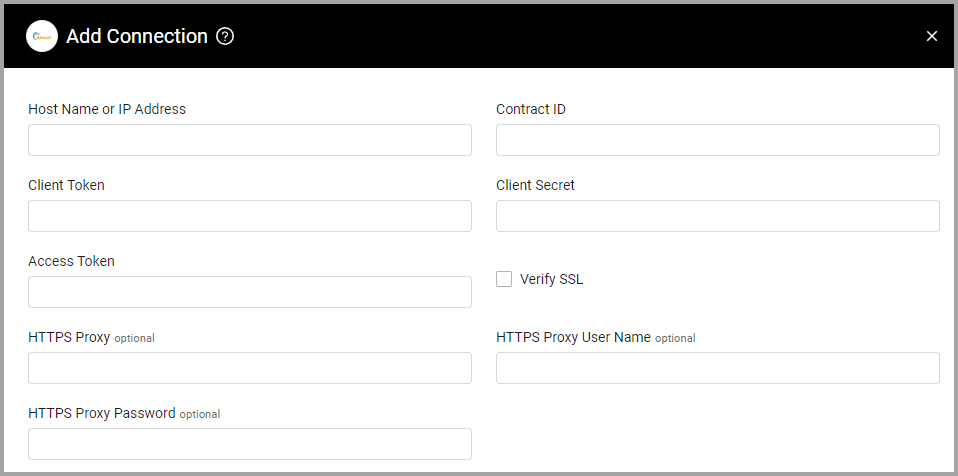
- Provide the following parameters.
Required Parameters
- Host Name or IP Address - The hostname or IP address of the Akamai EAA server that Axonius can communicate with via the Required Ports.
- Contract ID - The Akamai contract identifier for your Enterprise Application Access product.
- Client Token, Client Secret, and Access Token - The credentials for a user account that has the Required Permissions to fetch assets. To create Client Token, Client Secret, and Access Token, refer to Create an API client with custom permissions.
Optional Parameters
- Verify SSL - Select whether to verify the SSL certificate of the server against the CA database inside of Axonius. For more details, see SSL Trust & CA Settings.
- HTTPS Proxy - Connect the adapter to a proxy instead of directly connecting it to the domain.
- HTTPS Proxy User Name - The user name to use when connecting to the value supplied in Host Name or IP Address via the value supplied in HTTPS Proxy.
- HTTPS Proxy Password - The password to use when connecting to the server using the HTTPS Proxy.
To learn more about common adapter connection parameters and buttons, see Adding a New Adapter Connection.
Advanced Settings
Note:
- Advanced settings can apply to either all connections of this adapter, or to a specific connection. For more detailed information, see Advanced Configuration for Adapters.
- For more general information about advanced settings, see Adapter Advanced Settings.
Global Endpoints Config
- Fetch user apps (default: disabled) - Select this option to fetch the apps associated with the user's groups and directories, and add them to the user.
Global Advance Config
- Fetch only apps with directories (default: disabled, optional) - Select this option to fetch only apps that are associated with directories. This setting takes effect only when Fetch user apps is enabled.
Updated 7 days ago