
Rubrik Security Cloud
Rubrik provides data security and data protection on a single platform, including: Zero Trust Data Protection, ransomware investigation, incident containment, sensitive data discovery, and orchestrated application recovery.
Use Cases the Adapter Solves
- Backup Coverage Visibility: Correlate Rubrik-protected workloads with your full device inventory in Axonius to identify servers, VMs, and cloud instances that are not covered by a backup policy.
- Multi-Cloud Asset Correlation: Enrich AWS EC2 instances and VMware VMs in Axonius with Rubrik protection status, compliance state, and cloud identity fields — without requiring additional agents or separate reporting tools.
- Data Security Posture: Identify unprotected or relic workloads across your environment by combining Rubrik's protection and compliance data with asset context from other sources in Axonius.
Asset Types Fetched
- Devices, Users, Databases, File Systems, Accounts/Tenants, Application Resources
Before You Begin
Ports
- TCP port 80/443
Authentication Method
- Client ID / Client Secret
APIs
Axonius uses the Rubrik GraphQL API. The following queries are called:
POST /api/graphqlwithallUsersOnAccountquery — fetch user recordsPOST /api/graphqlwithlistO365Appsquery — fetch Microsoft 365 application resourcesPOST /api/graphqlwithallClusterConnectionquery — fetch Rubrik cluster devicesPOST /api/graphqlwithvSphereMountConnectionquery — fetch vSphere mount devicesPOST /api/graphqlwithazureNativeVirtualMachinesquery — fetch Azure virtual machinesPOST /api/graphqlwithsnappableConnectionquery (ComplianceTableQuery) — fetch edge devices with compliance and snapshot dataPOST /api/graphqlwithnutanixVmsquery — fetch Nutanix virtual machinesPOST /api/graphqlwithawsNativeEc2Instancesquery — fetch AWS EC2 instances with cloud ID, VPC, and account fields (added in Axonius version 8.0.24)POST /api/graphqlwithvSphereHostConnection→vSphereHostDetailschained queries — fetch VMware ESXi host details and associated virtual machine fields including BIOS UUID, IP, OS, and power state (added in Axonius version 8.0.24)
Permissions
Consult with your vendor for permissions for reading the objects.
Supported From Version
Supported from Axonius version 4.8
Setting Up Rubrik Security Cloud to Work with Axonius
- Log in to the Rubrik Security Cloud console.
- Navigate to Settings > Service Accounts.
- Click Add Service Account and complete the creation wizard.
- Copy the generated Client ID and Client Secret for use in Axonius.
For full instructions, see Adding a service account.
Connecting the Adapter in Axonius
To connect the adapter in Axonius, provide the following parameters:
Required Parameters
- Host Name or IP Address - The hostname or IP address of the Rubrik Security Cloud server.
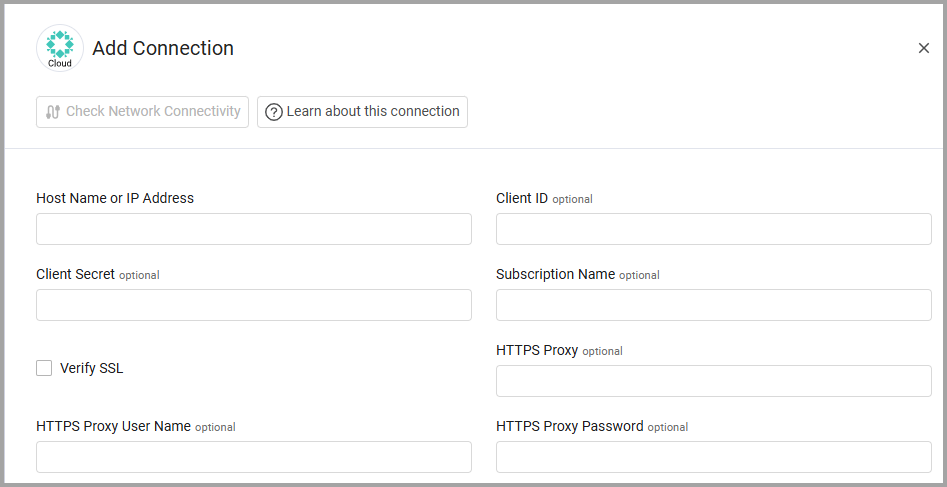
Optional Parameters
-
Client ID and Client Secret - The Rubrik Security Cloud Client ID and Client Secret. To generate client credentials, see Adding a service account.
-
Subscription Name - The 0365 Subscription Name.
-
Verify SSL - Select whether to verify the SSL certificate of the server against the CA database inside of Axonius. For more details, see SSL Trust & CA Settings.
-
HTTPS Proxy - Connect the adapter to a proxy instead of directly connecting it to the domain.
-
HTTPS Proxy User Name - The user name to use when connecting to the value supplied in Host Name or IP Address via the value supplied in HTTPS Proxy.
-
HTTPS Proxy Password - The password to use when connecting to the server using the HTTPS Proxy.
To learn more about common adapter connection parameters and buttons, see Adding a New Adapter Connection.
Advanced Settings
Note
Advanced settings can either apply to all connections for this adapter, or to a specific connection. Refer to Advanced Configuration for Adapters.
- Fetch users (required, default: true) - By default this adapter fetches users. Clear this option to not fetch users.
- Parse cluster nodes as devices - Select this option to parse the cluster nodes from the cluster raw as devices.
- Object types to parse location as name - Enter a list of object types to parse asset name and hostname from the device location. This setting only works for devices that have the asset type field with the value
edge. - Parse name and hostname from location - Select this option to parse
Asset NameandHost NamefromNode Location. - Enrich EC2 Edge devices - Select this option to fetch additional fields for AWS EC2 instances via the
awsNativeEc2InstancesGraphQL query. When enabled, the following fields are enriched on matching edge devices:instanceNativeId(mapped to Cloud ID),awsNativeAccountName, andvpcId. - Enrich Virtual Machine Edge devices - Select this option to fetch additional fields for VMware VMs via chained
vSphereHostConnection→vSphereHostDetailsGraphQL queries. When enabled, the following fields are enriched on matching edge devices:moid,instanceUuid(mapped to BIOS UUID / VM UUID),ipAddress,guestOsName,powerStatus,protectionDate,isRelic, andvmwareToolsInstalled.
Note
To learn more about Adapter Configuration tab advanced settings, see Adapter Advanced Settings.
Updated 19 days ago