
Nlyte
Nlyte Asset Optimizer is a data center infrastructure management (DCIM) platform that provides asset lifecycle management, capacity planning, and audit and compliance tracking for data center assets.
Use Cases the Adapter Solves
- Track data center assets: Bring server and network-device information into Axonius to improve asset visibility.
- Support capacity planning: Use collected device location and cabinet information when reviewing data center capacity.
Asset Types Fetched
- Devices
Data Retrieved through the Adapter
Devices - fields such as: Device Name, Hostname, Serial Number, Operational Status
Before You Begin
Required Ports
- TCP port 443 (HTTPS) for HTTPS connections
- TCP port 80 (HTTP) for HTTP connections
Authentication Methods
Username and password authentication
APIs
Axonius uses the Nlyte API. The following endpoints are called:
GET /nlyte/integration/api/odata/auth/AuthenticateBasic- Authenticates the connection.GET /nlyte/integration/api/odata/Servers- Retrieves server records.GET /nlyte/integration/api/odata/Networks- Retrieves network records.GET /nlyte/integration/api/odata/Cabinets- Retrieves cabinet records used to enrich device data.
Required Permissions
Nlyte user account with permission to use the Integration (OData) API - read-only is enough. Confirm the exact permission name required to access the API endpoints listed above with your Nlyte administrator.
Supported From Version
Supported from Axonius version 10.0.1
Connecting the Adapter in Axonius
- Navigate to the Adapter Catalog, search for Nlyte, and select the adapter.
- Click Add Connection.
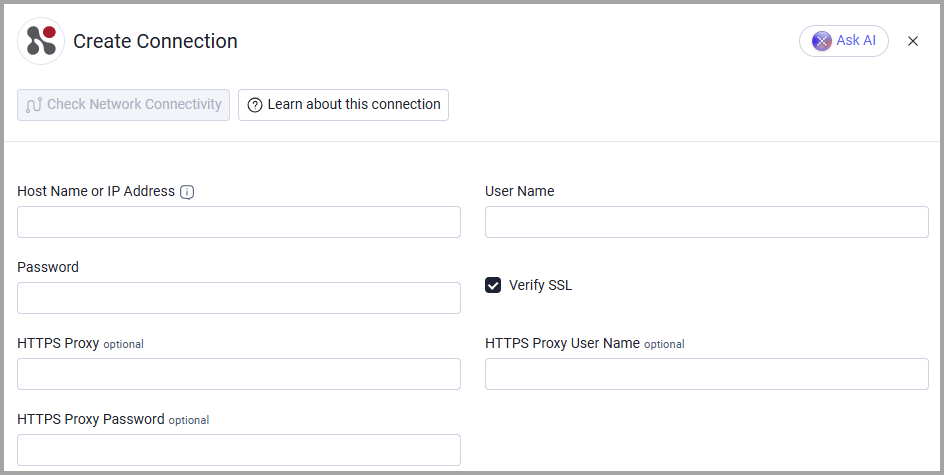
- Provide the following parameters.
Required Parameters
- Host Name or IP Address - The Nlyte API base address. Include the
http://orhttps://prefix and do not include a specific API endpoint. Example:https://nlyte.example.com/ - User Name - The user name for the Nlyte API connection.
- Password - The password for the Nlyte API connection.
Optional Parameters
- Verify SSL - Select whether to verify the SSL certificate of the server against the CA database inside of Axonius. For more details, see SSL Trust & CA Settings.
- HTTPS Proxy - Connect the adapter to a proxy instead of directly connecting it to the Host Name or IP Address.
- HTTPS Proxy User Name - The user name to use when connecting to the value supplied in Host Name or IP Address via the value supplied in HTTPS Proxy.
- HTTPS Proxy Password - The password to use when connecting to the server using the HTTPS Proxy.
To learn more about common adapter connection parameters and buttons, see Adding a New Adapter Connection.
Updated about 1 hour ago