
MarkMonitor
MarkMonitor provides domain management, security, and consulting.
Use Cases the Adapter Solves
- Domain Security and Compliance Monitoring: Track and manage domain health, expiration dates, renewal status, and SSL certificate information to ensure compliance with security policies and prevent service disruptions.
- Consolidated Domain and DNS Management: Collect domain registration details, DNS zone information, and user contact profiles from MarkMonitor to correlate with assets across your organization.
Asset Types Fetched
- Devices, Users, Domains, URLs
Data Retrieved through the Adapter
Domains (Devices) - Fields such as Domain Name, Domain ID, Status, Renewal Status
Users (Contacts) - Fields such as Phone, Fax, Country Code, Organization
URLs - Fields such as Domain ID, Extension, Nameservers, Registrant ID, Registrant Profile Name, Group, User Defined Fields, and Last Note (text, author, date, and type)
Before You Begin
Required Ports
- TCP port 80 (HTTP)
- TCP port 443 (HTTPS)
Authentication Methods
The MarkMonitor adapter uses User Name and Password for the MarkMonitor RestAPI v2 endpoint. You can also provide an API Key to access the MarkMonitor V2 API at api.markmonitor.com/domains/v2.
APIs
Axonius uses the MarkMonitor RestAPI v2 and optionally the MarkMonitor V2 API. The following endpoints are called:
POST /loginGET /domainsGET /domains/{domainId}GET /contactsGET /contacts/{contactId}POST /auth/v1/auth/authenticateGET /auth/v1/auth/refreshGET /dns/v1/zoneGET /certs/v1/orderGET /domains/v2/domains/{domainId}/udfs(when Fetch User Defined Fields is enabled)GET /domains/v2/domains/{domainId}/notes(when Fetch Last Domain Note is enabled)
Required Permissions
For basic authentication with User Name and Password, use an account with read access to domains, contacts, DNS zones, and SSL certificates.
The optional API Key provides access to the V2 API endpoints.
Supported From Version
Supported from Axonius version 4.7
Connecting the Adapter in Axonius
- Navigate to the Adapters page, search for MarkMonitor, and select the adapter.
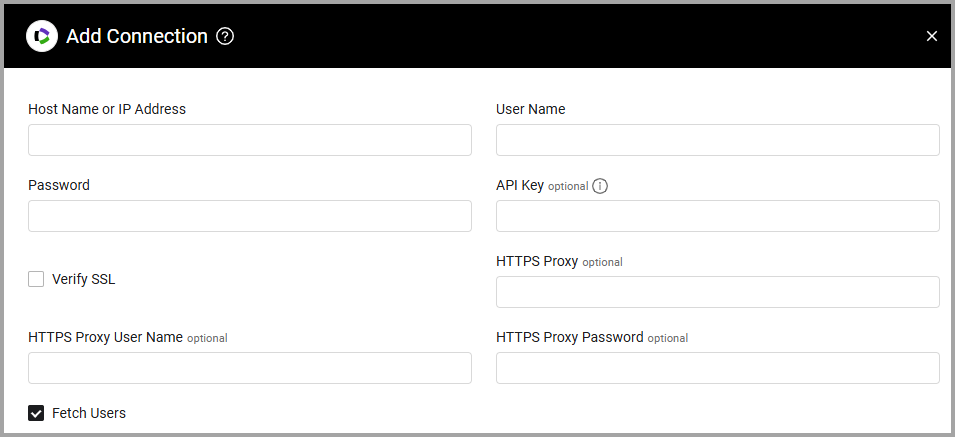
- Click Add Connection.
- Provide the following parameters.
Required Parameters
- Host Name or IP Address - Enter the hostname or IP address of the MarkMonitor server that Axonius can communicate with. Example:
domains.markmonitor.com. - User Name and Password - Enter the credentials for a user account with permissions to fetch assets.
Optional Parameters
- API Key - Enter an API Key associated with a user account to use the MarkMonitor V2 API at
api.markmonitor.com/domains/v2instead of the RestAPI endpoint. The V2 API provides access to additional features. - Verify SSL - Select whether to verify the server's SSL certificate against the CA database in Axonius. See SSL Trust & CA Settings.
- Fetch Users (default: true) - Clear this option to skip fetching user and contact records from MarkMonitor.
- Fetch DNS Zones (default: false) - Enable this option to fetch DNS zone information and enrich domain records with DNS zone details. Requires an API Key.
- Fetch SSL Certificates (default: false) - Enable this option to fetch SSL certificate order information and enrich domain records with SSL certificate details. Requires an API Key.
- HTTPS Proxy - Enter a proxy address to connect the adapter through a proxy instead of directly to the domain.
- HTTPS Proxy User Name - Enter the user name to use with HTTPS Proxy.
- HTTPS Proxy Password - Enter the password to use with HTTPS Proxy.
To learn more about common adapter connection parameters and buttons, see Adding a New Adapter Connection.
Advanced Settings
Note: Advanced settings can apply to all connections for this adapter or to a specific connection. See Advanced Configuration for Adapters and Adapter Advanced Settings.
- Resolve DNS Records - Enable this option to automatically resolve DNS records for URLs and enrich those assets with resolved IP addresses and CNAME chain data. This option is disabled by default.
- Timeout (seconds) - Set the maximum time to wait for the DNS resolution to complete (enter a value between 1 and 30). The default is 2.
- Use System DNS - Select to use the system's configured DNS resolver (the default option); clear to use the Quad9 DNS resolver (9.9.9.10).
- Fetch User Defined Fields (default: false) - Select this option to fetch the customer-defined fields (UDFs) for each domain, and add them to the URL asset as a list of field names, values, and types. Requires an API Key.
- Fetch Last Domain Note (default: false) - Select this option to fetch the notes for each domain and add the most recent note (by creation date) to the URL asset, including its text, author, date, and type. Requires an API Key.
Version Matrix
This adapter was only tested with the versions marked as supported, but may work with other versions. Contact Axonius Support if you have a version that is not listed, which is not functioning as expected.
| Version | Supported | Notes |
|---|---|---|
| v2 | Yes | -- |
Updated 11 days ago