
JFrog Xray
JFrog Xray is a software composition analysis (SCA) tool that scans software artifacts for security vulnerabilities, open source license compliance, and software quality.
Use Cases the Adapter Solves
- Vulnerability Exposure Identification: Continuously scan software artifacts in JFrog Artifactory to identify components with known CVEs, giving security teams immediate visibility into vulnerable dependencies across all repositories.
- License Compliance Enforcement: Detect open source license violations across your artifact inventory to ensure your software supply chain meets organizational and regulatory compliance requirements.
Asset Types Fetched
- Compute Images
Data Retrieved through the Adapter
Compute Images - Fields such as: Name, Repo Full Path, Package ID, Version
Before You Begin
Required Ports
- TCP port 80/443
Authentication Methods
- User Name/Password
APIs
Axonius uses the JFrog Xray REST APIs.
Required Permissions
The value supplied in User Name must have read permissions in order to fetch Repos, Artifacts, and Violations.
The value supplied in User Name must have the Manage Reports role in order to fetch Vulnerabilities.
Supported From Version
Supported from Axonius version 6.1
Connecting the Adapter in Axonius
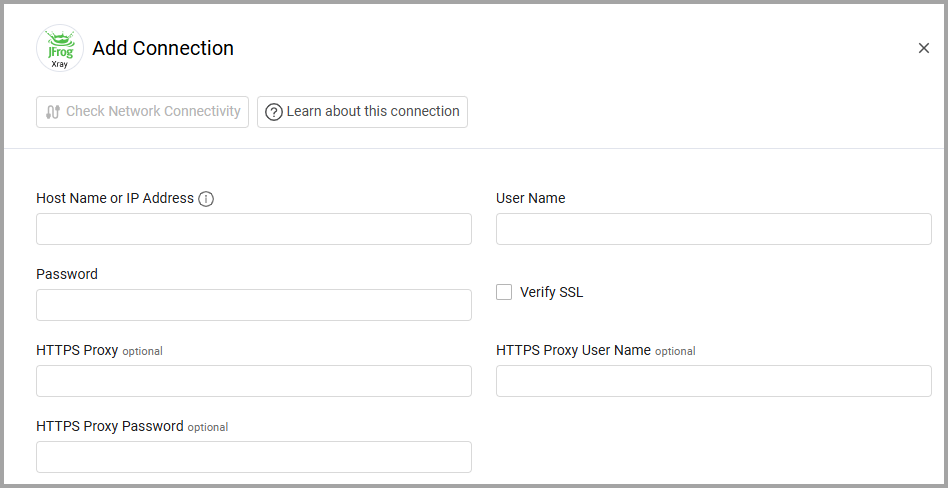
To connect the adapter in Axonius, provide the following parameters:
Required Parameters
- Host Name or IP Address - The hostname or IP address of the JFrog Xray server.
- You can either use your JFrog URL in the following format: http://myjfrog.mycompany.org
- Or use your Artifactory server hostname and the Artifactory router port: http://ARTIFACTORY_SERVER_HOSTNAME:8082
- User Name and Password - The credentials for a user account that has Permissions to fetch assets.
Optional Parameters
- Verify SSL - Select whether to verify the SSL certificate of the server against the CA database inside of Axonius. For more details, see SSL Trust & CA Settings.
- HTTPS Proxy - Connect the adapter to a proxy instead of directly connecting it to the domain.
- HTTPS Proxy User Name - The user name to use when connecting to the value supplied in Host Name or IP Address via the value supplied in HTTPS Proxy.
- HTTPS Proxy Password - The password to use when connecting to the server using the HTTPS Proxy.
To learn more about common adapter connection parameters and buttons, see Adding a New Adapter Connection.
Advanced Settings
Note:
Advanced settings can either apply to all connections for this adapter, or to a specific connection. Refer to Advanced Configuration for Adapters.
- Global Endpoints Config - Click on
>to open the following settings for configurable global endpoints:- Ignore Artifacts With Names Containing These Strings - Artifacts with names matching these strings will be skipped and not displayed.
- Fetch Only X Latest Versions of Each Artifact - Specify how many of the latest versions of each artifact to fetch. When specified, the adapter will add a new field called "Version Rank" to indicate which version is for each artifact (1 = latest version).
- Endpoints Config - By default the adapter enriches users via various endpoints. Click on
>to open the following settings for configurable endpoints:- Violations Pagination Page Limit (optional) - The maximum number of pages to fetch from the Violations endpoint. Each page contains 25 violations. Defaults to 10,000 pages (250,000 violations). Lower this value to improve performance in smaller environments; increase it for environments with a large number of violations.
- Enrich Artifacts Endpoint with Vulnerabilities Reports Endpoint - Toggle on to enrich the artifacts endpoint with the vulnerabilities reports endpoint.
- Start Vulnerabilities Reports - applies context on the following endpoints: Status Vulnerabilities Reports - Click on
>to open the following settings for configurable endpoints:- Severities Allow List (optional) - Select one or more severities of vulnerabilities fetched to include in the allow list. Clear options that you want to exclude from the fetch.
Note:
To learn more about Adapter Configuration tab advanced settings, see Adapter Advanced Settings.
Troubleshooting
- In order to fetch the vulnerabilities, this adapter creates an Xray vulnerabilities report. There is a limit of maximum saved reports (default: 100). If you already have the maximum amount of reports in your environment, the vulnerabilities cannot be fetched. In order to create a report, you can either delete unnecessary reports or increase the limit in the Xray System YAML.
Updated 12 days ago