
IBM Maximo
IBM Maximo Application Suite offers a single platform for asset management, monitoring, maintenance, computer vision, safety and reliability.
Use Cases the Adapter Solves
- IT Asset Inventory: Automatically discover and inventory all physical and virtual assets tracked in IBM Maximo, giving security and operations teams a unified view of managed infrastructure.
- User Access Visibility: Fetch user accounts from IBM Maximo to audit who has access to the asset management platform and correlate with identity data from other sources.
- Application Setting Compliance Evaluation: Monitor IBM Maximo application-level security settings—including password policy, SSO configuration, session timeout, and SMTP security—against security benchmarks such as CIS and NIST CSF 2.0.
Types of Assets Fetched
This adapter fetches the following types of assets:
- Devices
- Users
- Application Settings
Data Retrieved through the Adapter
Devices – asset ID, asset name, asset type, location, status
Users – username, user account metadata
Application Settings – password policy (minimum length, complexity, lockout), SSO configuration, idle session timeout, SMTP security settings
Authentication Methods
This adapter supports two authentication modes:
API Key Authentication – Supply an API Key.
Basic Authentication – Supply a User Name and Password.
APIs
Axonius uses the IBM Maximo Application Suite APIs. The following endpoints are called:
Devices
GET {domain}/maxrest/rest/os/mxasset(Basic Auth mode) - Fetch assets (devices), paginated using_maxItemsand_rsStartparametersGET {domain}/api/os/mxasset(API Key mode) - Fetch assets (devices), paginated using_maxItemsand_rsStartparameters
Application Settings (SSPM)
GET about- Fetch certificate management settings (manual cert management, trusted CAs, image pull policy)GET config/idletimeout- Fetch idle session timeout configurationGET config/sso- Fetch SSO seamless login configurationGET utils/passwordpolicy- Fetch password policy settings (minimum length, uppercase, lowercase, special characters, numeric, username restrictions, force password change, lockout thresholds)GET config/smtp/default- Fetch SMTP security configuration (security mode, authentication, default email password behavior)
Required Ports
Axonius must be able to communicate with the value supplied in Host Name or IP Address via the following ports:
- TCP port 443: REST
Required Permissions
The value supplied in User Name or API Key must have Read permissions to fetch assets from IBM Maximo Application Suite.
Connecting the Adapter in Axonius
- Navigate to the Adapter Catalog, search for IBM Maximo, and select the adapter.
- Click Add Connection.
- Provide the following parameters.
Required Parameters
-
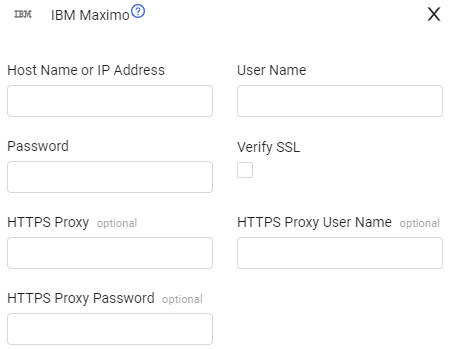
Host Name or IP Address (required) - The hostname or IP address of the IBM Maximo server that Axonius can communicate with via the Required Ports.
-
User Name and Password (required for Basic Auth) - The credentials for a user account that has the Required Permissions to fetch assets. Used when connecting via Basic Authentication.
-
API Key (required for API Key Auth) - An API key associated with a user account that has the Required Permissions to fetch assets. Used as an alternative to User Name and Password.
Note
Provide either User Name + Password (Basic Authentication) or an API Key. The connection mode is determined automatically based on which credential is supplied.
- Verify SSL - Select whether to verify the SSL certificate of the server against the CA database inside of Axonius. For more details, see SSL Trust & CA Settings.
Optional Parameters
-
HTTPS Proxy (optional) - Connect the adapter to a proxy instead of directly connecting it to the domain.
-
HTTPS Proxy User Name (optional) - The user name to use when connecting to the value supplied in Host Name or IP Address via the value supplied in HTTPS Proxy.
-
HTTPS Proxy Password (optional) - The password to use when connecting to the server using the HTTPS Proxy.
To learn more about common adapter connection parameters and buttons, see Adding a New Adapter Connection.
Supported From Version
Supported from Axonius version 4.6
Updated about 1 month ago