
BeyondTrust Privilege Management Cloud
BeyondTrust Privilege Management Cloud delivers privilege management and application control, allowing organizations to eliminate admin rights across the entire business and enforce least privilege.
Asset Types Fetched
- Devices, Users
Before You Begin
Ports
- TCP port 443
Authentication Method
- Client ID/Client Secret
APIs
Axonius uses the Endpoint Privilege Management API - version 1.
To authenticate to the PM Cloud API and create a token, see Authenticate to the PM Cloud API.
Axonius also uses the BeyondTrust Privilege Management Cloud v2 Events API (GET /management-api/v2/Events/FromStartDate) to retrieve blocked application events when the Fetch Blocked Application Events advanced setting is enabled. The Events API always uses v2, regardless of the API version configured for other adapter operations.
Permissions
The value supplied in Client ID must have Read-only permissions to fetch assets.
Supported From Version
Supported from Axonius version 4.6
Connecting the Adapter in Axonius
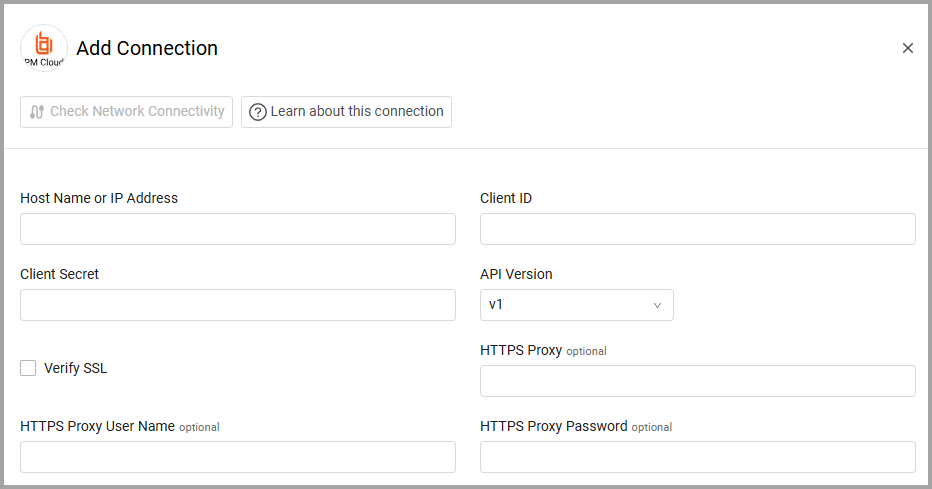
To connect the adapter in Axonius, provide the following parameters:
Required Parameters
- Host Name or IP Address - The hostname or IP address of the BeyondTrust Privilege Management Cloud server. This should be in the format of:
https://[yourProductionSub-domainName]-services.pm.beyondtrustcloud.com - Client ID and Client Secret - The credentials for a user account that has the Required Permissions to fetch assets. To obtain the Client ID and Client Secret, see Configure Access to the Management API.
- API Version (default: v1) - Select the API Version you want to use to connect, either v1 or v3.
Optional Parameters
-
Verify SSL - Select whether to verify the SSL certificate of the server against the CA database inside of Axonius. For more details, see SSL Trust & CA Settings.
-
HTTPS Proxy (optional) - Connect the adapter to a proxy instead of directly connecting it to the domain.
-
HTTPS Proxy User Name (optional) - The user name to use when connecting to the value supplied in Host Name or IP Address via the value supplied in HTTPS Proxy.
-
HTTPS Proxy Password (optional) - The password to use when connecting to the server using the HTTPS Proxy.
To learn more about common adapter connection parameters and buttons, see Adding a New Adapter Connection.
Advanced Settings
Note
Advanced settings can either apply to all connections for this adapter, or to a specific connection. Refer to Advanced Configuration for Adapters.
- Avoid Duplications - Select this option to choose the record with the latest "Last Seen" value if the device has the same hostname and the same domain.
- Fetch Blocked Application Events - Select this option to enable fetching blocked application events from the BeyondTrust Privilege Management Cloud v2 Events API. When enabled, configure the following sub-settings:
- Enabled (default: False) - Select to enable fetching of blocked application events.
- Days Back (default: 7, minimum: 1) - Enter the number of days to look back for events.
- Events Per Page (default: 500, minimum: 1) - Enter the number of events to retrieve per API page.
- Event Action (default: Blocked) - Filter events by action type.
Note
To learn more about Adapter Configuration tab advanced settings, see Adapter Advanced Settings.
Updated 6 days ago