
Milestone XProtect
Milestone XProtect is a video management software (VMS) for video surveillance.
Use Cases the Adapter Solves
- Surveillance Device Inventory: Discover and track all cameras and hardware devices managed by Milestone XProtect, ensuring complete visibility into your physical security infrastructure alongside your IT assets.
- User Access Visibility: Identify all user accounts with access to the Milestone XProtect VMS, enabling security teams to audit access rights and detect unauthorized or stale accounts.
Asset Types Fetched
- Devices
- Users
Data Retrieved through the Adapter
Devices - Fields such as ID, Name, Display Name, IP Address, MAC Address, Serial Number
Users - Fields such as ID, Name, Display Name
Before You Begin
Required Ports
- TCP port 443 (HTTPS)
- TCP port 80 (HTTP, if SSL is not used)
Authentication Methods
The Milestone XProtect adapter supports two OAuth grant types for authentication:
Password — Standard username/password authentication. Use this option when authenticating with a local Milestone XProtect user account. This is the default authentication method.
Windows Credentials — Windows-based NTLM authentication. Use this option when your Milestone XProtect environment is configured to use Windows authentication (Active Directory accounts).
APIs
Axonius uses the Milestone Integration Platform (MIP) API. The following endpoints are called:
POST /idp/connect/token— Authenticate and obtain an access tokenGET /api/rest/v1/basicUsers— Retrieve user accountsGET /api/rest/v1/cameras— Retrieve camera devicesGET /api/rest/v1/hardware/— Retrieve hardware devices and driver settings
Required Permissions
The following role is required:
Administrators Role (Recommended)
- Administrators — The user account must be assigned to the Administrators role in XProtect VMS. This role is required for API Gateway access and is explicitly stated in Milestone's official documentation: "You need an XProtect Basic user account with the Administrators role."
The role is assigned in the XProtect Management Client under Security > Roles. The user account can be either an XProtect Basic user or a Windows (Active Directory) account.
Note:
Milestone's API Gateway documentation does not define a minimum custom permission set for read-only API access. The Administrators role is the documented requirement.
Supported From Version
Supported from Axonius version 5.0
Setting Up Milestone XProtect to Work with Axonius
- Log in to the Milestone XProtect Management Client.
- Navigate to Security > Roles and ensure the user account has the required read permissions for cameras, hardware, and users.
- Note the username and password for the account.
- Ensure the Milestone XProtect server is configured to support Windows authentication via the Identity Provider (IDP).
- Use a Windows domain account (
DOMAIN\usernameformat) with the required read permissions in Milestone XProtect. - Confirm that the IDP endpoint (
/IDP/connect/token) acceptsgrant_type=windows_credentialsrequests.
For more information, see the Milestone Developer documentation.
Connecting the Adapter in Axonius
Navigate to the Adapters page, search for Milestone XProtect, and click on the adapter tile.
Click Add Connection.
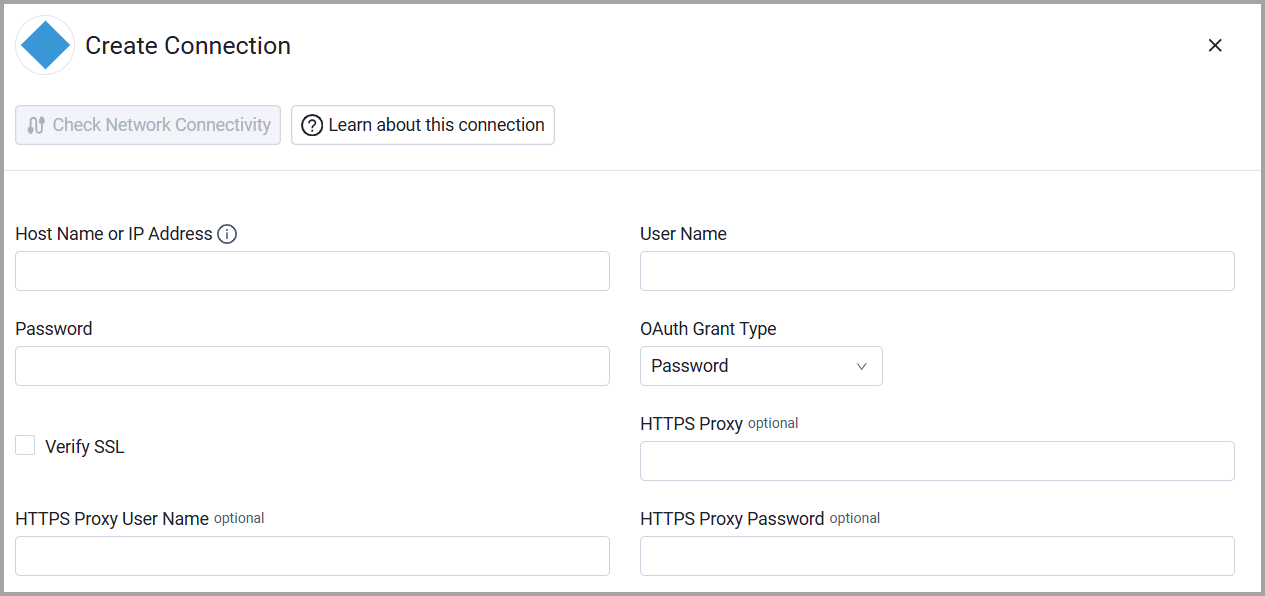
To connect the adapter in Axonius, provide the following parameters:
Required Parameters
- Host Name or IP Address - The hostname or IP address of the Milestone XProtect server. Include the protocol prefix (
http://orhttps://). Example:https://192.168.1.100 - User Name - The username of the account used to authenticate with the Milestone XProtect API.
- Password - The password for the account specified in User Name.
- OAuth Grant Type - Specifies the authentication method to use when connecting to the Milestone XProtect API. Select Password for standard username/password authentication, or Windows Credentials for Windows-based authentication. Defaults to Password.
Optional Parameters
- Verify SSL - Select whether to verify the SSL certificate of the server against the CA database inside of Axonius. For more details, see SSL Trust & CA Settings.
- HTTPS Proxy - Connect the adapter to a proxy instead of directly connecting it to the domain.
- HTTPS Proxy User Name - The user name to use when connecting to the value supplied in Host Name or IP Address via the value supplied in HTTPS Proxy.
- HTTPS Proxy Password - The password to use when connecting to the server using the HTTPS Proxy.
To learn more about common adapter connection parameters and buttons, see Adding a New Adapter Connection.
Updated 6 days ago