
Freshdesk
Freshdesk adapter connection parameters, advanced settings, APIs, and supported Axonius version.
Freshdesk is a cloud-based customer support platform that was founded with the mission of enabling companies of all sizes to provide great customer service.
Asset Types Fetched
- Users, Tickets
Before You Begin
APIs
Axonius uses the Freshdesk API.
Locating your API key
See the Freshdesk Developer Guide for instructions on how to generate the API key.
Supported From Version
Supported from Axonius version 6.1
Connection Parameters
Required Parameters
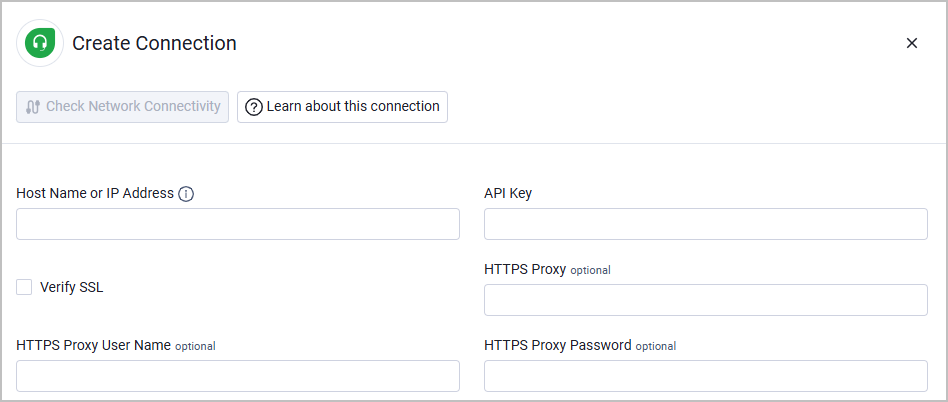
- Host Name or IP Address - The hostname or IP address of the Freshdesk server. It is typically in the format of domain.freshdesk.com.
- API Key - Specify the API Key associated with a user account that has permissions to fetch assets. To locate your API Key, see Locate API Key.
Optional Parameters
- Verify SSL - Select whether to verify the SSL certificate of the server against the CA database inside of Axonius. For more details, see SSL Trust & CA Settings.
- HTTPS Proxy - Connect the adapter to a proxy instead of directly connecting it to the domain.
- HTTPS Proxy User Name - The user name to use when connecting to the value supplied in Host Name or IP Address via the value supplied in HTTPS Proxy.
- HTTPS Proxy Password - The password to use when connecting to the server using the HTTPS Proxy.
To learn more about common adapter connection parameters and buttons, see Adding a New Adapter Connection.
Advanced Settings
Note
Advanced settings can either apply to all connections for this adapter, or to a specific connection. Refer to Advanced Configuration for Adapters.
- Enrich Agents with Agent Groups (optional) - Enabled by default. Use this option to fetch group data for Agent users.
- Enrich Agents with Agent Roles (optional) - Enabled by default. Use this option to fetch agent data for Agent users.
- Select the relevant option(s) to determine from where to fetch customer contact sub type. You can fetch from Unverified / Verified / Blocked / Deleted contacts (all optional):
- Fetch users of sub type Contact from Unverified Contacts
- Fetch users of sub type Contact from Verified Contacts
- Fetch users of sub type Contact from Blocked Contacts
- Fetch users of sub type Contact from Deleted Contacts
- Fetch Tickets from Tickets - Enable this option to fetch Tickets from the
GET /api/v2/ticketsAPI endpoint. Tickets data includes Ticket ID, summary, description, priority, and more.
Note
For details on general advanced settings under the Adapter Configuration tab, see Adapter Advanced Settings.
Updated 6 days ago