
Backstage
Backstage is an open platform for building developer portals.
Asset Types Fetched
- Users, Groups, Business Applications
Before You Begin
Required Ports
- TCP port 80/443
Authentication Methods
- Access Token
APIs
Axonius uses the Backstage API.
Required Permissions
Consult with your vendor for permissions for reading the objects.
Supported From Version
Supported from Axonius version 5.0
Connecting the Adapter in Axonius
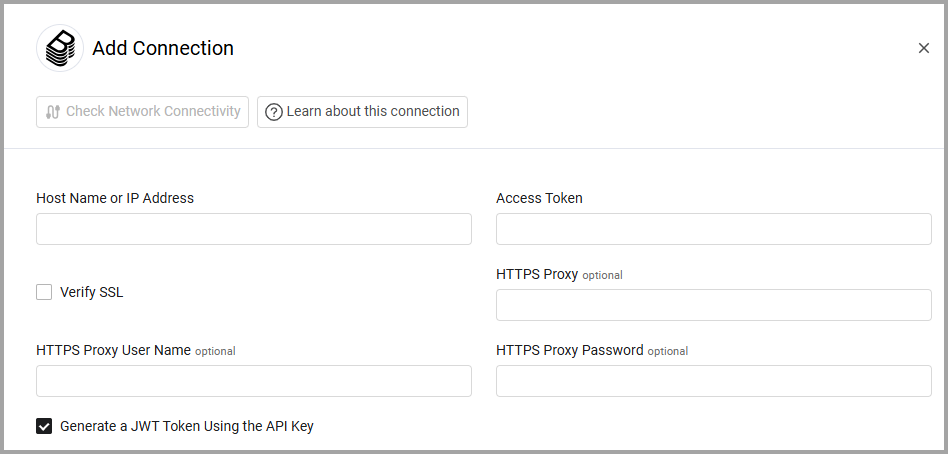
Navigate to the Adapters page, search for Backstage, and click on the adapter tile. Click Add Connection.
To connect the adapter in Axonius, provide the following parameters:
Required Parameters
- Host Name or IP Address - The hostname or IP address of the Backstage server.
- Access Token - An Access Token associated with a user account that has the Required Permissions to fetch assets.
Optional Parameters
- Verify SSL - Select whether to verify the SSL certificate of the server against the CA database inside of Axonius. For more details, see SSL Trust & CA Settings. If your Backstage server uses a self-signed certificate, make sure the certificate is trusted before you select this option.
- HTTPS Proxy - Connect the adapter to a proxy instead of directly connecting it to the domain.
- HTTPS Proxy User Name - The user name to use when connecting to the value supplied in Host Name or IP Address via the value supplied in HTTPS Proxy.
- HTTPS Proxy Password - The password to use when connecting to the server using the HTTPS Proxy.
- Generate a JWT Token Using the API Key (default: true) - By default this adapter generates a JWT token using the API key. Clear this option to not generate a JWT token.
To learn more about common adapter connection parameters and buttons, see Adding a New Adapter Connection.
Advanced Settings
Note:
- Advanced settings can apply to either all connections of this adapter, or to a specific connection. For more detailed information, see Advanced Configuration for Adapters.
- For more general information about advanced settings, see Adapter Advanced Settings.
- Fetch Groups (default: disabled) - Select this option to fetch groups.
- Fetch Business Applications (default: disabled) - Select this option to fetch business applications.
Updated 22 days ago
Did this page help you?