
XM Cyber
XM Cyber is an exposure management platform that provides graph‑based visibility of exposures, vulnerabilities, and enterprise assets.
Use Cases the Adapter Solves
- Complete Sensor Coverage: Gain visibility into all XM Cyber sensors deployed across your environment—not just those with active security findings—ensuring no endpoints are missing from your asset inventory.
- Exposure Prioritization: Correlate XM Cyber's graph-based exposure data with your full asset inventory in Axonius to identify which devices carry the highest risk and prioritize remediation accordingly.
- Sensor Health Monitoring: Track the connectivity status, agent version, and last-seen time of XM Cyber sensors to detect coverage gaps and ensure continuous monitoring across your fleet.
Asset Types Fetched
- Devices, Aggregated Security Findings, SaaS Applications
Before You Begin
Ports
- TCP port 80/443
Authentication Method
- API Key
APIs
Axonius uses the XM Cyber API. The following endpoints are called:
POST /api/auth- Authenticate and retrieve a session access tokenGET /api/v2/vavm/public/devices- Fetch VRM devices (assets with security findings)GET /api/v2/vavm/public/vulnerabilities- Fetch vulnerability data associated with VRM devicesGET /api/sensors/sensors- Fetch data about XM Cyber sensors (agent software) deployed on devices in your environment.
Permissions
The access key requires the XM VRM scope.
Supported From Version
Supported from Axonius version 8.0.2
Setting Up XM Cyber to Work with Axonius
- Log in to the XM Cyber platform.
- Navigate to Settings > API Keys.
- Click Generate API Key.
- Assign the
XM VRMscope to the key. - Copy the generated API Key for use in Axonius.
Connecting the Adapter in Axonius
To connect the adapter in Axonius, provide the following parameters:
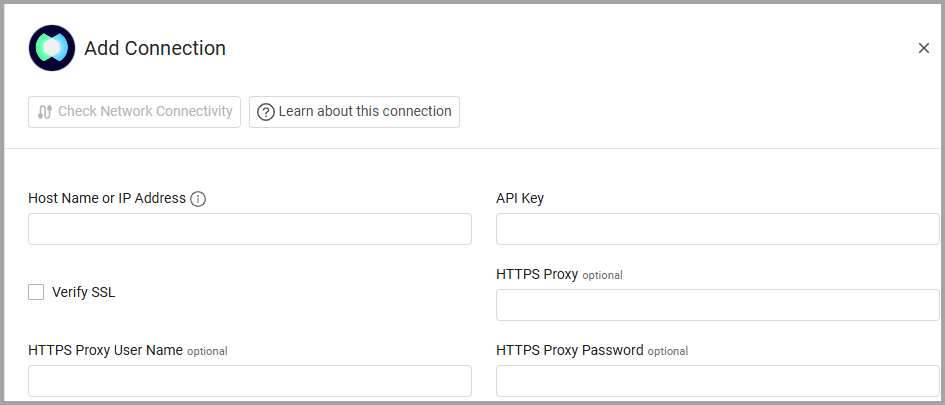
Required Parameters
-
Host Name or IP Address - The hostname or IP address of the XM Cyber server.
-
API Key - An API Key associated with a user account that has the Required Permissions to fetch assets.
Optional Parameters
-
Verify SSL - Select whether to verify the SSL certificate of the server against the CA database inside of Axonius. For more details, see SSL Trust & CA Settings.
-
HTTPS Proxy - Connect the adapter to a proxy instead of directly connecting it to the domain.
-
HTTPS Proxy User Name - The user name to use when connecting to the value supplied in Host Name or IP Address via the value supplied in HTTPS Proxy.
-
HTTPS Proxy Password - The password to use when connecting to the server using the HTTPS Proxy.
To learn more about common adapter connection parameters and buttons, see Adding a New Adapter Connection.
Advanced Settings
Note
Advanced settings can either apply to all connections for this adapter, or to a specific connection. Refer to Advanced Configuration for Adapters.
- Vulnerabilities Page Size (default: 1000) - Specify the number of vulnerability entities returned per page request.
Note
To learn more about Adapter Configuration tab advanced settings, see Adapter Advanced Settings.
Updated 19 days ago