
SonarQube Server
SonarQube Server is a tool that provides automated code review and static analysis to detect coding issues and enforce quality rules.
Use Cases the Adapter Solves
-
Audit Code Security Findings: Track security hotspots and code issues across all SonarQube-monitored projects in a single Axonius inventory, enabling security teams to correlate findings with device and user context.
-
Enforce Clean Code and Governance Policies: Surface SonarQube application settings — including clean code policy mode, SCA feature status, and fix suggestion configuration — to verify that security and development standards are applied consistently.
-
User Access Governance: Review SonarQube user accounts, their active status, managed status, and token counts to detect unauthorized access or stale accounts across the platform.
Asset Types Fetched
- Vulnerabilities, Users, SaaS Applications, Application Resources, Application Settings
Data Retrieved through the Adapter
Users - fields such as: Username, Email, Display Name, Last Name, User Permissions
Application Resources - fields such as: Key, Project, Security Category, Vulnerability Probability, Status, Rule Key.
Application Settings - fields such as: Setting Value, User, Role
Before You Begin
Ports
- TCP port 80/443
Authentication Method
- Token
APIs
Axonius uses the SonarQube Server Web API. The following endpoints are called:
GET /api/permissions/users— Fetch usersGET /api/hotspots/search— Fetch security hotspotsGET /api/rules/show— Fetch rule details for security hotspot enrichmentGET /api/issues/search— Fetch issuesGET /v2/dop-translation/github-permission-mappings— Fetch GitHub permission mappings (Application Settings)GET /v2/clean-code-policy/mode— Fetch clean code policy mode (Application Settings)GET /v2/fix-suggestions/feature-enablements— Fetch fix suggestion feature status (Application Settings)GET /v2/issues/sandbox-settings— Fetch issue sandbox settings (Application Settings)GET /v2/users-management/users— Fetch user management settings (Application Settings)GET /v2/dop-translation/gitlab-permission-mappings— Fetch GitLab permission mappings (Application Settings)GET /v2/sca/feature-enablements— Fetch SCA feature status (Application Settings)GET /api/users/search— Fetch user token counts (Application Settings)
Permissions
Authentication:
- All endpoints require authentication via Bearer Token.
Role Requirements:
hotspots/searchandissues/searchrequire:- The user to have Browse permission on the component/project.
rules/show:- Generally accessible to authenticated users, as rules are global and not tied to a specific project.
- Application Settings endpoints (
v2/clean-code-policy,v2/fix-suggestions,v2/sca,v2/issues/sandbox-settings,v2/users-management,v2/dop-translation,api/users/search):- Require the Administer System global permission in SonarQube.
Token Scope:
-
A standard user token is sufficient for fetching Users and Application Resources.
-
To fetch Application Settings, the token must belong to a user with the Administer System global permission.
-
For automation, use a token with appropriate project-level access.
Supported From Version
Supported from Axonius version 7.0.6
Note
Connecting the Adapter in Axonius
To connect the adapter in Axonius, provide the following parameters:
Required Parameters
- Host Name or IP Address - The hostname or IP address of the SonarQube server.
- Token - An API Token associated with a user account that has the Required Permissions to fetch assets.
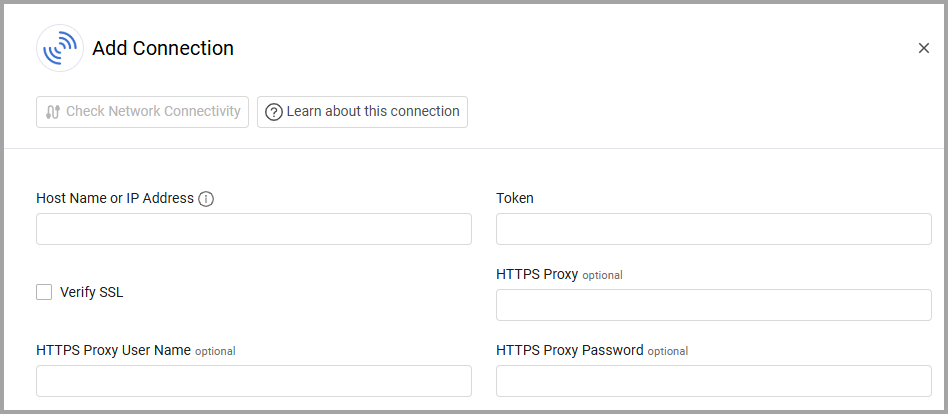
Optional Parameters
- Verify SSL - Select whether to verify the SSL certificate of the server against the CA database inside of Axonius. For more details, see SSL Trust & CA Settings.
- HTTPS Proxy - Connect the adapter to a proxy instead of directly connecting it to the domain.
- HTTPS Proxy User Name - The user name to use when connecting to the value supplied in Host Name or IP Address via the value supplied in HTTPS Proxy.
- HTTPS Proxy Password - The password to use when connecting to the server using the HTTPS Proxy.
To learn more about common adapter connection parameters and buttons, see Adding a New Adapter Connection.
Advanced Settings
Note
Advanced settings can either apply to all connections for this adapter, or to a specific connection. Refer to Advanced Configuration for Adapters.
To learn more about Adapter Configuration tab advanced settings, see Adapter Advanced Settings.
- Fetch Applications Settings (default: disabled) - Select to fetch Application Settings assets.
- Fetch Users from Users - Select this option to configure the existing Users endpoint
Updated 20 days ago