
Harness
Harness is a self-service CI/CD platform that allows engineers and DevOps to build, test, deploy, and verify software.
The Harness adapter enables Axonius to fetch and catalog users, providing visibility into their inventory details and access permissions.
Use Cases the Adapter Solves
-
CI/CD Access Governance: Identify all Harness users, their roles, and role assignments across your CI/CD pipelines to ensure access controls are properly configured and over-privileged accounts are detected.
-
Two-Factor Authentication Compliance: Monitor which Harness users have two-factor authentication enabled to enforce MFA policies and identify accounts that need to be brought into compliance.
Asset Types Fetched
- Users, Application Settings
Data Retrieved through the Adapter
Users - Fields such as Username, Email Address, UUID, Account Status (Locked/Disabled), Two Factor Authentication Enabled, Externally Managed, Role Assignment Metadata (Role Name, Role Identifier, Role Scope Level, Resource Group)
Before You Begin
Required Ports
- TCP port 443 (HTTPS)
Authentication Methods
API Key
APIs
Axonius uses the Harness API to retrieve asset data..
Required Permissions
The following Harness permissions are required for the service account or user associated with the API key:
core_user_view— View userscore_role_view— View rolescore_usergroup_view— View user groups
Supported From Version
Supported from Axonius version 6.1.30.
Setting Up Harness to Work with Axonius
Axonius connects using a Harness API key. For production use, Harness recommends a Service Account API key so the connection is not tied to an individual user.
To create a Service Account API key:
- In Harness, go to Account Settings > Access Control > Service Accounts.
- Select an existing service account with the required permissions, or create a new one and assign those permissions.
- Open the service account and click API Key.
- Enter a name and click Save.
- Click Token, enter a name, optionally set an expiration date, and click Generate Token.
- Copy and store the token securely — it is only displayed once.
Alternatively, to create a Personal API key:
- In Harness, select your user profile icon and choose My Profile.
- Under My API Keys, click API Key, enter a name, and click Save.
- Click Token, enter a name, optionally set an expiration date, and click Generate Token.
- Copy and store the token securely — it is only displayed once.
Connection Parameters
To connect the adapter in Axonius, provide the following parameters.
Required Parameters
-
Host Name or IP Address (default:
https://app.harness.io) - Enter the hostname or IP address of the Harness server that Axonius can communicate with via the Required Ports. -
API Key - Enter the API Key associated with a user account that has permissions to fetch assets.
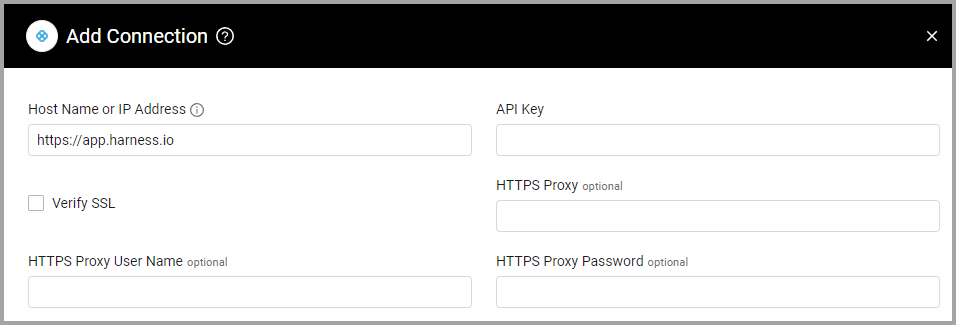
Optional Parameters
-
Verify SSL - Select whether to verify the SSL certificate of the server against the CA database inside of Axonius. For more details, see SSL Trust & CA Settings.
-
HTTPS Proxy - Enter an HTTPS proxy address to connect the adapter to a proxy instead of directly connecting it to the domain.
-
HTTPS Proxy User Name - Enter the user name to use when connecting to the value supplied in Host Name or IP Address via the value supplied in HTTPS Proxy.
-
HTTPS Proxy Password - Enter the password to use when connecting to the server using the HTTPS Proxy.
To learn about additional optional/common adapter connection parameters, see Adding a New Adapter Connection.
Advanced Settings
Note
- Advanced settings can apply to either all connections of this adapter, or to a specific connection. For more detailed information, see Advanced Configuration for Adapters.
- For more general information about advanced settings, see Adapter Advanced Settings.
- Global Endpoints Config
- Fetch Application Settings - Enable this option to fetch application settings.
- Account Identifier (optional) - Enter the specific Account ID to scope the connection to a particular Harness account.
- Project Identifier (optional) - Enter a specific Project ID to limit the data fetch to a single project.
- Search Term (optional) - Enter a keyword to filter the users or entities retrieved based on a specific search query
- Organization Identifier (optional) - Enter the Organization ID to restrict the fetch to a specific organization within Harness.
- Fetch Application Settings - Enable this option to fetch application settings.
- Endpoints Config -
- Enrich Users with User Details - Select this option to fetch full attribute details for each user. When enabled, the adapter performs an additional API request per user to retrieve comprehensive information not included in the default list view.
Updated 20 days ago