
Credit Management
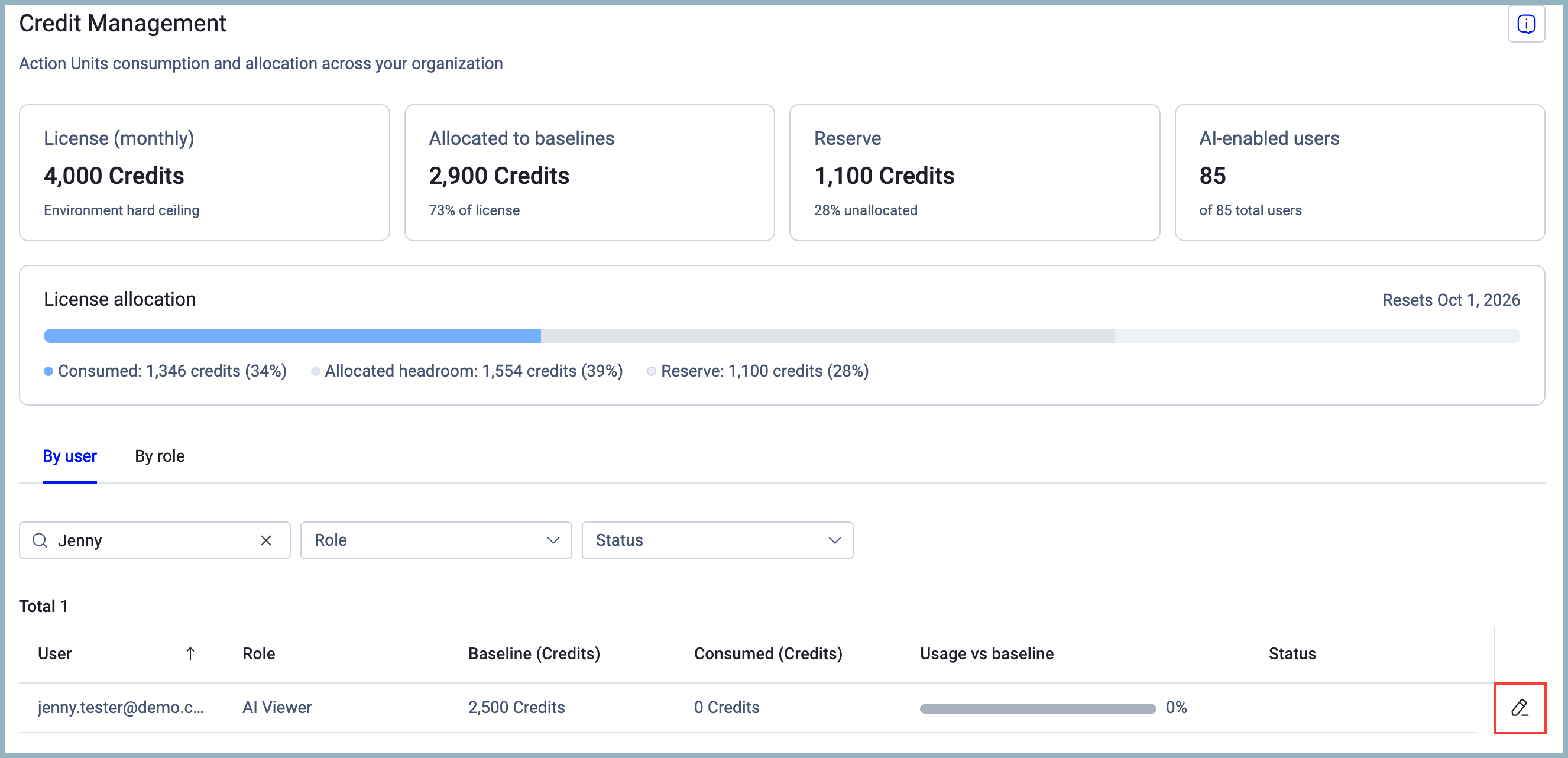
Use the Credit Management page to view and manage Action Units consumption and allocation across your organization.
To access the Credit Management page:
- From the top right corner of any page, click
.png) (System Settings). The System Settings page opens.
(System Settings). The System Settings page opens. - In the Categories/Subcategories pane of the System Settings page, expand AI Settings, and select Credit Management.
Required Permissions
Setting user credit limits requires the AI Agent Administrator permission.
Credit Summary
The top of the page displays four summary tiles:
- License (monthly) — The total number of credits available in your monthly license. This is the environment's hard ceiling.
- Allocated to baselines — The number of credits allocated to user baselines, shown as a percentage of your total license.
- Reserve — The number of unallocated credits remaining in your license pool.
- AI-enabled users — The number of users with AI access enabled, out of your total user count.
License Allocation Bar
The License allocation bar shows a visual breakdown of how your credits are distributed. The bar resets on the first day of each month.
The bar displays three categories:
- Consumed — Credits used so far in the current billing period.
- Allocated headroom — Credits reserved for user baselines but not yet consumed.
- Reserve — Credits not yet allocated to any baseline.
Viewing Credit Allocation by User or Role
The table at the bottom of the page lets you view credit allocation and consumption broken down by individual user or by role.
Select the By user tab to view data per user, or the By role tab to view aggregated data by role.
Filtering the Table
You can filter the users displayed in the table using the following options:
- Search users — Enter a name to filter the table to a specific user.
- Role — Filter by user role.
- Status — Filter by user status.
By User Table
The By user table displays the following information:
- User — The name of the Axonius user.
- Role — The role assigned to the user.
- Baseline (Credits) — The credit baseline set for the user. Displays No limit set if no baseline has been configured.
- Consumed (Credits) — The number of credits the user consumed in the current billing period.
- Usage vs baseline — A progress bar showing how much of the user's baseline they have consumed.
- Status — The current status of the user's credit allocation. [To verify — possible values not fully visible in screenshot]
To edit a user's baseline:
Hover over the row and select the edit icon.

Updated 15 days ago