
Microsoft Power BI
Microsoft Power BI is a business analytics tool for visualizing and sharing data insights across an organization.
Related Enforcement Actions:
Asset Types Fetched
This adapter fetches the following types of assets:
- Users, Groups, Compute Services, Application Settings
Data Retrieved from the Adapter
When the Fetch Tenant-Wide Inventory Using Read-Only Admin APIs connection parameter is enabled, the adapter retrieves workspaces and the users and dataflows returned with each workspace from the tenant-wide admin response.
Before You Begin
Authentication Methods
Authenticate the adapter using either of the following methods:
- Azure OAuth credentials
- Read-Only Admin APIs
APIs
Axonius uses the following APIs:
Required Permissions
- To connect with delegated permissions, you must register an Entra ID application with Power BI.
- The application requires the following delegated permissions: Power BI Service: Dataflow.Read.All and Workspace.Read.All.

Supported From Version
Supported from Axonius version 6.1
Generating the OAuth Authorization Code - Required for OAuth Authentication
To authenticate with OAuth, you must generate an OAuth Authorization Code for this adapter setup.
Generate the OAuth Authorization Code
-
Copy and paste the following URL into a browser window. Make sure to add the Tenant ID, Client ID, and Redirect URI that you used earlier in this setup and save the URL for later use:
https://login.microsoftonline.com/TENANT/oauth2/v2.0/authorize?client_id=CLIENT_ID&scope=https://graph.microsoft.com/.default&redirect_uri=REDIRECT_URI&response_mode=query&response_type=code -
Authorize, if required.
-
Copy the value for the code parameter in the changed URL. This is the entire string in the URL between
code=and&session_stateand it can be quite long.
-
Back in Axonius, paste the copied code into the Azure OAuth - Authorization Code field.
Get the redirect URL:-
In Microsoft Azure, navigate to App Registrations and select your application for this integration.
-
On the left panel, navigate to Manage
>Authentication. -
In the Web area, copy one of the redirect URIs.
-
Back in Axonius, paste the copied Redirect URI into the Azure OAuth - Redirect URI/Reply URL field.
.png)
-
Connecting the Adapter in Axonius
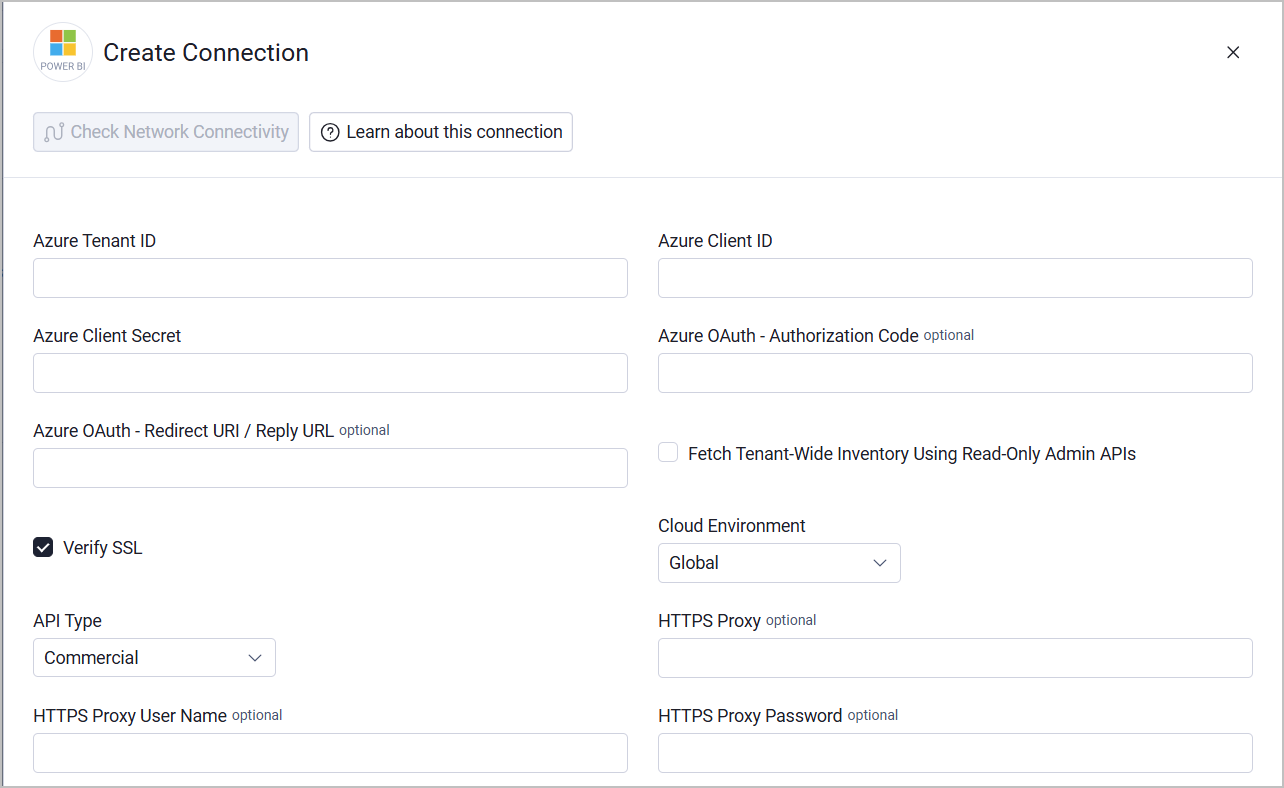
Require Parameters
- Azure Tenant ID, Azure Client ID, Azure Client Secret, Cloud Environment - See details under Microsoft Entra ID.
- API Type (default: Commercial) - Select the API type. When a government entity is selected, the data is sent to app.powerbigov.us for government use instead of app.powerbi.com.
- Additional required parameters - depending on the authentication method:
- For Azure OAuth Authentication:
- Azure OAuth - Authorization Code - The authorization code to connect to Microsoft Power BI. Learn how to generate the OAuth Authorization Code.
- Azure OAuth - Redirect URI / Reply URL - The location where the authorization server sends the user once the Azure has been successfully authorized and granted an authorization code or an access token. For more information, see Redirect URI (reply URL) restrictions and limitations.
- For Read-Only Admin APIs:
- Fetch Tenant-Wide Inventory Using Read-Only Admin APIs - Enable this option to use client-credentials authentication and fetch tenant-wide workspaces, users, and dataflows. When this parameters is enabled, the Azure OAuth Authorization Code and Redirect URI / Reply URL are ignored, so there is no need to provide them.
- For Azure OAuth Authentication:
Optional Parameters
-
Verify SSL - Select whether to verify the SSL certificate of the server against the CA database inside of Axonius. For more details, see SSL Trust & CA Settings.
-
HTTPS Proxy - Connect the adapter to a proxy instead of directly connecting it to the domain.
-
HTTPS Proxy User Name - The user name to use when connecting to the value supplied in Host Name or IP Address via the value supplied in HTTPS Proxy.
-
HTTPS Proxy Password - The password to use when connecting to the server using the HTTPS Proxy.
To learn more about common adapter connection parameters and buttons, see Adding a New Adapter Connection.
Note
Advanced settings can either apply for all connections for this adapter, or you can set different advanced settings and/or different scheduling for a specific connection, refer to Advanced Configuration for Adapters.
For details on general advanced settings under the Adapter Configuration tab, see Adapter Advanced Settings.
- Fetch Application Settings - Enable this to fetch Power BI application settings data, including data from dataset users, capacities, pipeline users, available features, and group users.
Related Enforcement Actions
Updated 14 days ago