
Paycom
Paycom is a programmatic interface for managing user roles and permissions.
Use Cases the Adapter Solves
- HR and IT user reconciliation: Cross-reference Paycom employee records with identity and endpoint data to ensure all active employees have appropriate system access and all terminated employees are offboarded.
- Manager relationship mapping: Populate the Manager Email field in Axonius by enriching users with supervisor data, enabling ownership-based queries and automated workflows.
Types of Assets Fetched
This adapter fetches the following types of assets:
- Users
Data Retrieved through the Adapter
Users - fields such as: Username, First Name, Last Name, Work Email, Employee ID
Before You Begin
Required Ports
- TCP port 443 (HTTPS)
Authentication Methods
Axonius authenticates to the Paycom API using HTTP Basic Authentication. The SID is used as the username and the Token is used as the password. These credentials are provided by the Paycom automation team.
APIs
Axonius uses the Paycom REST API. The following endpoints are called:
GET /api/v1/employeedirectory- Fetch all employeesGET /api/v1/employee/{eecode}- Fetch non-sensitive employee details (optional)GET /api/v1/employee/{eecode}/sensitive- Fetch sensitive employee details (optional)GET /api/v1/employee/{supervisor_code}- Fetch supervisor details to populate Manager Email (optional)
Required Permissions
The SID and Token credentials provided by the Paycom automation team must have access to the employee directory and employee detail endpoints. Contact your Paycom administrator to confirm that the service account has the required API access.
Supported From Version
Supported from Axonius version 6.1
Setting Up the Adapter to Work with Axonius
Refer to your Paycom administrator or Paycom support for instructions on generating SID and Token credentials for API access.
Connecting the Adapter in Axonius
- Navigate to the Adapter Catalog, search for Paycom, and select the adapter.
- Click Add Connection.
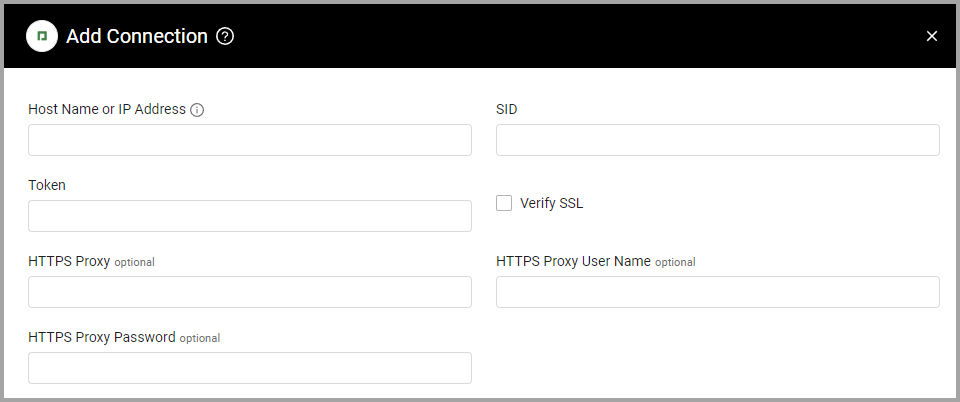
- Provide the following parameters.
Parameters
-
Host Name or IP Address (required) - The hostname or IP address of the Paycom server.
-
SID and Token (required) - The credentials for a user account that has permission to fetch assets. You receive the SID and Token from the Paycom automation team.
-
Verify SSL - Select whether to verify the SSL certificate of the server against the CA database inside of Axonius. For more details, see SSL Trust & CA Settings.
-
HTTPS Proxy (optional) - Connect the adapter to a proxy instead of directly connecting it to the domain.
-
HTTPS Proxy User Name (optional) - The user name to use when connecting to the value supplied in Host Name or IP Address via the value supplied in HTTPS Proxy.
-
HTTPS Proxy Password (optional) - The password to use when connecting to the server using the HTTPS Proxy.
To learn more about common adapter connection parameters and buttons, see Adding a New Adapter Connection.
Advanced Settings
Note
Advanced settings can either apply to all connections for this adapter, or to a specific connection. Refer to Advanced Configuration for Adapters.
- Global Endpoints Config - Click on
>to open the following settings for configurable endpoints:- Remove PII fields - Enter a list of raw keys that should be removed from ingested data. Click the x next to any option you want to clear from the list.
- Endpoints Config - By default this adapter enriches users via various endpoints. Click on
>to open the following settings for configurable endpoints:- Enrich Employees with Non-Sensitive Employee Details (default: true) - By default this adapter fetches employee data from non-sensitive endpoints. Disable this option to not fetch employee data from non-sensitive endpoints.
- Enrich Non-Sensitive Employee Details with Supervisor Details - By default, the adapter fetches supervisor data by calling
GET /api/v1/employee/{supervisor_code}to populate the Manager Email field. Disable this option to skip supervisor enrichment. - Enrich Employees with Employee Sensitive - Enable this option to fetch employee data from sensitive endpoints.
- Enrich Employee Sensitive with Supervisor Details (default: true) - By default, the adapter fetches supervisor data by calling
GET /api/v1/employee/{supervisor_code}to populate the Manager Email field. Disable this option to skip supervisor enrichment.
- Parser Config - Click on
>to open the following settings for configurable endpoints:- Custom Fields Mapping - Enter JSON to specify mapping between custom raw fields to specific fields in Axonius.
JSON structure
- Custom Fields Mapping - Enter JSON to specify mapping between custom raw fields to specific fields in Axonius.
{"raw_data_key_1": "Custom Field 1", "raw_data_key_2": "Custom Field 2"}Implementation example:
{"raw_data_key_1": "Custom Field 1", "raw_data_key_2": "Custom Field 2"}In this example, the raw field cat1 will be mapped as Payroll Profile in Axonius, and similarly, the other specified fields will follow the given mapping.
Note
To learn more about Adapter Configuration tab advanced settings, see Adapter Advanced Settings.
Updated 12 days ago