
Cisco Adaptive Security Appliance (ASA)
Cisco Adaptive Security Appliance (ASA) Software is the core operating system for the Cisco ASA Family, delivering firewall capabilities for ASA devices in an array of form factors.
Note:The ASA REST API is supported only on the following models starting with 9.3(2) and ending with 9.16:
- ASAv
- Firepower 9300
- ISA 3000
- Firepower 4110, 4120, 4140, 4150
- ASA 5585-X
- ASA 5525-X, 5545-X, 5555-X
- ASA 5512-X, 5515-X
- ASA 5506-X, 5506H-X, 5506W-X, 5508-X, 5516-X
Note: The ASA 5506-X series does not support the REST API if you are running the FirePOWER module Version 6.0 or later. Disable the ASA REST API using the
no rest-api agentcommand.
Use Cases the Adapter Solves
- Network Device Inventory: Bring Cisco ASA firewall devices into Axonius alongside other network and endpoint assets, giving security teams a unified view of firewall devices, their interfaces, DHCP leases, and DNS configuration.
- VPN Session Visibility: Surface active VPN sessions and connected users from ASA devices in Axonius, enabling correlation with identity and endpoint data to detect anomalous access patterns.
Types of Assets Fetched
This adapter fetches the following types of assets:
- Devices
- Users
- Network/Firewall Rules
Data Retrieved through the Adapter
Devices - fields such as: Hostname, IP Address, MAC Address, Network Interfaces, DHCP Lease data
Users - fields such as: Username, user account details from the ASA local user database
Network/Firewall Rules - fields such as: Access rules, NAT rules
Before You Begin
Required Ports
- TCP port 443 — Used by both the Legacy REST API and the HTTP Interface connection methods.
Authentication Methods
The Cisco ASA adapter uses Basic HTTP authentication (username and password) for both connection methods.
APIs
Axonius uses one of the following APIs depending on the selected Connection Method
Cisco ASA REST API (/api/... endpoints)
Cisco ASA HTTP Interface for Automation (/admin/exec/... endpoints)
Required Permissions
Privilege 5 or greater is required in order to invoke GET APIs.
Supported From Version
Supported from Axonius version 6.1
Setting Up Cisco Adaptive Security Appliance (ASA) to Work with Axonius
For Legacy REST API:
- Ensure the Cisco ASA REST API plugin is installed and enabled on the device.
- Create a user account with Privilege 5 or greater.
- Note the hostname or IP address, username, and password for use in the Axonius connection parameters.
For HTTP Interface (Firepower 2100/2120):
- Enable the HTTP server on the ASA device:
http server enable - Configure HTTP authentication:
aaa authentication http console LOCAL - Create a local user account with appropriate privileges.
- Note the hostname or IP address, username, and password for use in the Axonius connection parameters.
Connecting the Adapter in Axonius
- Navigate to the Adapter Catalog, search for Cisco Adaptive Security Appliance (ASA), and select the adapter.
- Click Add Connection.
- Provide the following parameters.
Required Parameters
-
Connection Method (default: Legacy REST API) - Select the connection method to use when connecting to the Cisco ASA device:
- Legacy REST API — Connects using the ASA REST API (
/api/...endpoints). Use this for standard ASA devices. - HTTP Interface (Firepower 2100/2120) — Connects using the ASA HTTP Interface for Automation (
/admin/...endpoints). Use this for Cisco Firepower 2100/2120 appliances running in ASA software mode, which do not support the legacy REST API. Requires the following ASA-side configuration:http server enableaaa authentication http console LOCAL
- Legacy REST API — Connects using the ASA REST API (
-
Host Name or IP Address - The hostname or IP address of the Cisco Adaptive Security Appliance (ASA) server.
-
User Name and Password - The credentials for a user account that has the Required Permissions to fetch assets.
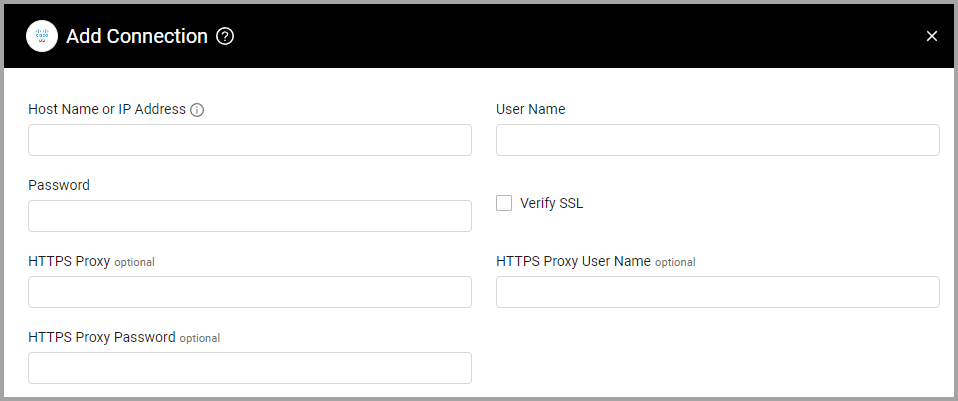
Optional Parameters
-
Verify SSL - Select whether to verify the SSL certificate of the server against the CA database inside of Axonius. For more details, see SSL Trust & CA Settings.
Note:
The configuration of SSL parameters for Management connections might impact some of the VPNs configured on Firewall devices, as some elements of the SSL firewall configuration are shared between VPN and Management interfaces.
-
HTTPS Proxy - Connect the adapter to a proxy instead of directly connecting it to the domain.
-
HTTPS Proxy User Name - The user name to use when connecting to the value supplied in Host Name or IP Address via the value supplied in HTTPS Proxy.
-
HTTPS Proxy Password - The password to use when connecting to the server using the HTTPS Proxy.
To learn more about common adapter connection parameters and buttons, see Adding a New Adapter Connection.
Troubleshooting
Some old ASA devices and software may not be supported, as the Axonius adapter client's TLS/SSL is not compatible with them. A possible error message that might return in this case is as follows:
Connection test failed for all Entity types: Test Connection failed for entity EntityType.Devices Error details: Failed to run on main endpoint tree Failed to run endpoints because Unable to do request: HTTPSConnectionPool ….. Caused by SSLError(SSLError(1, '[SSL: UNSAFELEGACYRENEGOTIATIONDISABLED] unsafe legacy renegotiation disabled (ssl.c:997)Updated 12 days ago