
Arnica.io
Arnica.io is a cloud-based security platform that scans APIs to identify vulnerabilities.
Use Cases the Adapter Solves
- Security Findings Visibility: Gain comprehensive visibility into security findings from Arnica.io to identify and prioritize vulnerabilities across your repository landscape.
- SaaS Application Discovery: Discover and track SaaS applications detected by Arnica.io to ensure complete visibility into your cloud application footprint.
Types of Assets Fetched
This adapter fetches the following types of assets:
- Aggregated Security Findings, SaaS Applications, Application Resources
Before You Begin
Required Ports
- TCP port 443 (HTTPS)
Authentication Methods
API Token Authentication
APIs
Axonius uses the Arnica.io API. The following endpoints are called:
GET /v1/risks/findings- Retrieve security findings
Required Permissions
The API Key must be associated with a user account that has permissions to fetch assets from Arnica.io.
Supported From Version
Supported from Axonius version 6.1
Connecting the Adapter in Axonius
Navigate to the Adapters page, search for Arnica.io, and click on the adapter tile. Click Add Connection.
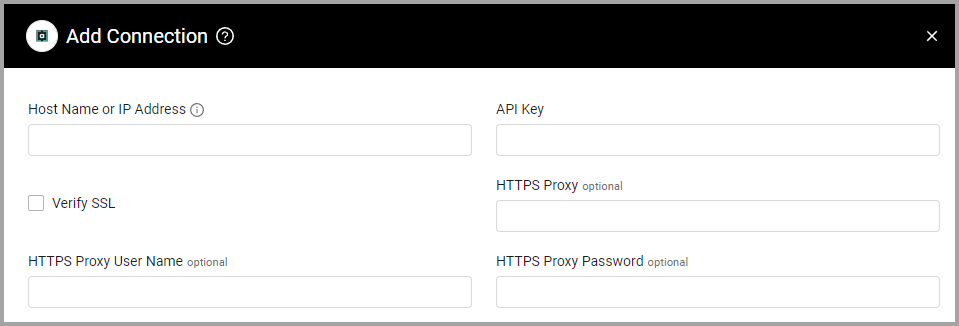
To connect the adapter in Axonius, provide the following parameters:
Required Parameters
-
Host Name or IP Address - The hostname or IP address of the Arnica.io server. The domain should contain a prefix of
http://orhttps://. Do not add any specific endpoints after the domain. Example of a valid domain:https://api.app.arnica.io/ -
API Key - An API Key associated with a user account that has permissions to fetch assets.
Optional Parameters
-
Verify SSL - Select whether to verify the SSL certificate of the server against the CA database inside of Axonius. For more details, see SSL Trust & CA Settings.
-
HTTPS Proxy - Connect the adapter to a proxy instead of directly connecting it to the domain.
-
HTTPS Proxy User Name - The user name to use when connecting to the value supplied in Host Name or IP Address via the value supplied in HTTPS Proxy.
-
HTTPS Proxy Password - The password to use when connecting to the server using the HTTPS Proxy.
To learn more about common adapter connection parameters and buttons, see Adding a New Adapter Connection.
Advanced Settings
Note
- Advanced settings can apply to either all connections of this adapter, or to a specific connection. For more detailed information, see Advanced Configuration for Adapters.
- For more general information about advanced settings, see Adapter Advanced Settings.
Fetch Findings Last Updated in Last X Days - Only fetch findings updated within the last N days. Set to 0 to perform a full sync. Default value: 0.
Filter by Severity - Use this setting to filter findings by severity levels. Allows you to retrieve only findings that match the selected severity levels. Multiple severity levels can be selected.
Updated 6 days ago