
ThousandEyes
ThousandEyes is a network infrastructure monitoring and troubleshooting platform.
Use Cases the Adapter Solves
- Network Infrastructure Visibility: Gain a unified view of ThousandEyes Enterprise and Endpoint Agents across your environment, correlating network monitoring agent data with other asset sources in Axonius.
- Endpoint Agent Discovery: Surface devices running the ThousandEyes Endpoint Agent — including OS version, network interfaces, and location — to identify coverage gaps in your network monitoring deployment.
Types of Assets Fetched
This adapter fetches the following types of assets:
- Devices, Software, Application Settings, SaaS Applications
Data Retrieved through the Adapter
Devices - fields such as: Hostname, IP Address, Last Seen, Location, Agent ID
Application Settings - fields such as: CloudTrail Integration Enabled
Before You Begin
Required Ports
- TCP port 443 (HTTPS)
Authentication Methods
The ThousandEyes adapter supports two authentication methods:
- Version 6 (Username and Password) — Standard username/password credentials for a ThousandEyes user account.
- Version 7 (API Token) — An API token associated with a ThousandEyes user account.
APIs
The ThousandEyes adapter calls the following ThousandEyes REST API endpoints.
Supported API Versions: v6, v7
GET /{version}/agents- Retrieves Cloud and Enterprise Agent data, including cluster members. In v6, appends.jsonto the URL. Paginated viapages.next.GET /v6/endpoint-agents.json- Retrieves Endpoint Agent data. Available in v6 only. Paginated viapages.next.GET /cloud-insights/integration/aws/policy/settings- Retrieves AWS Cloud Insights policy settings.
Required Permissions
To connect the ThousandEyes adapter, the user account must have the API access permission. All three ThousandEyes built-in roles include this permission by default.
Option 1: Built-In Role (Recommended)
Assign the Regular User role. This role includes all permissions required for read-only API access to agent and endpoint data.
Option 2: Custom Role (Minimum Permissions)
If you prefer to use a custom role, grant the following permissions:
API access-Required for all API access.View agents in account group-View Enterprise Agent settings and configurations.View endpoint agent settings-View Endpoint Agent settings and configurations.View endpoint agent data-View data collected by Endpoint Agents.View endpoint agent monitored domain sets- View monitored domain sets.View endpoint agent monitored networks- View monitored networks.View endpoint experience data that identifies users- View user-identifying Endpoint data. If absent, usernames are anonymized.View endpoint experience data that identifies location- View location-identifying Endpoint data. If absent, agent and gateway location are anonymized.View endpoint experience data that identifies network- View network-identifying Endpoint data. If absent, IP addresses, SSID, BSSID, and gateway MAC address are anonymized.View endpoint experience data that identifies endpoint agents- View agent name, hostname, and serial number. If absent, these values are anonymized.
Note:The
/cloud-insights/integration/aws/policy/settingsendpoint may require Organization Admin-level permissions if your account uses AWS Cloud Insights. Verify with your ThousandEyes administrator.
Connecting the Adapter in Axonius
- Navigate to the Adapter Catalog, search for ThousandEyes, and select the adapter.
- Click Add Connection.
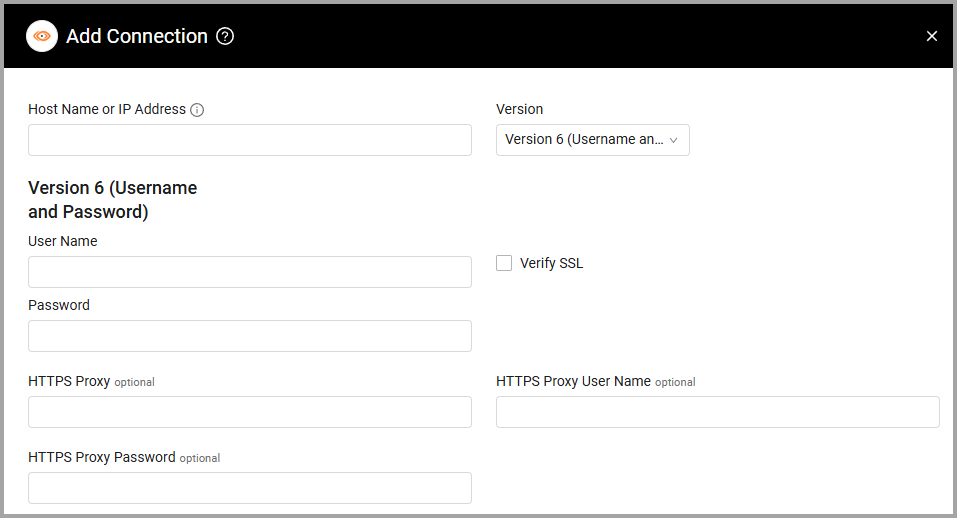
- Provide the following parameters.
Parameters
-
Host Name or IP Address (required) - Use this value:
https://api.thousandeyes.com/ -
Version - Select the API Version, either Version 6 (Username and Password) (default) or Version 7 (API Token).
- User Name and Password - The credentials for a user account that has permission to fetch assets.
- API Token - An API Token associated with a user account that has permissions to fetch assets.
-
Verify SSL - Select whether to verify the SSL certificate of the server against the CA database inside of Axonius. For more details, see SSL Trust & CA Settings.
-
HTTPS Proxy (optional) - Connect the adapter to a proxy instead of directly connecting it to the domain.
-
HTTPS Proxy User Name (optional) - The user name to use when connecting to the value supplied in Host Name or IP Address via the value supplied in HTTPS Proxy.
-
HTTPS Proxy Password (optional) - The password to use when connecting to the server using the HTTPS Proxy.
To learn more about common adapter connection parameters and buttons, see Adding a New Adapter Connection.
Updated 12 days ago