
Qualys WAS - Add or Remove Tags to Assets
Qualys WAS - Add or Remove Tags to Assets adds a specified list of tags to assets in Qualys WAS (Web Application Scanning) for:
- Assets returned by the selected query or assets selected on the relevant asset page.
See Creating Enforcement Sets to learn more about adding Enforcement Actions to Enforcement Sets.
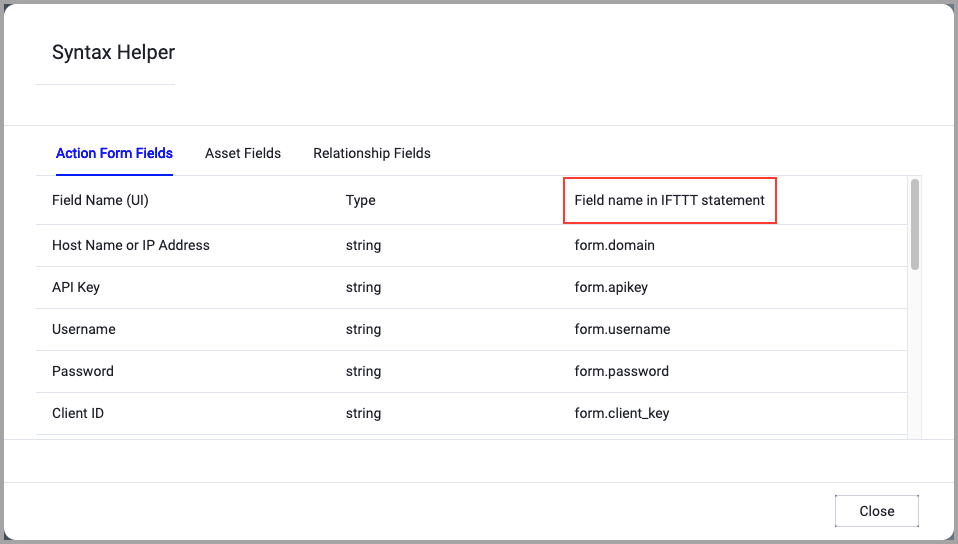
When accessing an enforcement action using the API, you must use the backend form of field names.
Use the Syntax Helper to find the correct name. In the enforcement action, enable Configure Dynamic Values and select Syntax Helper.
Note
- Not all asset types are supported for all Enforcement Actions.
- See Actions supported for Activity Logs, Adapters Fetch History, and Asset Investigation modules.
- See Actions supported for Aggregated Security Findings.
- See Actions supported for Software.
Required Fields
These fields must be configured to run the Enforcement Set.
- Action name - The name of this Enforcement Action. The system sets a default name. You can change the name.
- Configure Dynamic Values (optional) - Toggle on to enter a Dynamic Value statement. See Creating Enforcement Action Dynamic Value Statements to learn more about Dynamic Value statement syntax.
-
Use stored credentials from the Qualys WAS adapter - Select this option to use credentials from the adapter connection. By default, the first connection is selected.
-
When you select this option, the Select Adapter Connection drop-down becomes available. Select the adapter connection to use for this Enforcement Action.
Note
To use this option, you must successfully configure a Qualys WAS adapter connection.
-
-
Tags - Specify at least one new or existing tag in Qualys WAS to be associated with each of the host assets in Qualys. Tag names are case sensitive.
Note
If Axonius will fail to create a tag or add tags to a host asset, Axonius will roll back the entire action and will fail it.
-
Compute Node - The Axonius node to use when connecting to the specified host. For more details, see Working with Axonius Compute Nodes.
Additional Fields
These fields are optional.
Connection and CredentialsWhen Use stored credentials from the adapter is toggled off, some of the connection fields below are required to create the connection, while other fields are optional.
Qualys Cloud Platform Domain - The hostname of the Qualys API (for example, qualysapi.apps.qualys.com). For more details on how to determine your Qualys API URL, see Identify your Qualys platform.
User name and Password - The credentials for a user account that has the Required Permissions to add a specified list of tags to each host asset in Qualys.
Verify SSL (Optional) (default: enabled) - Selects whether to verify the SSL certificate of the server against the CA database inside of Axonius. For more details, see SSL Trust & CA Settings. This setting is enabled by default on all new adapter settings. If you need to disable SSL verification, make sure you disable this setting.)
HTTPS Proxy (optional) - Connect the adapter to a proxy instead of directly connecting it to the domain.
-
Parent tag name - Designate an existing Qualys tag to be the parent tag of the tags being added. Tag names are case sensitive. When no parent tag is supplied, the new tags are added without a parent.
Note
The specified tag must exist in Qualys. If it does not exist in Qualys, Axonius will fail to run the action.
-
Use all Qualys IDs - Use all available Qualys IDs to add the new tags.
Required Permissions
To add or remove tags, a user must have specific permissions enabled in their User Role. These are managed in the Administration Utility (not inside the WAS module itself).
-
The "Manager" Role - By default, managers have full capability to create, edit, delete, and assign tags to any asset.
-
Sub-User Roles (Scanners, Readers, Unit Managers) - For non-manager users, you must customize their role to grant tagging abilities. There are two distinct types of permissions required:
- Global Tagging Permissions (Managing the Tags) - These control whether a user can create new tags or modify tag definitions.
- Create User Tag - Allows the user to define a new tag.
- Edit User Tag - Allows renaming or changing the color of tags they own.
- Delete User Tag - Allows deleting tags.
- Modify Dynamic Tag Rules - Allows changing the logic (regex, IP ranges) that automatically applies dynamic tags.
- Asset Scope Permissions (Applying Tags) - Even if a user can create a tag, they cannot apply it to a Web App unless that Web App is in their Scope.
- Add/Remove Tags - This specific permission allows the user to manually attach or detach a static tag to/from an asset in their view.
- Global Tagging Permissions (Managing the Tags) - These control whether a user can create new tags or modify tag definitions.
For more details about other enforcement actions available, see Action Library.
Updated 9 months ago