
BMC Helix ITSM - Create Ticket
BMC Helix ITSM - Create Ticket creates a new ticket entry in BMC Helix ITSM for:
- Assets returned by the selected query or assets selected on the relevant asset page.
See Creating Enforcement Sets to learn more about adding Enforcement Actions to Enforcement Sets.
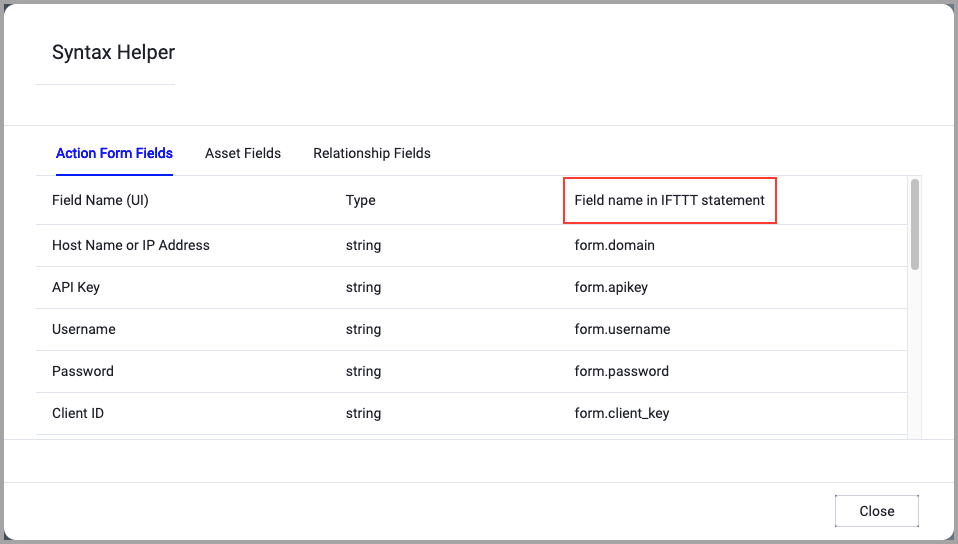
When accessing an enforcement action using the API, you must use the backend form of field names.
Use the Syntax Helper to find the correct name. In the enforcement action, enable Configure Dynamic Values and select Syntax Helper.
Note
- Not all asset types are supported for all Enforcement Actions.
- See Actions supported for Activity Logs, Adapters Fetch History, and Asset Investigation modules.
- See Actions supported for Aggregated Security Findings.
- See Actions supported for Software.
Required Fields
These fields must be configured to run the Enforcement Action.
- Action name - The name of this Enforcement Action. The system sets a default name. You can change the name.
- Configure Dynamic Values (optional) - Toggle on to enter a Dynamic Value statement. See Creating Enforcement Action Dynamic Value Statements to learn more about Dynamic Value statement syntax.
-
Split Tickets By - When enabled, group assets into different tickets based on a shared attribute. Click the adapter icon to select an adapter (or Aggregated), and then click the Select Adapter Field box to select the asset field used to generate a separate ticket for each unique value.
Note- The Split Tickets By option appears only in ticket creation actions, and does not appear in ticket-per-asset creation or ticket update actions.
- For assets containing multiple values, the system uses only the first value to perform the split.
-
Use stored credentials from the BMC Helix ITSM adapter - Select this option to use credentials from the adapter connection. By default, the first connection is selected.
-
When you select this option, the Select Adapter Connection drop-down becomes available. Select the adapter connection to use for this Enforcement Action.
Note
To use this option, you must successfully configure a BMC Helix ITSM adapter connection.
-
-
Form Name - The BMC Helix ITSM form name where the ticket is created. For example, HPD:IncidentInterface.
-
Ticket Description - The description text for the ticket.
-
Compute Node - The Axonius node to use when connecting to the specified host. For more details, see Working with Axonius Compute Nodes.
Additional Fields
These fields are optional.
- Add Default Ticket Description - Enable this option to append Axonius default information to the ticket description. The message includes the query name and link, the number of assets added or removed, and the total number of assets in the query results.
- First Name - The first name of the ticket requester.
- Last Name - The last name of the ticket requester.
- Service Type - The type of service for the ticket. For example, User Service Restoration.
- Status - The initial status of the ticket. For example, New or Assigned.
- Impact - The impact level of the ticket. For example, 1-Extensive/Widespread, 2-Significant/Large, 3-Moderate/Limited, or 4-Minor/Localized.
- Urgency - The urgency level of the ticket. For example, 1-Critical, 2-High, 3-Medium, or 4-Low.
- Reported Source - The source from which the ticket was reported. For example, Web, Email, or Phone.
Enter the proper values for these body parameter fields:
Note
These parameters are customer-specific custom fields in BMC Helix ITSM. Axonius does not validate the provided values. You must ensure that the field names match exactly what is configured in your BMC Helix ITSM instance, and that the values are valid for your environment.
- Assignee Groups - The group or groups to which the ticket is assigned.
- Detailed Description - Extended details about the ticket beyond the standard description. Use this field to include additional context, technical details, or supplementary information.
- RLY_Categorization Tier1 - The primary categorization level for the ticket.
- RLY Categorization Tier2 - The secondary categorization level for the ticket, providing more granular classification within the primary category.
- TicketID_RPY - A reference field used to associate the ticket with another related ticket ID or external identifier.
- ID Cliente - The client or customer identifier to associate with the ticket.
- TemplateID - The ID of a predefined template in BMC Helix ITSM to use when creating the ticket.
Connection and CredentialsWhen Use stored credentials from the adapter is toggled off, some of the connection fields below are required to create the connection, while other fields are optional.
- Host Name or IP Address - The base URL for the BMC Helix ITSM server. For example,
https://helix.example.com. Do not add specific endpoints after the domain.- User Name and Password - The credentials for a BMC Helix ITSM user account that has the Required Permissions to create tickets.
Verify SSL (Optional) (default: enabled) - Selects whether to verify the SSL certificate of the server against the CA database inside of Axonius. For more details, see SSL Trust & CA Settings. This setting is enabled by default on all new adapter settings. If you need to disable SSL verification, make sure you disable this setting.)
HTTPS Proxy (optional) - Connect the adapter to a proxy instead of directly connecting it to the domain.
HTTPS Proxy User Name (optional) - The user name to use when connecting to the server using the HTTPS Proxy.
HTTPS Proxy Password (optional) - The password to use when connecting to the server using the HTTPS Proxy.
Gateway Name - Select the Gateway through which to connect to perform the action.
APIs
Axonius uses the BMC Helix ITSM REST API - POST /api/jwt/login to authenticate, then POST /api/arsys/v1/entry/{form_name} to create the ticket entry.
Required Ports
Axonius must be able to communicate via the following ports:
- TCP port 443 (HTTPS)
Required Permissions
The stored credentials, or those provided in Connection and Credentials, must have the following permission(s) to perform this Enforcement Action:
The following permissions are needed for the BMC Helix ITSM user account:
- Permission to create entries in the specified form. For example, submit access to the HPD:IncidentInterface form for incidents.
- Permission to authenticate through the BMC Helix ITSM REST API using username and password credentials.
Recommended role: Contact your BMC Helix ITSM administrator to confirm the minimum role required to create entries in the forms your organization uses.
For more details about other enforcement actions available, see Action Library.
Updated 3 months ago