
SD Elements
SD Elements is a threat modeling and security requirements management platform that automates the identification of security controls and compliance requirements throughout the software development lifecycle.
Use Cases the Adapter Solves
- Application Security Visibility: Gain comprehensive visibility into security projects across your organization.
- Security Task Tracking: Monitor security countermeasures and tasks assigned to development teams.
- Compliance Monitoring: Track risk policy compliance across all projects and business units.
Asset Types Fetched
- Organizational Units, Application Resources, Tickets
Data Retrieved through the Adapter
The following data can be fetched by the adapter:
Organizational Units (Business Units): Fields such as Remote ID, Name, Slug
Application Resources: Fields such as Remote ID, Name, Description
Tickets: Fields such as Remote ID, Task ID, Title
Before You Begin
Required Ports
- TCP port 443 (HTTPS)
Authentication Method
API Token Authentication
APIs
Axonius uses the SD Elements API v2. The following endpoints are called:
GET /api/v2/business-units/- Fetch business unitsGET /api/v2/applications/- Fetch applicationsGET /api/v2/projects/- Fetch security projectsGET /api/v2/projects/{project_id}/survey/- Fetch project survey dataGET /api/v2/projects/{project_id}/survey/comments/- Fetch survey commentsGET /api/v2/projects/{project_id}/problems/- Fetch problemsGET /api/v2/projects/{project_id}/problems/{problem_id}/tasks/- Fetch security tasks
Permissions
The following permissions are required:
Administrator Role (Recommended)
Assign the global role Administrator to the API user.
Custom Global Role
Alternatively, create a custom global role with the following permissions:
- View all projects
- View all business units
- Manage users & groups (for API token generation)
Supported From Version
Supported from Axonius version 8.0.14
Setting Up SD Elements to Work with Axonius
To generate an API token in SD Elements:
- Log in to SD Elements with an account that has Administrator or appropriate custom role permissions.
- Navigate to Account Settings → API Tokens.
- Click Generate New Token or Create API Token.
- Provide a descriptive name for the token (e.g., "Axonius Integration").
- Copy the generated token immediately and store it securely.
- Note: The token will only be displayed once. If lost, you must generate a new token.
Connecting the Adapter in Axonius
Navigate to the Adapters page, search for SD Elements, and click on the adapter tile.
Click Add Connection.
To connect the adapter in Axonius, provide the following parameters:
Required Parameters
- Host Name or IP Address - The base domain for the SD Elements API.
- API Token - An API Token generated from SD Elements UI under Account Settings → API Tokens.
- Connection Label - A name for this connection.
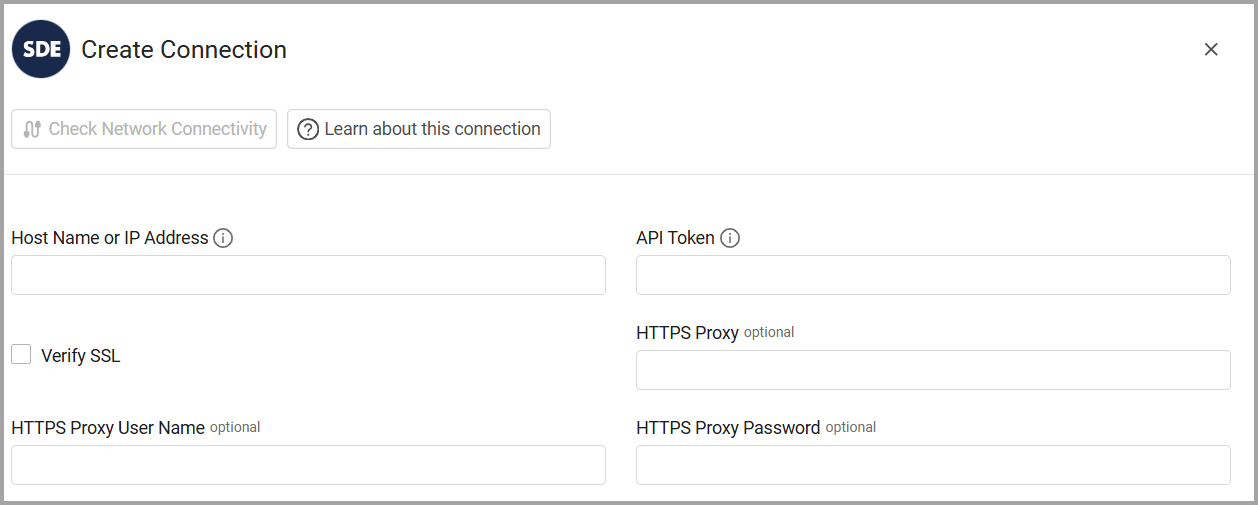
Optional Parameters
- Verify SSL - Select whether to verify the SSL certificate of the server against the CA database inside of Axonius. For more details, see SSL Trust & CA Settings.
- HTTPS Proxy - Connect the adapter to a proxy instead of directly connecting it to the domain.
- HTTPS Proxy User Name - The user name to use when connecting to the value supplied in Host Name or IP Address via the value supplied in HTTPS Proxy.
- HTTPS Proxy Password - The password to use when connecting to the server using the HTTPS Proxy.
-
To learn more about common adapter connection parameters and buttons, see Adding a New Adapter Connection.
Advanced Settings
Note:
- Advanced settings can apply to either all connections of this adapter, or to a specific connection. For more detailed information, see Advanced Configuration for Adapters.
- For more general information about advanced settings, see Adapter Advanced Settings.
Enrich List Projects with List Tasks by Project - Enable this option to enrich ApplicationResources (Projects) with task data from SD Elements. Each project will include a list of associated tasks with details like task ID, title, status, phase, and assigned user. Example: Enable this setting to track security tasks and their completion status for each project.

Updated 12 days ago