
Copy of Lansweeper Cloud
Lansweeper Cloud federates data from all local Lansweeper discovery instances into a single source of truth.
The Lansweeper Cloud adapter provides Axonius with visibility into your publicly accessible assets, including device, vulnerability, software, and SaaS application data.
Asset Types Fetched
- Devices
- Vulnerabilities
- Software
- SaaS Applications
Before You Begin
Required Ports
- TCP port 8080
Authentication Methods
- API Token
Required Permissions
The value supplied in Token must be associated with credentials that have Oauth Client App permissions to fetch assets.
APIs
Axonius uses the Lansweeper V2 API to retrieve asset data.
Supported From Version
This adapter is supported from Axonius version 4.7.
Generating the API Token
- In Lansweeper, from the bottom-left corner, select Settings.
- Select Developer tools
>Add new API client. - Select Personal Access Token.
- Enter an API client name.
- Optionally, enter a description and identifying image.
- To use one of Lansweeper marketplace integrations, select it from the Integrations menu. Otherwise, select Other and enter a custom integration name.
- Select an expiration date for the token.
- Select which sites you want to grant API access to.
- Copy the generated token and paste it into the Axonius Token parameter.
Connection Parameters
To connect the adapter in Axonius, provide the following parameters.
Required Parameters
-
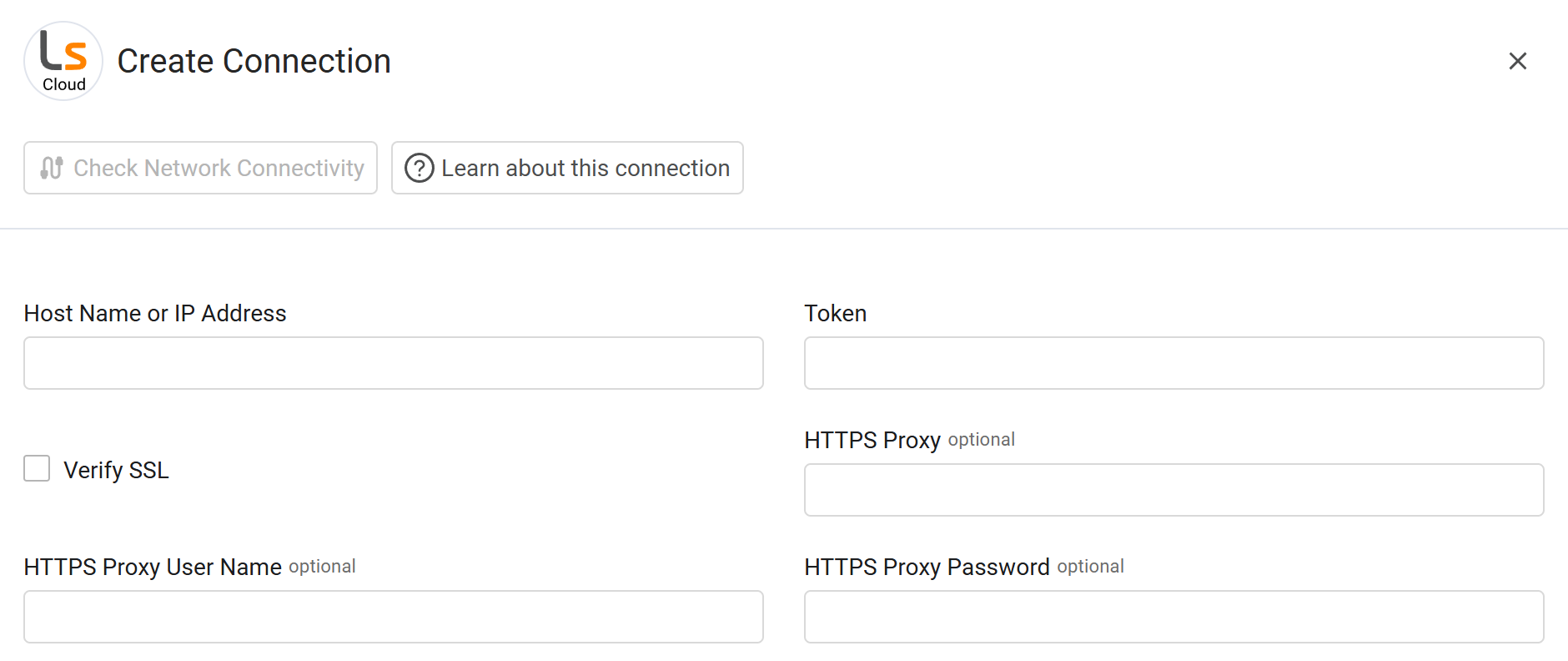
Host Name or IP Address - Enter the hostname or IP address of the Lansweeper Cloud server that Axonius can communicate with via the Required Ports. For example:
https://api.lansweeper.com -
Token - Enter the API Key associated with a user account that has the Required Permissions to fetch assets. For instructions, see Generating the API Token.
Optional Parameters
-
Verify SSL - Select whether to verify the SSL certificate of the server against the CA database inside of Axonius. For more details, see SSL Trust & CA Settings.
-
HTTPS Proxy - Enter an HTTPS proxy address to connect the adapter to a proxy instead of directly connecting it to the domain.
-
HTTPS Proxy User Name - Enter the user name to use when connecting to the value supplied in Host Name or IP Address via the value supplied in HTTPS Proxy.
-
HTTPS Proxy Password - Enter the password to use when connecting to the server using the HTTPS Proxy.
To learn about additional optional/common adapter connection parameters, see Adding a New Adapter Connection.
Advanced Settings
Note
- Advanced settings can apply to either all connections of this adapter, or to a specific connection. For more detailed information, see Advanced Configuration for Adapters.
- For more general information about advanced settings, see Adapter Advanced Settings.
- Ignore Device Types (optional) - Enter one or more comma-separated device types to ignore.
- Ignore devices with no last seen (default: false) - Select this option to not fetch devices if they do not have a last seen timestamp.
- Fetch Vulnerabilities (default: false) - Select this option to fetch vulnerabilities. This setting requires your Lansweeper account to have the View Vulnerabilities permission applied.
- Number Of Vulnerabilities Per Page (default: 100) - Set how many vulnerabilities you want to include in each page to control the limit in the vulnerability fetch request.
- Parse OS data (default: true) - Clear this option to disable OS data parsing, or keep it selected to enable the parsing.
- Export Status Timeout (Minutes) (default: 90) - Enter the maximum duration (in minutes) for export status checks before a timeout occurs.
Updated 9 months ago