
Copy of Wiz
Wiz analyzes all layers of the cloud stack to identify high-risk attack vectors to be prioritized and fixed.
Asset Types Fetched
This adapter fetches the following types of assets:
- Devices, Users, Vulnerabilities, Software, Groups, SaaS Applications, Compute Services, Application Services, Networks, Load Balancers, Databases, Containers, Object Storage, Network Services, File Systems, Accounts/Tenants, Serverless Functions, Disks, Alerts/Incidents
Before You Begin
APIs
Axonius uses the wiz.io API.
Required Ports:
- TCP port 443
Required Permissions
The Wiz Axonius integration is required for this deployment. The appropriate permissions will be set automatically by the integration, which is vetted and tested by Axonius and Wiz.
Note:
Users are able to see the permissions set in the integration's Service Account prior to creating the integration.
Configuring Wiz Axonius Integration
-
In Wiz, go to Settings > Deployments > Integration and click + Add Deployment.
-
Under the required category or by using the search bar, type Axonius.
-
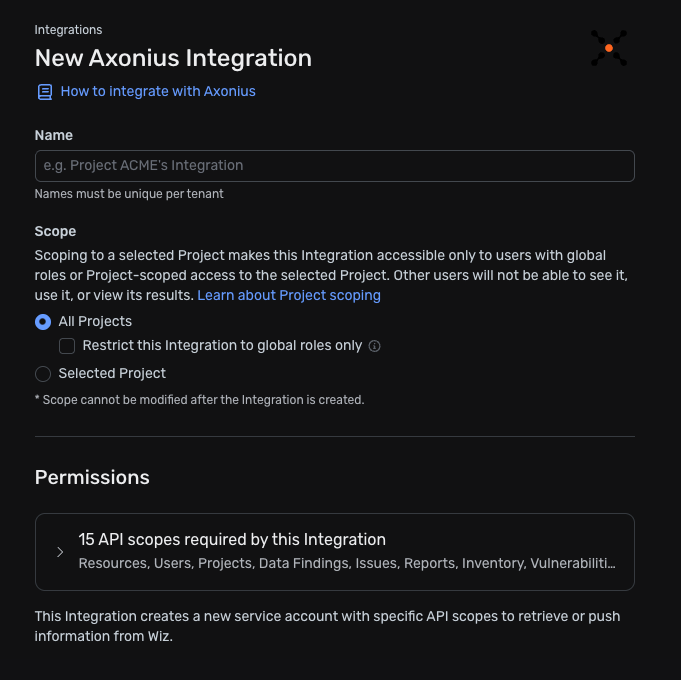
On the New Axonius Integration page:
- For Name, enter a meaningful name, for example: Axonius Integration
- For Scope, narrow the scope of this integration to specific projects
- Review the permissions required for the service account that is used for this integration. You cannot edit these.
-
Click Add Integration.
-
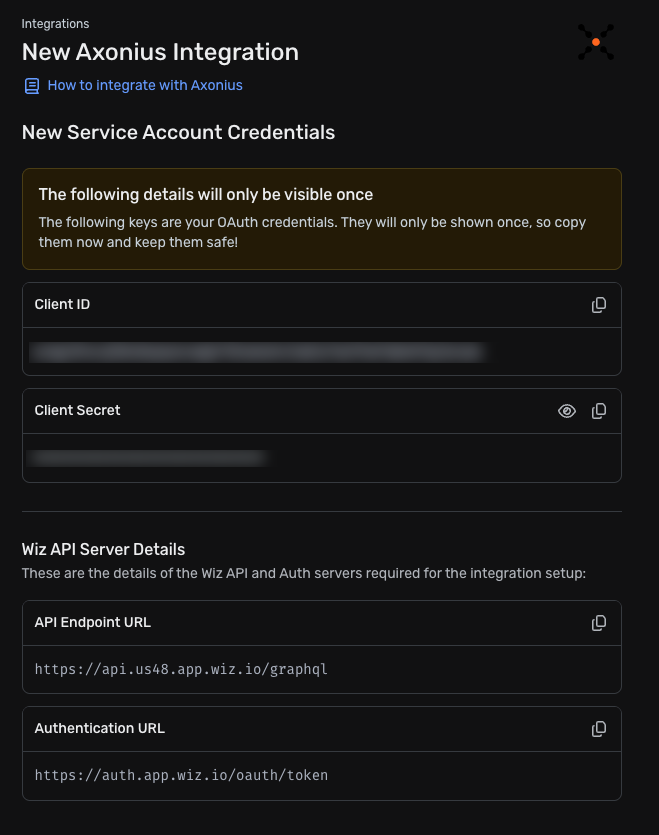
A new service account is created. Under New Service Account Credentials, copy and save the following to a local file or secure location for the next step:
- Client ID
- Client Secret
- API Endpoint URL
- API Authentication URL
Connecting the Adapter in Axonius
Required Parameters
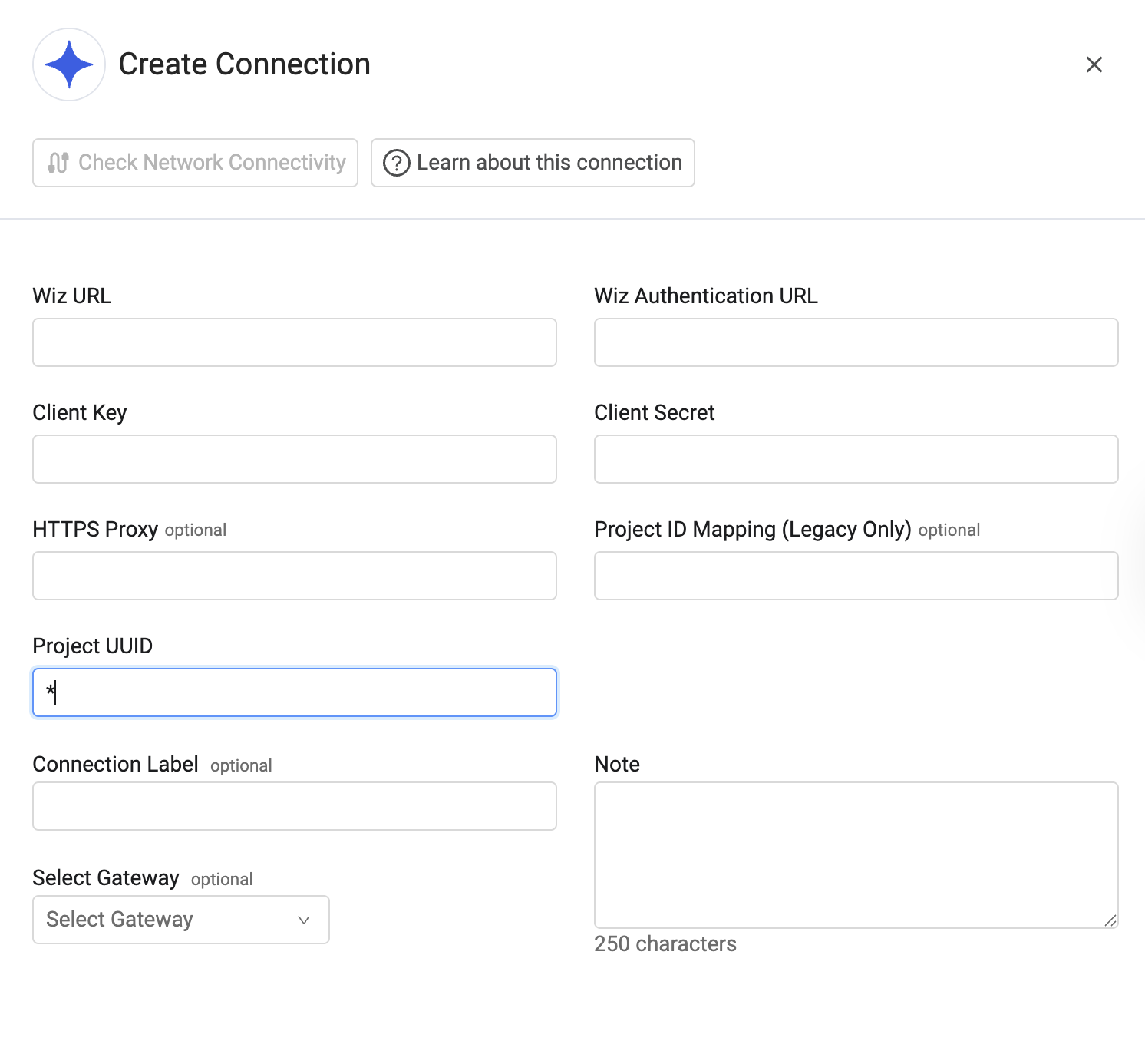
- Wiz URL - The API Endpoint URL of the Wiz server that Axonius can communicate with via the Required Ports. You can find the API URL required for the connection configuration via the following Wiz URL:https://app.wiz.io/user/profile. The Wiz URL should follow the pattern
https://api.{region}.app.wiz.io/. - Wiz Authentication URL - Enter the URL of the Authentication service used for the Wiz application (see Initial Setup).
Notes
The authentication URL should include the hostname only, omitting any suffixes. For example, enter
auth.app.wiz.iowithout a trailing/auth/tokenConfirm that the public IP address of your Axonius instance is added to the "Source IP address" configuration within the Wiz application.
If you are filtering outbound traffic from your Axonius instance, verify that you have both the Wiz URL and Wiz Authentication URL as allowed destinations.
- Client Key and Client Secret - Input the Key and Secret from the Axonius Integration Service Account. See Configuring Wiz Axonius Integration for details about how to obtain these parameters.
-
Optional Parameters
- HTTPS Proxy - Connect the adapter to a proxy instead of directly connecting it to the domain.
- Project ID Mapping (Legacy Only) - Enter the Project ID of the account to fetch.
- Project UUID - Enter a project UUID to fetch resources only from the project listed. To obtain the project UUID, in the Wiz platform:
- Select Settings
>Projects. - Click the three dots to the right of the relevant project.
- Copy the project UUID provided. Specifying a single project UUID is most recommended. You can use an asterisk to pull all projects, but permission errors might encounter as a result.
- Select Settings
To learn more about common adapter connection parameters and buttons, see Adding a New Adapter Connection.
Advanced Settings
Note
Advanced settings can either apply to all connections for this adapter, or to a specific connection. Refer to Advanced Configuration for Adapters.
-
Inventory report maximum number of rows (imposed by Wiz API) (optional, default: 100000) - Set the maximum number of row for an Inventory report.
-
Asset types to fetch (optional, default: VIRTUAL_MACHINE) - Select one or more types of assets to fetch.
-
Do not fetch devices where Power State is Turned Off (optional) - When selected, devices with a power state 'off' are not fetched by Axonius.
-
Fetch cloud configuration findings - Select this option to enrich assets with cloud configuration findings.
-
Cloud configuration findings severity to fetch - Select severity levels from this drop-down to filter cloud configuration findings.
-
Cloud configuration findings status to fetch - Select status values from this drop-down to filter cloud configuration findings.
-
Issues report maximum number of rows (imposed by Wiz API) (optional, default: 30000) - Set the maximum number of row for an Issues report.
-
Fetch issues (required) - Select whether to fetch issues and enrich devices with issue data.
-
Fetch issues evidence (non-legacy) (required) - Select whether to fetch issues evidence data. This option is only available for non-legacy connections.
-
Fetch issue source rules (required, default: False) - Select whether to fetch issue source rules data. This includes data for Controls as well as other sources for Issues, such as Cloud Configuration Rules and Cloud Event Rules.
-
Issues severity to fetch (required, default: CRITICAL, HIGH, MEDIUM) - Select one or more severity levels to filter issues that are fetched.
-
Issues status to fetch (required, default: OPEN, IN_PROGRESS) - Select one or more statuses to filter issues that are fetched.
-
Fetch vulnerability findings (optional) - Select to fetch vulnerability information from Wiz.
-
Vulnerability status to fetch - Enter the vulnerability statuses you want to fetch. The option are Open, Rejected, or Resolved.
-
Ignore rejected and resolved vulnerabilities older than - Set a number of days so that the adapter will ignore rejected and resolved vulnerabilities older than that number of days.
-
Fetch Installed Software - Select this option to fetch installed software for Containers, Container Images, and Virtual Machines.
-
Filter installed software older than X days (optional, default: 8) - Select whether to enrich installed software data for installed software older than the provided number of days. If you enter 0, no filtering will occur.
-
Parse vulnerability findings description (warning: heavy field) - Select this option to fetch the vulnerability description field.
-
Vulnerability findings detection method to fetch - From the drop-down, select one or more detection methods to filter vulnerability findings that are fetched. If empty all methods will be fetched.
-
Vulnerability findings severity to fetch (required) - Select one or more severity levels of vulnerability findings to filter findings that are fetched. The options are: CRITICAL, HIGH, MEDIUM, LOW, LOW_WITH_A_FIX, NONE. Select 'NONE' to not filter per vulnerability findings severity.
-
Fetch network exposures - Select this option to fetch network exposures from Wiz. The Wiz network analysis engine identifies the effective exposure paths of cloud resources, providing an important layer of context for identifying and prioritizing critical risks in an environment.
-
Enrich assets with Stateful set - Select this option to enrich assets with information on their Kubernetes cluster type.
-
Enrich assets with Service Usage Technology - Select this option to enrich subscriptions with service usage tech information.
-
Enrich assets with Authentication Configuration - Select to enrich assets with information on their Authentication Configuration.
-
Attach volumes to associated VMs (required, default: True) - Select this option to attach cloud storage volumes to their associated VMs. When you select this option, volumes are not created as separate devices. When the option is cleared, each volume is created as a separate device.
-
Attach network interfaces to associated assets (required, default: True) - Select this option to attach network interfaces to their associated assets.
-
Fetch subscription tags - Select this option to fetch Subscription Tags. When this setting is selected, the adapter creates dynamic
subscription_tagfields and parses the tags into the regularsubscription_tagslist. -
List of tags to parse as fields - Specify a comma-separated list of tag keys to be parsed as device fields. Each tag is a key-value pair that is part of the Adapter Tags complex field.
-
Fetch Wiz users (required, default: False) - Select this option to fetch Wiz users (Wiz platform user accounts).
-
Fetch cloud user assets (required, default: False) - Select this option to fetch cloud user assets discovered by Wiz.
-
Cloud user asset types to fetch (optional) - Select one or more user types of assets to fetch.
-
Parse Wiz vulnerability findings to a separate field - Wiz vulnerability findings are parsed by default into the Vulnerable Software field. Selecting this option will also parse them into a field named Vulnerability Findings.
-
Fetch compute images as devices - Select this option to parse compute images as both Compute Images and Devices asset types. When this setting is unselected, the SANPSHOT asset type is only parsed as Compute Images.
Note
To learn more about Adapter Configuration tab advanced settings, see Adapter Advanced Settings.
Supported From Version
Supported from Axonius version 4.4
Related Enforcement Actions
Updated about 3 hours ago