
Security Findings Page
Use the Security Findings Assets Page to view specific CVEs and other vulnerabilities detected on specific assets. Learn about default fields and how to track remediation.
Use the Security Findings Assets Page to view specific CVEs and other vulnerabilities detected on specific assets.
To access this page, from the left navigation menu, select Exposures > Security Findings.
Security Findings Assets Page
The Security Findings page includes three tabs representing three different views, two of them show specific Security Findings by predefined query filters. Navigate between those tabs to display the view most relevant to your needs at any given moment.
- All (opens by default when entering the page) - All Security Findings from all sources.
- Axonius Security Findings - Security Findings defined and generated by Axonius, based on information retrieved from adapters and other sources such as enrichment and Security Finding Rules. The source of these Security Findings is marked by a unique Axonius logo under the Adapter Connections column.
- External Security Findings - All Security Findings (CVEs, plugins, etc.) retrieved from all adapters.
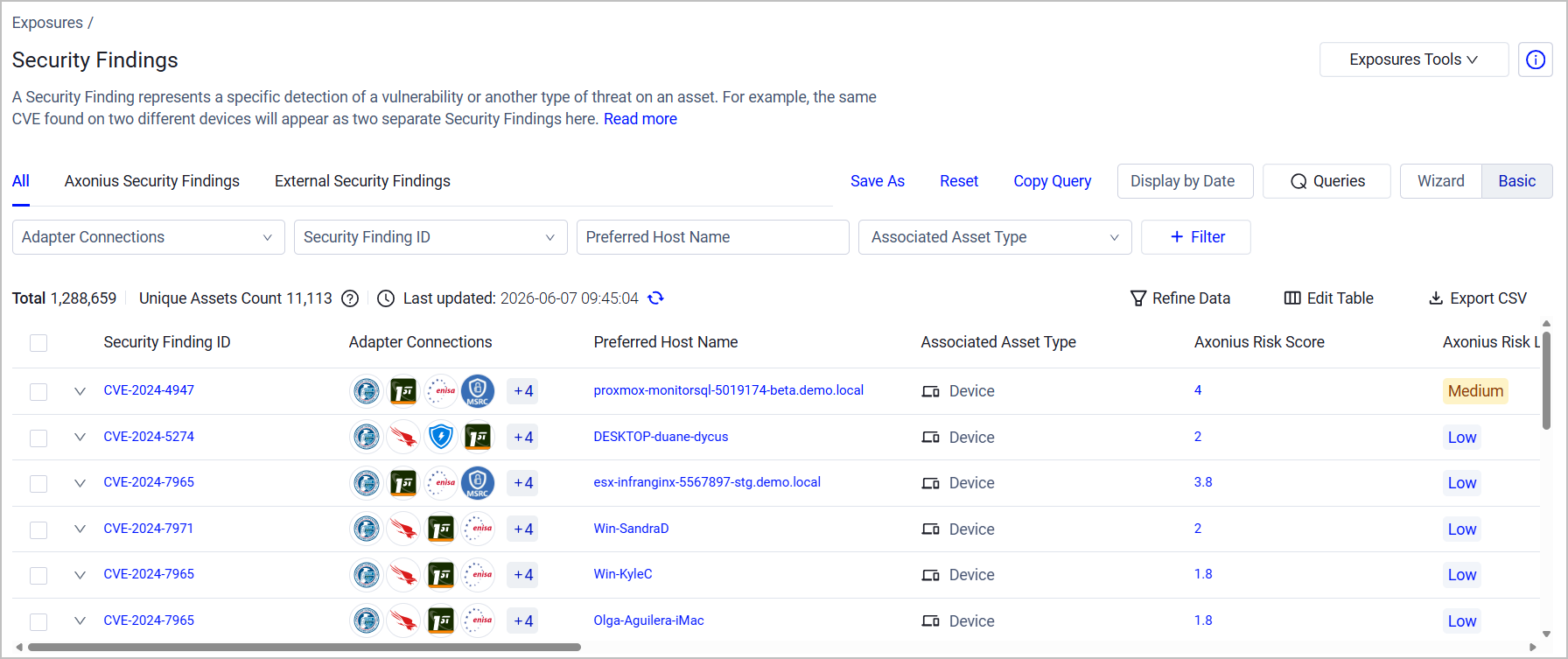
The fields on the Security Findings Assets table provide valuable information on the CVEs detected on your assets.
Note
All default and optional Security Findings fields, explained in the following sections, are also accessible from the Security Finding table in any asset's Profile Page. In this page, go to the left navigation menu, and under Tables, select Security Findings.
Default Fields
All Security Findings
-
Security Finding ID - The identifier of the Security Finding.
-
Axonius Status - See Remediation Tracking Fields for information.
-
Preferred Host Name - a clickable field that allows you to navigate to the Profile Page of the asset the vulnerability was detected on. Note that you can also use the Asset Unique ID or Associated Asset ID fields for the same information.
-
Associated Asset Type - The asset type on which this finding was detected: Device, Database, Compute Image, etc. You can also add the Associated Sub-Asset Types field to explore Security Findings found on Axonius Sub-Assets, such as Network Devices, or use it in queries.
-
Axonius Risk Score, Axonius Risk Level - See Risk Score Configuration for information.
-
Axonius SLA: Time To Remediate, Axonius SLA: Due Date, Axonius SLA: Due Date Status - See SLA Management for information.
-
Preferred First Seen - An aggregated date field that shows the earliest date that a Security Finding was seen on the asset. Generally, the date represents the first time this vulnerability was fetched, unless there is a date when it was first seen by an adapter.
-
Preferred Last Seen - An aggregated date field that shows the latest date that a Security Finding was seen on the asset. The value of this field depends on whether the Security Finding is Open or Closed.
- For a Closed vulnerability, the Preferred Last Seen date is either the remediation time reported by the adapter, or, if no remediation time is reported, the last time it was fetched as an Open vulnerability.
- For an Open vulnerability, the Preferred Last Seen date is the last time it was fetched or reported by an adapter.
-
Preferred Age (Days) - How many days ago the vulnerability was open. This value is calculated by one of the following methods:
- (Default) Deducting the Preferred First Seen date from the Preferred Last Seen date
- Deducting the Preferred First Seen date from the current day's date To select the method you want to use to calculate the value of Preferred Age (Days):
- Navigate to System Settings > Data > Security Findings Data.
- Under Preferred Age configuration, select a calculation method. Your selection applies across all adapters.
Note
The information in the Preferred First Seen, Preferred Last Seen and Preferred Age (Days) fields is provided to allow for MTTR (Mean Time to Remediate) and SLA metrics calculations.
-
Tags - Learn more about Working with Tags.
-
Security Finding Exception: Status - Whether an active Exception Rule applies to this Security Finding or not.
-
Security Finding Exception: Exception ID - A clickable field directing you to a specific Exception Rule in the Exception Management page.
Axonius Security Findings
- Security Finding ID - The identifier of the Security Finding. For Axonius Security Findings, this is the ID of the Axonius-generated Security Finding asset detected on a specific group of assets: for example, a mandatory agent that was found missing on a certain number of devices. Learn more about Security Finding Rule IDs.
- All other default fields are the same as in the All Security Findings tab, except for:
- Additional fields: Security Finding Rule Name, Security Finding Rule Category, and Security Finding Rule Creator - See Security Finding Rules for information.
- Missing fields: Security Finding Exception: Status and Security Finding Exception: Exception ID.
External Security Findings
- Security Finding ID - The identifier of the Security Finding. For External Security Findings, this is either the CVE ID number as provided by the NIST National Vulnerability Database (NVD), or a unique ID number provided by the adapter.
- All other default fields are the same as in the All Security Findings tab, except for Security Finding Exception: Status and Security Finding Exception: Exception ID, which are not included in this tab by default.
Additional Fields
The following fields are not default in any of the Security Findings tabs. You can add them by clicking Edit Table > Edit Columns.
- CVE Description - A description of the vulnerability.
- Associated Asset Tags - Any tags assigned to this asset from its Assets page are also displayed in the Security Findings table.
- CVSS - Common Vulnerability Scoring System (CVSS), a numeric score used to supply a qualitative measure of severity. The CVSS rating is fetched from the source (v2,0, v3.0, v4.0, etc.).
- CVE Severity - NONE, LOW, MEDIUM, HIGH, CRITICAL, UNTRIAGED, NEGLIGIBLE, INFO, MODERATE, SERIOUS, SEVERE, URGENT, or CRITICAL (based on the CVSS rating).
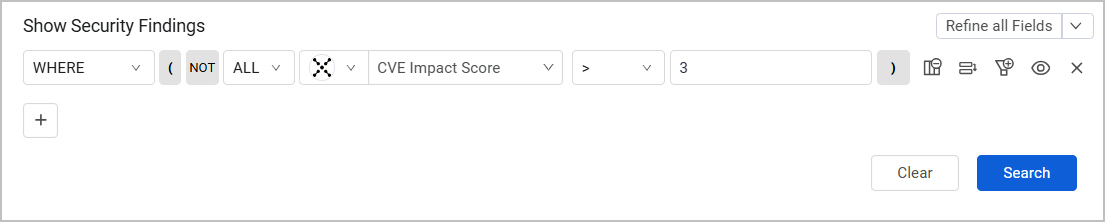
- CVE Impact Score - An evaluation of the "damage level" that might occur if the vulnerability is exploited, according to NIST.
- CVE Exploitability Score - How likely it is that a vulnerability will be exploited according to NIST.
- Mitigated - Whether actions were taken to reduce or eliminate the risk associated with the vulnerability (Yes/No).
Remediation Tracking Fields - Security Finding Statuses
Some vulnerability adapters do not report vulnerabilities after they were remediated. To address this issue and maintain accurate calculation of key metrics such as Time to Remediate (TTR) and SLA, Axonius offers a mechanism to identify when a vulnerability is no longer being reported, indicating potential remediation. This mechanism compares the reported vulnerabilities in the latest discovery cycle with those reported in the previous cycle. When a vulnerability is reported in the previous cycle but is absent from the latest cycle, it is considered potentially remediated. The following fields pertain to tracking and calculating remediation times:
Adapter Fields
- First Seen, Last Seen - The time when an adapter first or last detected the vulnerability.
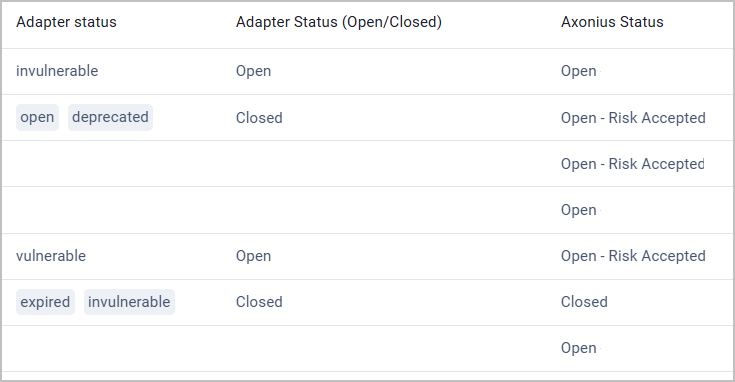
- Adapter Status - All the raw statuses retrieved from all adapters.
- Adapter Status (Open/Closed) - This field parses all raw statuses from the general Adapter Status field and translates them to Open or Closed.
- Remediation Time - When the vulnerability was remediated according to information reported by an adapter.
Axonius Fields
-
First Fetch Time, Last Fetch Time - The time when an adapter first or last reported the vulnerability to Axonius.
-
Axonius Status - One of the following statuses:
Status Explanation Open The vulnerability is currently detected on the asset (reported by an adapter). Closed The vulnerability is no longer detected on the asset (no longer reported by an adapter). Reopen The vulnerability was re-detected on the asset after being closed for more than 7 days.
Note: In this case, the First Fetch Time field value matches the date when the vulnerability was re-opened. This might also affect the Preferred Age field value.Open - Risk Accepted
Reopen - Risk AcceptedThe vulnerability was marked as Excepted using Exception Management rules. -
Axonius Status Last Update - When the Axonius Status field was last updated, reflecting the most recent status change.
-
Axonius Remediation Time - When the status was changed from Open to Closed or from Reopen to Closed. This field is populated only when the Axonius Status field value is Closed.
See how the different "Status" fields are displayed on the Security Findings page:
Notes
The Axonius fields are populated by values from the adapter only if the adapter indeed reported this information. Otherwise, these values are generated by Axonius.
This logic does not apply to manually closed vulnerabilities.
Status Conflict Resolution
In case of conflicting data between adapters, Axonius developed conflict resolution rules to determine the final vulnerability status.
Conflict Scenario Result An adapter-reported status differs from a status detected in Static Analysis The adapter status takes precedence A single adapter reports more than one status The most recent status according to the Last Seen field takes precedence Several conflicting statuses are reported by different adapters for the same Security Finding
- The adapter belonging to a tier takes precedence
- If the adapters belong to the same tier, the severest status takes precedence (Open > Closed)
Adapter Hierarchy
Adapter Name Categories Tiering CrowdStrike Falcon EDR/EPP, SaaS Management 1 Microsoft Defender for Endpoint (Microsoft Defender ATP) EDR/EPP, SaaS Management 1 Microsoft Defender for Endpoint for GCC EDR/EPP, SaaS Management 1 Tenable Vulnerability Management Vulnerability Management platform 1 Qualys Cloud Platform Vulnerability management Platform 2 Qualys Container Security Containers 2 Rapid7 InsightVM Vulnerability management Platform 2 Rapid7 Nexpose and InsightVM Vulnerability management Platform 2 Wiz Cloud Security 2 Tenable Nessus Network Scanner 3 Tenable Nessus CSV File External input VM platform 3 Tenable.io Scan Export CSV External input VM platform 3 Qualys PCI Compliance Audit/Compliance 3 Qualys VMDR OT OT + Compliance 3 Qualys WAS AppSec 3 Rapid7 Insight AppSec AppSec 3 Rapid7 Nexpose Warehouse External Input VM Platform 3 Tenable.ot OT 3 Tenable.sc (SecurityCenter) External Input VM Platform 3
Status Resolver
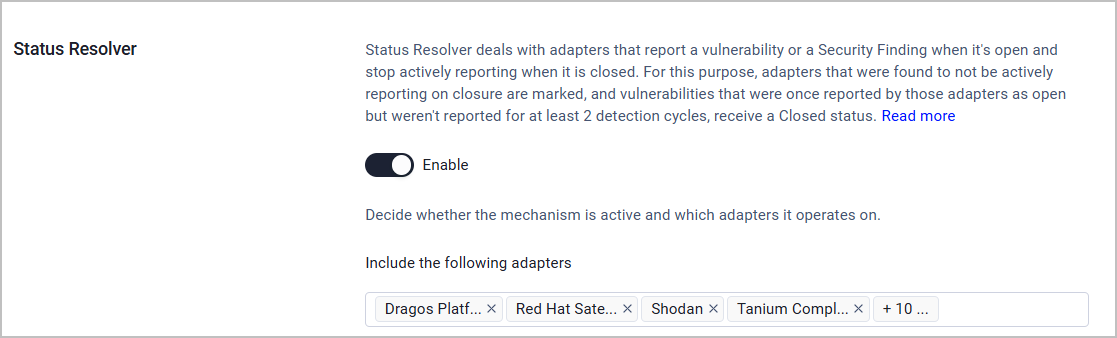
Axonius' Status Resolver deals with adapters that report a vulnerability or a Security Finding when it's open and stop actively reporting when it is closed, meaning, the Adapter Status field has no value. For this purpose:
- The system marks adapters that were found to not be actively reporting on closure.
- Vulnerabilities that were once reported by those adapters as open but weren't reported in the last detection cycle receive a Closed status.
This mechanism is optional. To enable or disable it:
-
In Axonius, navigate to Settings > Data > Security Findings Data.
-
Scroll down to the Status Resolver section and toggle it on or off.
-
When Status Resolver is enabled, you can also define which adapters it operates on. Select or unselect adapters from the dropdown list to include or exclude them.
Data Enrichments
Axonius uses a variety of sources to collect information on reported CVEs and other Security Findings, and enriches them with that information. The icon of the enrichment from which the vulnerabilities originate is displayed under the Adapter Connection column. See Vulnerability Enrichment for detailed information on the enrichment sources.
Security Findings Queries
Use the Query Wizard to build queries on the Security Findings page. For example, you can build a simple query that shows only CVEs with a certain range of CVE Impact Score, as demonstrated here:
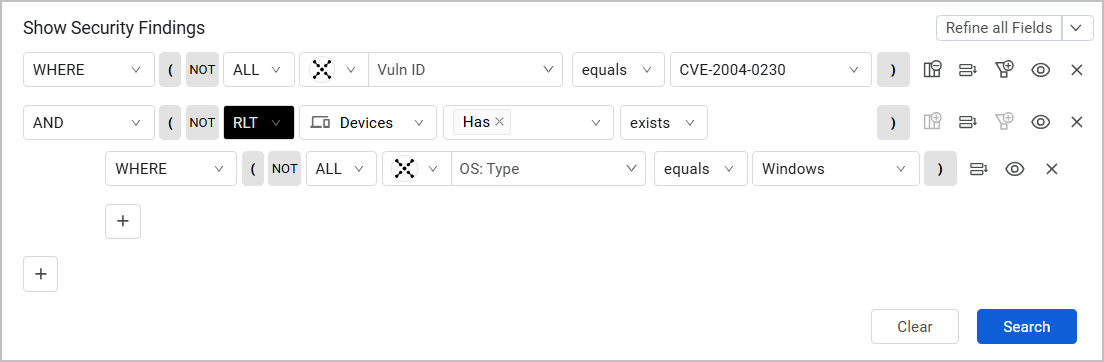
You can also use build relationship queries based on the relationship between a Security Finding and the asset it was detected on. In the following example, we want to show instances of a specific Vuln ID only on devices that have a Windows OS type:
Working with Queries in Tabs
As mentioned earlier, the Security Findings page includes three tabs representing three different views. The Axonius Security Findings and External Security Findings are filtered by predefined queries. You can create and save custom queries for each tab and save them under Saved Queries for later use. However, after you exit the page, each tab is reset to its default predefined query.
Security Findings Profile Page
Click on a Security Finding row to view its Asset Profile page. The Security Finding Profile page provides detailed information about the Security Finding selected. The Security Finding Profile page is identical to the Asset Profile page with all of its relevant capabilities. Refer to Asset Profile Page to learn more.
Updated 6 days ago