
Deploying the ServiceNow Adapter
To deploy the ServiceNow Adapter, Perform the following steps:
1. Create ServiceNow credentials with the appropriate permissions
Axonius supports two authentication methods for connecting to ServiceNow:
Username/Password
-
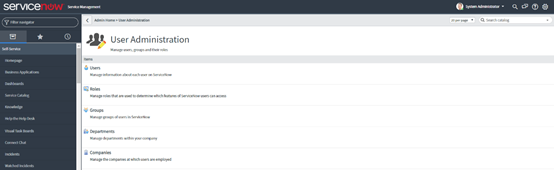
Navigate to User Administration → Users and click New.
- User ID:
axonius_integration - Password: Set a strong password.
- User ID:
-
Save the new user, then search for it in the Users list.
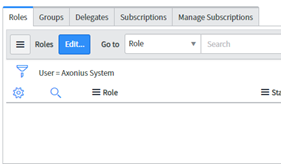
- Click the user record to open it.
- Click Edit in the Roles section to modify the user’s assigned roles.
-
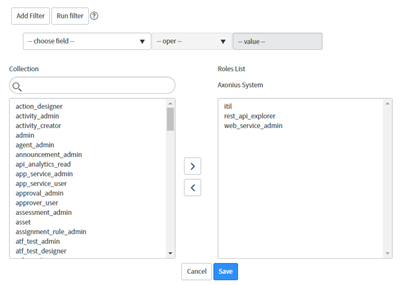
Assign the required roles for Cyber & Software Assets fetching.
- Refer toRequired Permissions for the complete list.
-
Click Save and then Update to apply the changes to the user’s settings.
OAuth ID/Secret
1. Create Service Account User
-
Navigate to User Administration → Users and click New.
-
Configure the following fields:
- User ID:
axonius_integration - First Name: e.g.
Axonius - Last Name: e.g.
Integration OAuth - Password: Set a strong password
- User ID:
-
Click Save
Note: The First Name and Last Name are important as the OAuth Application User field (configured later) only allows selection by name.
2. Create Custom Read-Only Role
- Navigate to User Administration → Roles and click New.
- Configure the following fields:
- Name:
x_axonius_read - Description:
Read-only access for Axonius integration
- Name:
- Click Save.
3. Configure Access Control Lists (ACLs)
- Navigate to System Security → Access Control (ACL).
- For each table listed below, create a record ACL with Operation: read:
sysevent_script_action
sys_email_filter
sys_dictionary
sys_properties
password_policy
syslog_transaction
v_plugins
sys_user- For each ACL record:
- Set Requires role to
x_axonius_read - Set the script to
answer = true; - Click Save.
- Set Requires role to
4. Assign Roles to Service Account
-
Navigate to User Administration → Users.
-
Open the
axonius_integration_oauthuser. -
Under the Roles tab, add:
x_axonius_read- Additional roles required for Assets fetching and Enforcement Actions. Refer to the Required Permissions documentation for the complete list of required roles.
-
Click Save.
5. Create OAuth Application Registry
- Navigate to System OAuth → Application Registry and click New.
- Select Create an OAuth API endpoint for external clients.
- Enable Client Credentials grant type.
- For the Name field, provide:
Axonius - Click Submit (or Save).
- Copy and securely store the Client ID and Client Secret - you'll need these for the Axonius adapter configuration.
6. Configure OAuth Application User Field
After creating the OAuth Application Registry:
- Open the Axonius OAuth application registry record.
- Click the hamburger menu (three horizontal lines) at the top-left → Configure → Form Layout
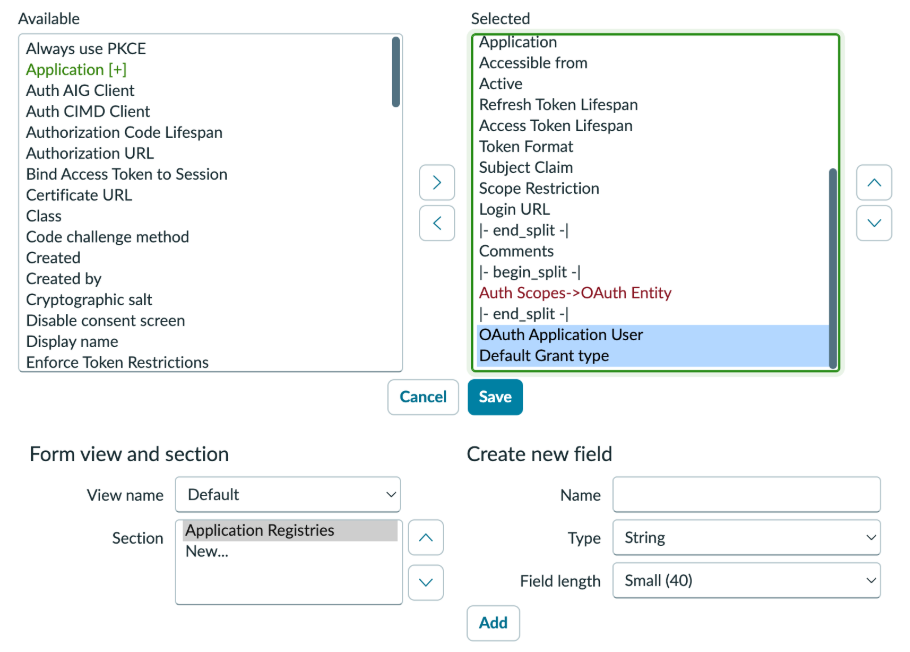
- In the Available column, locate OAuth Application User, and move it to the Selected column..
- Click Save.
- Back on the application registry form, locate the OAuth Application User field.
- Set the field to Axonius Integration OAuth (select the user by name). Identify the user by the First and Last Name you configured when creating a Service Account User.
- Click Update to save the record.
7. Enable OAuth Client Credentials System Property
Navigate to System Properties (search for sys_properties.list in the filter navigator).
-
Search for the property:
glide.oauth.inbound.client.credential.grant_type.enabled -
If the property exists:
- Open it and set Value to
true. - Click Update.
- Open it and set Value to
-
If the property doesn't exist, create it:
- Click New.
- Configure the following fields:
- Name:
glide.oauth.inbound.client.credential.grant_type.enabled - Type:
true | false - Value:
true - Application:
Global
- Name:

-
Click Submit.
8. Verification
To verify the configuration:
- Confirm that the OAuth application registry shows:
- Client ID and Client Secret are generated
- OAuth Application User is set to
Axonius Integration OAuth
- Confirm that the system property
glide.oauth.inbound.client.credential.grant_type.enabledis set totrue. - Confirm that the service account has all required roles assigned.
2. Set up the ServiceNow adapter in Axonius
Create the Adapter connection in Axonius. Based on the authentication method (Username/Password or OAuth ID/Secret), fill out the specific fields, and configure optional settings.
Add a New Connection
-
Navigate to the Adapters page → search for
ServiceNow→ click on the adapter tile.
-
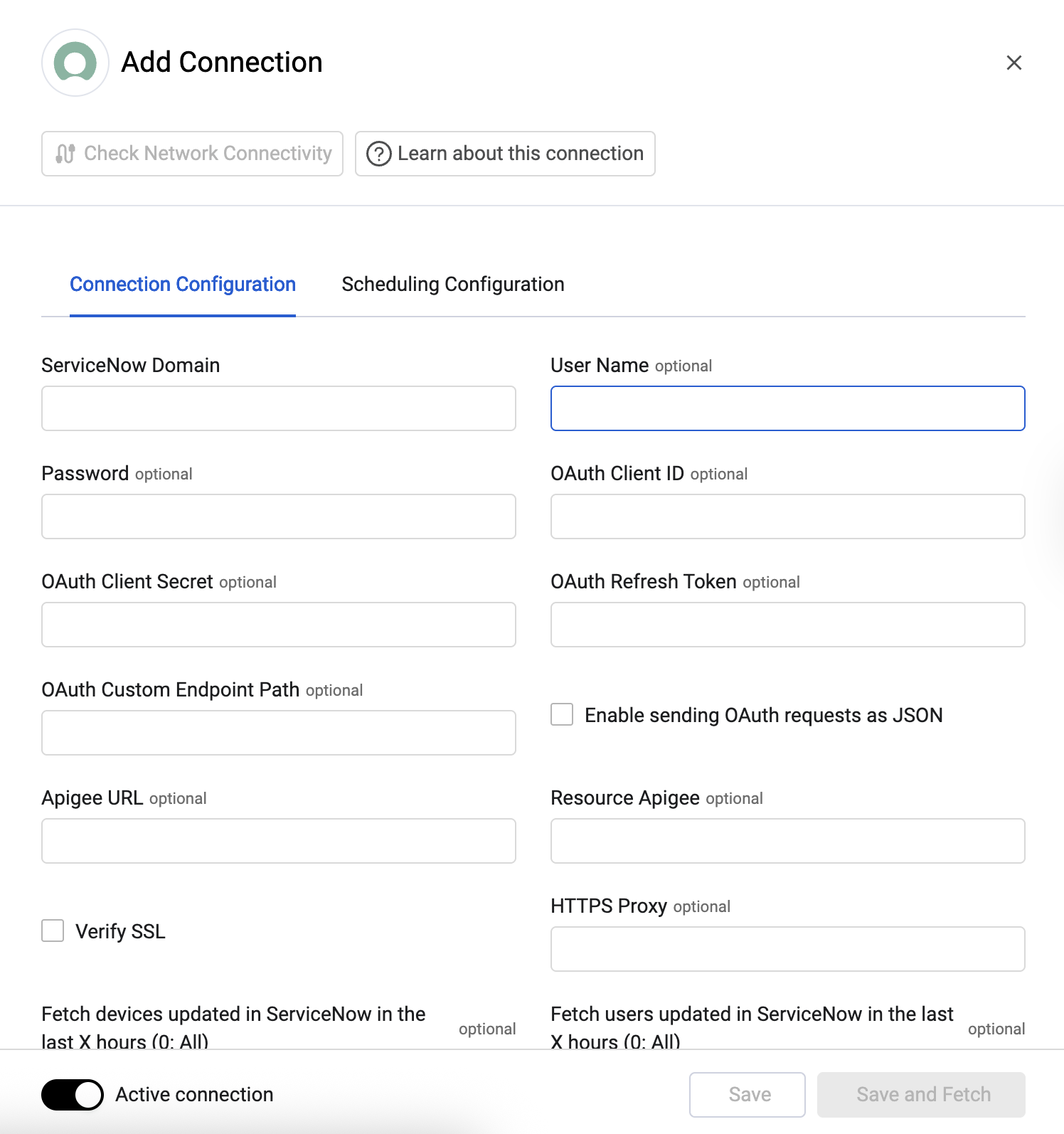
On the top right side, click on Add Connection.
-
The Add Connection drawer opens.
Required Fields
-
ServiceNow Domain - The hostname or IP address of the ServiceNow server. This field format is
https://[instance].service-now.com. -
Authentication Method
- User Name and Password - The credentials for the user account that you created in the previous step, or that has the Required Permissions to fetch assets.
- Client ID and Client Secret - The OAuth Client ID and Client Secret that you created in the previous step, or that has the Required Permissions.
- Refresh Token - Enter the value of the Refresh Token set by ServiceNow when creating the OAuth endpoint.
- Connection Label - Friendly name for your new adapter connection.
Optional Fields
Expand/Collapse
-
Fetch devices updated in ServiceNow in the last X hours (0: All) (Cyber Assets only, default: 0) - Enter an amount of hours to fetch only devices that were updated in ServiceNow in the last specified number of hours.
-
Fetch users updated in ServiceNow in the last X hours (0: All) (default: 0) - Enter an amount of hours to fetch only users that were updated in ServiceNow in the last specified number of hours.
-
Fetch users created in ServiceNow in the last X hours (0: All) (default: 0) - Enter an amount of hours to fetch only users that were created in ServiceNow in the last specified number of hours.
-
OAuth Custom Endpoint Path - Specify a custom endpoint path to be used instead of the default
oauth_token.do. -
Enable sending OAuth requests as JSON - Enable to to send the request in JSON format instead of the standard
www-form-urlencodedformat. -
Apigee URL - The URL of the domain that the get request is sent to for acquiring the APIgee token.
-
Resource Apigee - The resources you want the APIgee to access.
-
Verify SSL - Select to verify the SSL certificate offered by the value supplied in ServiceNow Domain. For more details, see SSL Trust & CA Settings.
-
HTTPS Proxy - A proxy to use when connecting to the value supplied in ServiceNow Domain.
-
Custom HTTP Headers - Specify custom HTTP headers to add to requests. Each header requires a Key and Value. Optionally, restrict the header to specific HTTP Methods (GET, POST, PUT, PATCH, DELETE) and a URL Pattern (regex matched against the request URL; leave empty to apply to all URLs).
-
Advanced configuration file - Upload an advanced configuration JSON file.
-
Use specific version of API - Select the API version you want to use in the fetch: V1, V2, or latest version. You can also use the Search box that opens to type a different version and click create new to add this option.
-
Enable Client Side Certificate - Select to enable Axonius to send requests using the certificates uploaded to allow Mutual TLS configuration for this adapter. When you select this option, 2 more fields are displayed:
-
Client Certificate File (.pem) - Adds a client side certificate to the connection.
-
Client Private Key File (.pem) - Adds a private key to the connection (if the API/proxy requires identification).
- Click Upload File next to Client Private Key File to upload a client private key file in PEM format
- Click Upload File next to Client Certificate File to upload a public key file in PEM format
3. (Optional) Configure Advanced Settings
Refer to ServiceNow Advanced Settings.
Updated 2 months ago