
Exclusion Rules
Notice
A more advanced Exception Management page, dedicated to creating and managing Exception Rules for Security Findings, is available for Exposures customers.
Exclusion rules control whether vulnerabilities are considered Excluded (or "Accepted")". When working with vulnerabilities, you need to be able to prioritize them to see which to remediate first. In addition, a decision might be made to accept the risk and exclude the vulnerability.
Use Exclusion Rules to create rules about vulnerabilities (Aggregated Security Findings) to be excluded from the list presented on the Aggregated Security Findings page. Exclusions rules are run in a discovery cycle - the decisive ones are the ones that existed at the beginning of the cycle (if a rule changed during the cycle it will be applicable in the next cycle). Once an Security Finding is excluded, the Excluded Security Findings complex object field appears on each relevant device, rather than the Security Findings Instances complex field. Consequently, these excluded vulnerabilities are not counted in Aggregated Security Finding calculations or queries.
Permissions:
- You need to have 'Edit Excluded Aggregated Security Findings' permissions to edit Exclusion rules.
- Only users who have the Global scope and have the permission 'Edit Excluded Aggregated Security Findings' are able to view and edit Exclusion rules.
Using the Exclusion Rules page
From the Aggregated Security Findings page click Exclusion Rules.

The first time you use this feature, the page is empty. Add a rule to populate it.
Exclusion Rules Table
The rule table contains the following columns:
-
Rule Name
-
Affected Aggregated Security Findings - The Aggregated Security Findings defined in the rule which will be excluded.
-
Create by - The name of the user who created the Exclusion rule.
-
Last Executed - the time and date of the last time the rule ran.
-
Last updated - The time and date the Exclusion Rule was last modified.
You can filter the table by either of the above fields. Click Reset to clear all filters and display all rules.
Creating a Rule
-
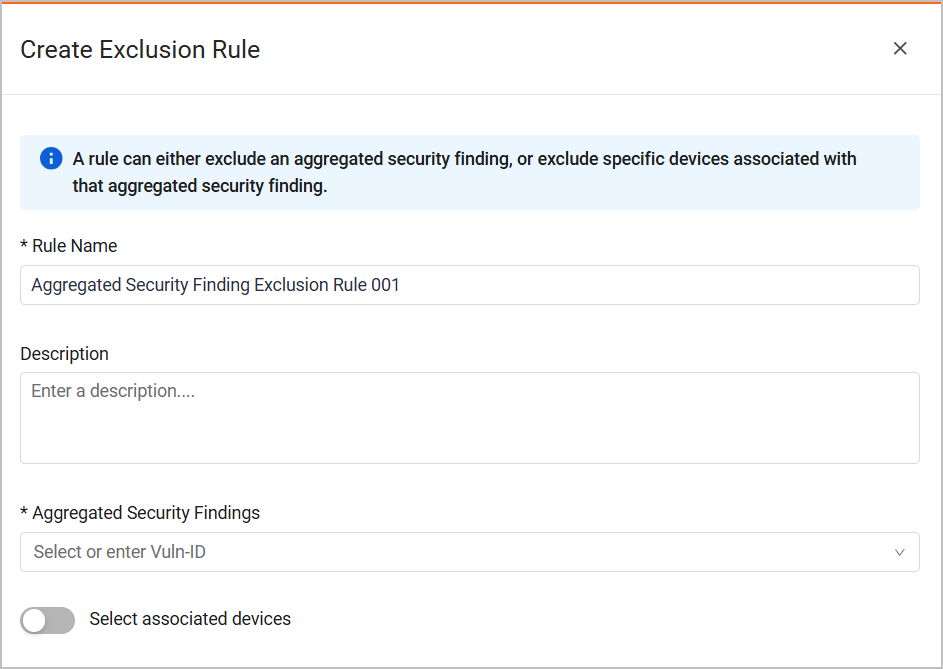
Click Create Exclusion Rule. A dedicated drawer opens.
-
Enter a Rule Name (the system assigns a default name).
-
Enter a description (optional).
-
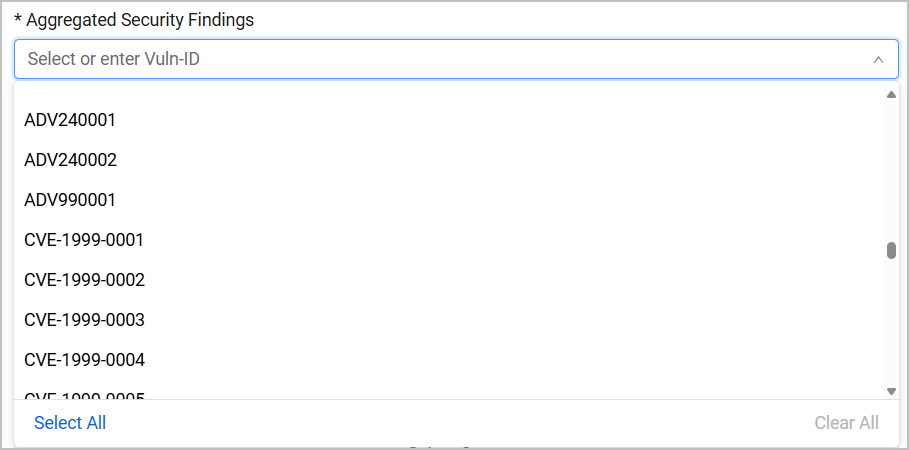
Either enter a Aggregated Security Finding, or use the drop down to search for and select multiple Aggregated Security Findings you want to exclude. Type all or part of a Vuln ID, and then, from the list of Aggregated Security Findings containing the string entered, select the relevant assets. Up to 200 items are displayed when you start typing. You also have the option to Select All or Clear All.
-
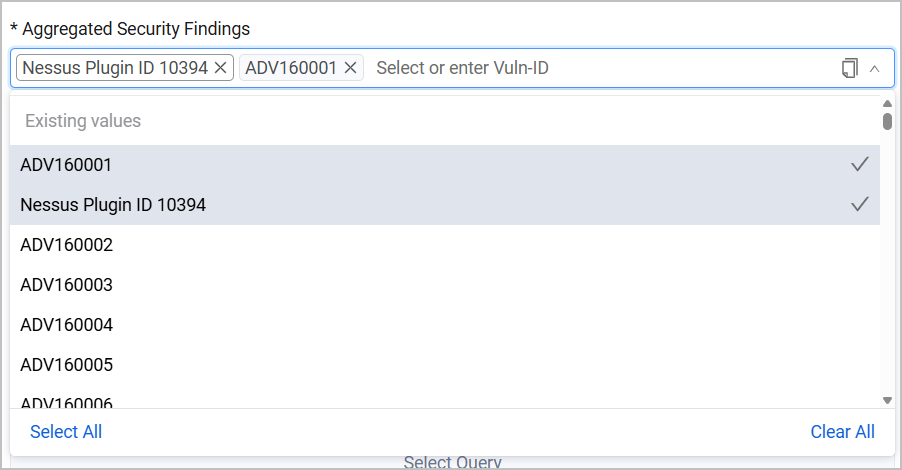
If the Aggregated Security Finding you want to exclude doesn't appear on the list, you can enter it manually and press Enter. It is instantly added to the list for this rule, and is selected as part of the rule.
-
Select Create to create the Exclusion Rule. The rule now appears on the Exclusion Rules list.
Selecting Associated Devices
You can also create an exclusion rule that will only apply to a specific subset of devices who have that vulnerability to help prioritize vulnerabilities to deal with, for instance to exclude only the selected vulnerabilities that are on devices with closed ports. In the Vulnerability Repository these will appear as "partially excluded".
- Enable Select associated devices. A query selection menu appears.
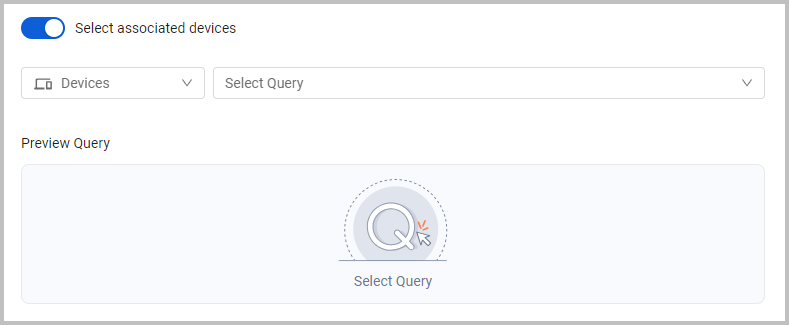
- From Select Query, select an existing query, or click Add Query to create a new query.
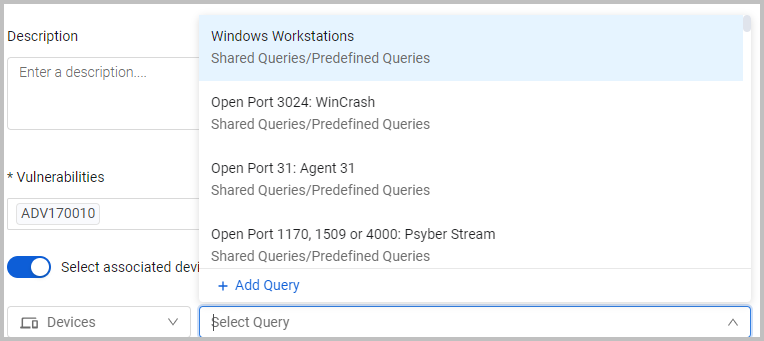
The Preview Query shows the number of devices that match the query results, but not the query results combined with the existence of the CVEs selected in the rule. Note that you can't use a query that returns over 100k devices. If you choose a query that returns too many results, you need to refine the query, or select a different one.
After you enable Select associated devices, the query selected has to return devices to be able to save the rule. The Preview Query pane shows you if there are no results. You can then refine the query or select a different query.
Note
The rule applies to the results of the query at the time the rule was created.
- Click Open in Devices page to see exactly which devices are included in the query results.
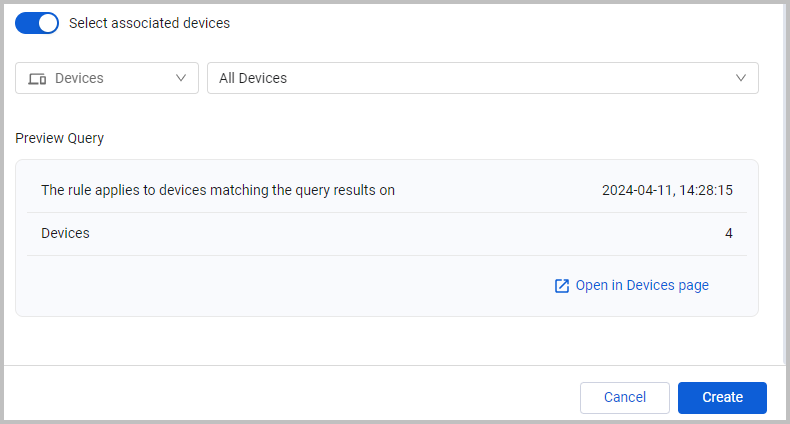
- Click Create to create the rule.
Editing and Deleting Rules
To edit a rule, from the Exclusion Rules page, click a rule's row, edit the required fields and click Save.
To delete a rule, click the Delete (trash bin) icon at the right side of the row. To delete multiple rules, select the relevant rows and clickDelete above the table.
When an Exclusion Rule is removed, the vulnerabilities this rule applied to re-appear on the Aggregated Security Findings page after the next discovery cycle..
Excluding Vulnerabilities from Other Pages
You can exclude assets directly from the Aggregated Security Findings page, or from the Vulnerabilities Repository page.
For general information about working with tables, refer to Working with Tables.
Updated 3 months ago