
AWS Secrets Manager Integration
The AWS Secrets Manager integration enables Axonius to securely pull privileged credentials from AWS Secrets Manager. The integration ensures that privileged credentials are secured in the AWS Secrets Manager, rotated to meet company guidelines, and meet complexity requirements.
Required Permissions
To fetch secrets from AWS Secrets Manager, you must have the following permissions:
-
secretsmanager:GetSecretValue -
kms:Decrypt- required only if you use a customer-managed AWS KMS key to encrypt the secret. You do not need this permission to use the account's default AWS managed CMK for Secrets Manager.
Enable AWS Secrets Manager Integration
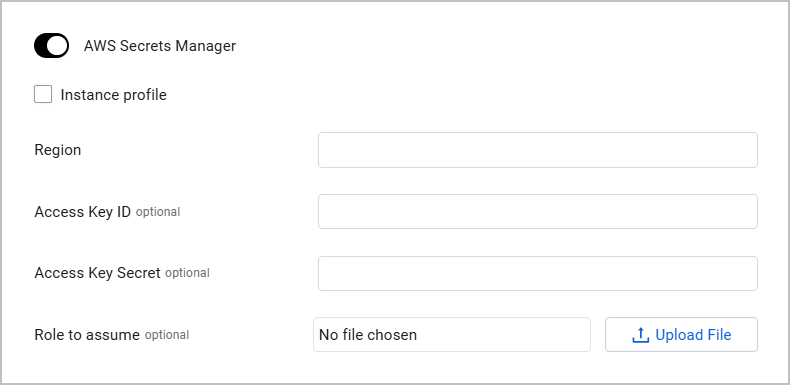
- Toggle on AWS Secrets Manager.
- Specify the following parameters to fetch secrets from AWS Secrets Manager:
-
Instance profile (optional) - Check this to authenticate with the role assigned to the Axonius Instance installed on your EC2 instance. When you authenticate with an instance profile, the Access Key ID and Access Key Secret parameters are not required, and if you populate them, they will be ignored.
-
Region (required) - Specify the region name for a specific region.
-
Access Key ID (required if Instance profile is unchecked) - Provide AWS Access Key ID.
-
Access Key Secret (required if Instance profile is unchecked) - Provide AWS Access Key Secret.
-
Role to assume (optional) - Provide an ARN role that points to a specific IAM role in AWS, which has its own set of permissions defined in its IAM policy. If you select Instance profile, then role to assume is not used. Click Upload File to upload a .json file containing the role. The role should be in the following format:
[
  {
    "arn": "{arn_value}",
  }
]
-
Working with AWS Secrets Manager
After the AWS Secrets Manager integration is enabled in Axonius, a new AWS Secret Manager icon will appear when you configure an adapter or Enforcement Action, in the following field types:
- Password fields
- File fields - such as certificates, private keys, or configuration files in JSON/XML format (in adapters that have such fields)
This allows you to enter a password or upload a file manually OR to fetch the secret from AWS Secret Manager.
.png)
To fetch a password from AWS Secrets Manager:
- In a password field, click the AWS Secrets Manager icon. If you have configured more than one password manager, click the vault icon
 and select AWS from the drop-down.
The AWS Secrets Manager dialog opens.
.png)
- In the dialog, specify the following parameters:
- Secret name (required) - Specify the secret containing the secret key that you want to retrieve. You can specify either the Amazon Resource Name (ARN) or the friendly name of the secret
- Secret key (required, default: Password) - Specify the unique identifier of the secret that you want to retrieve.
- Click Fetch.
- If the fetch is successful, a green indication will be displayed next to the AWS Secrets Manager icon.
- If the fetch is unsuccessful, a red indication will be displayed next to the AWS Secrets Manager icon. Hovering over the AWS Secrets Manager icon will show the error.
Note
Typing or deleting any character in the textbox will change the password field back to a manual password input.
To fetch a file from AWS Secrets Manager:
-
In a file field, click the AWS Secret Manager icon. If you have configured more than one password manager, click the vault icon
and select AWS Secret Manager from the drop-down.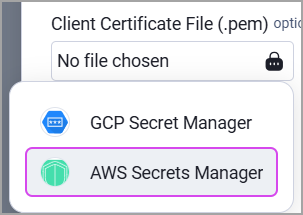
-
An AWS Secret Manager dialog opens. To proceed, follow steps 2-3 listed under "To fetch a password from AWS Secret Manager".
Updated about 1 month ago