
Configuring a Repeat For Each Node
Use the Repeat For Each node to create a loop that processes each asset within the same workflow.
Many workflow triggers and actions return multiple assets. By default, the workflow is run for each asset returned. Using the Repeat For Each node, a single workflow is run to process all the returned assets. This requires fewer resources than running the workflow for each asset.
When you add a Repeat For Each node, a second execution branch is created, allowing you to add nodes that will run on each returned asset. Assets returned in a previous node/step are passed to the Repeat For Each node and processed one by one.
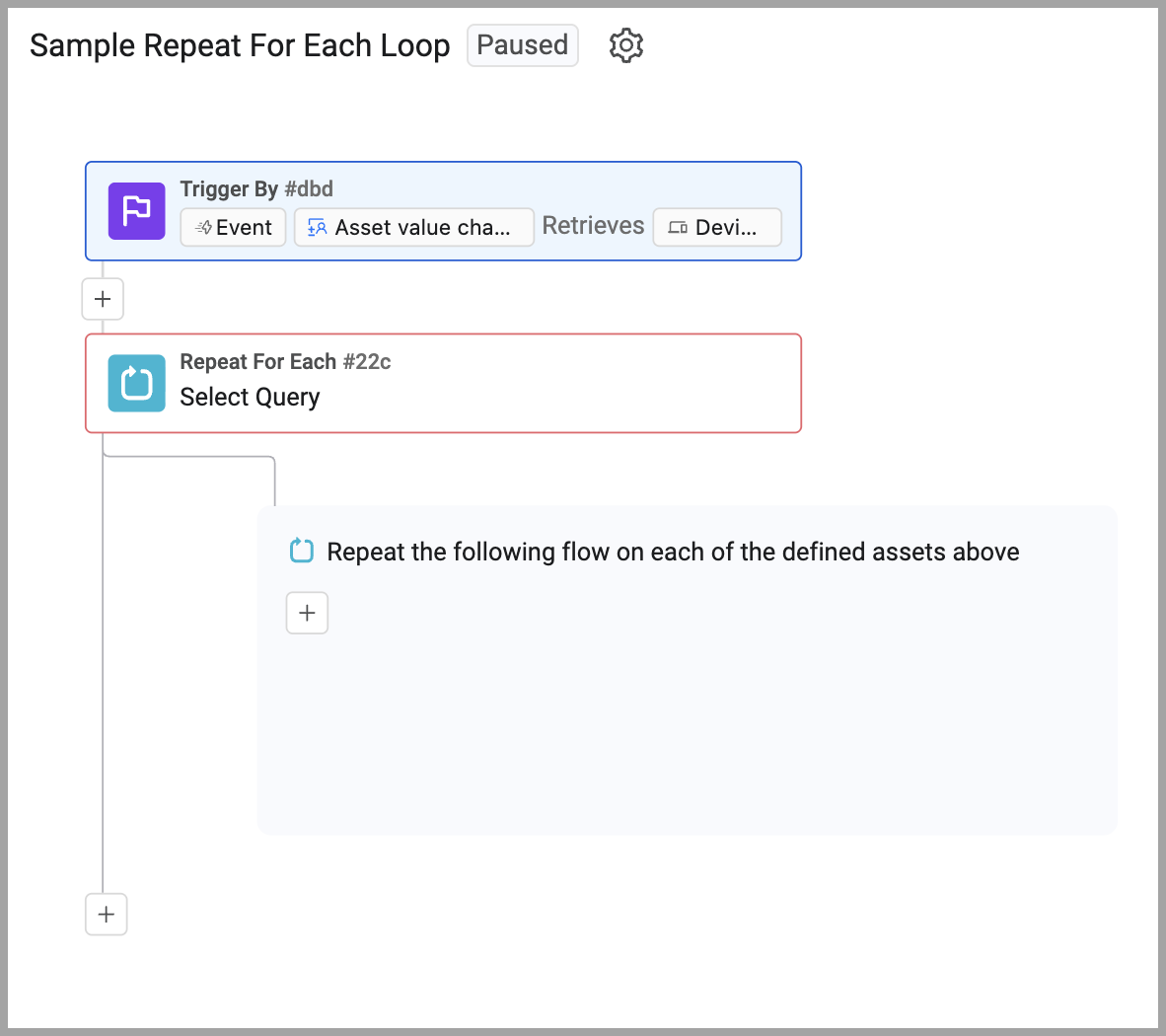
You can add a Repeat For Each node after any other node type. You can also use conditions inside a Repeat For Each node.
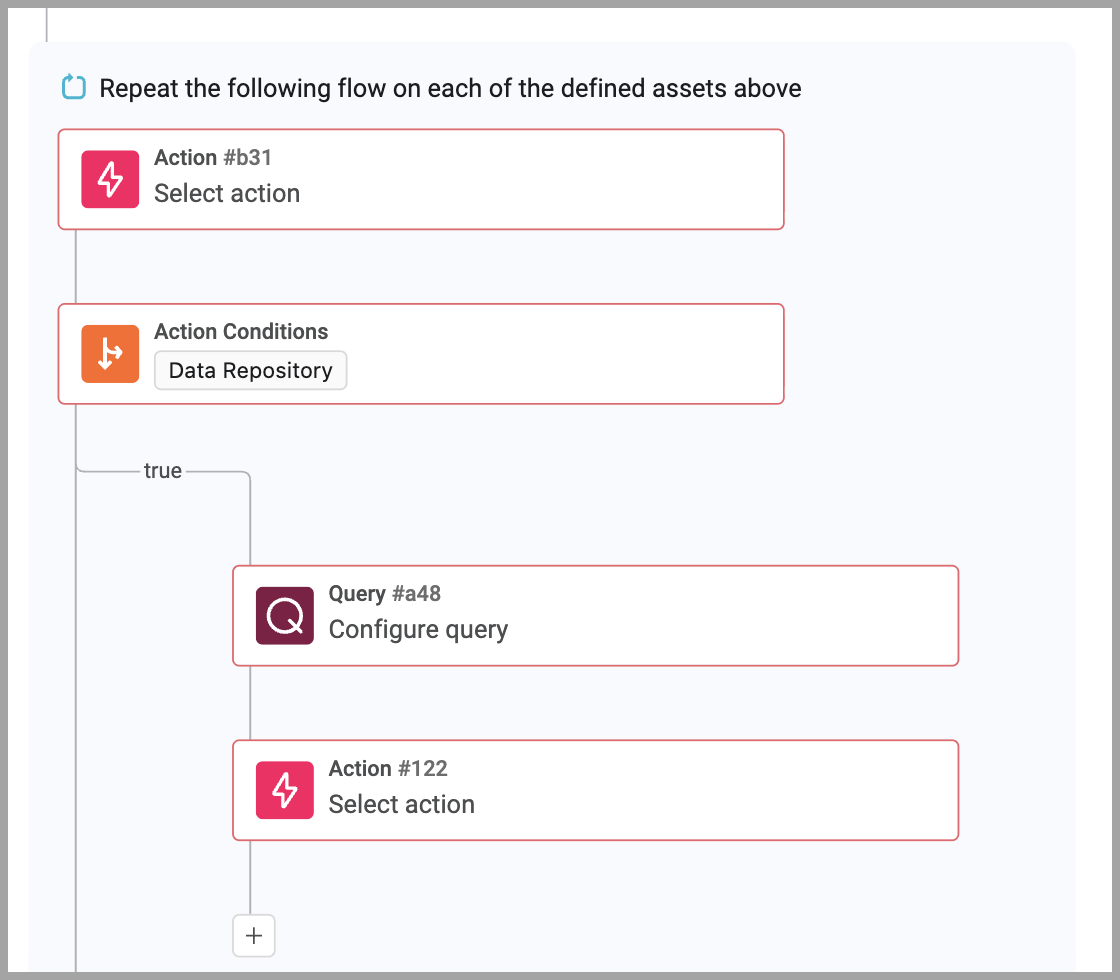
To add and configure a Repeat For Each node:
-
After any other node type, hover over the + and click
 Repeat For Each. The Workflow Data dialog and the configuration drawer open.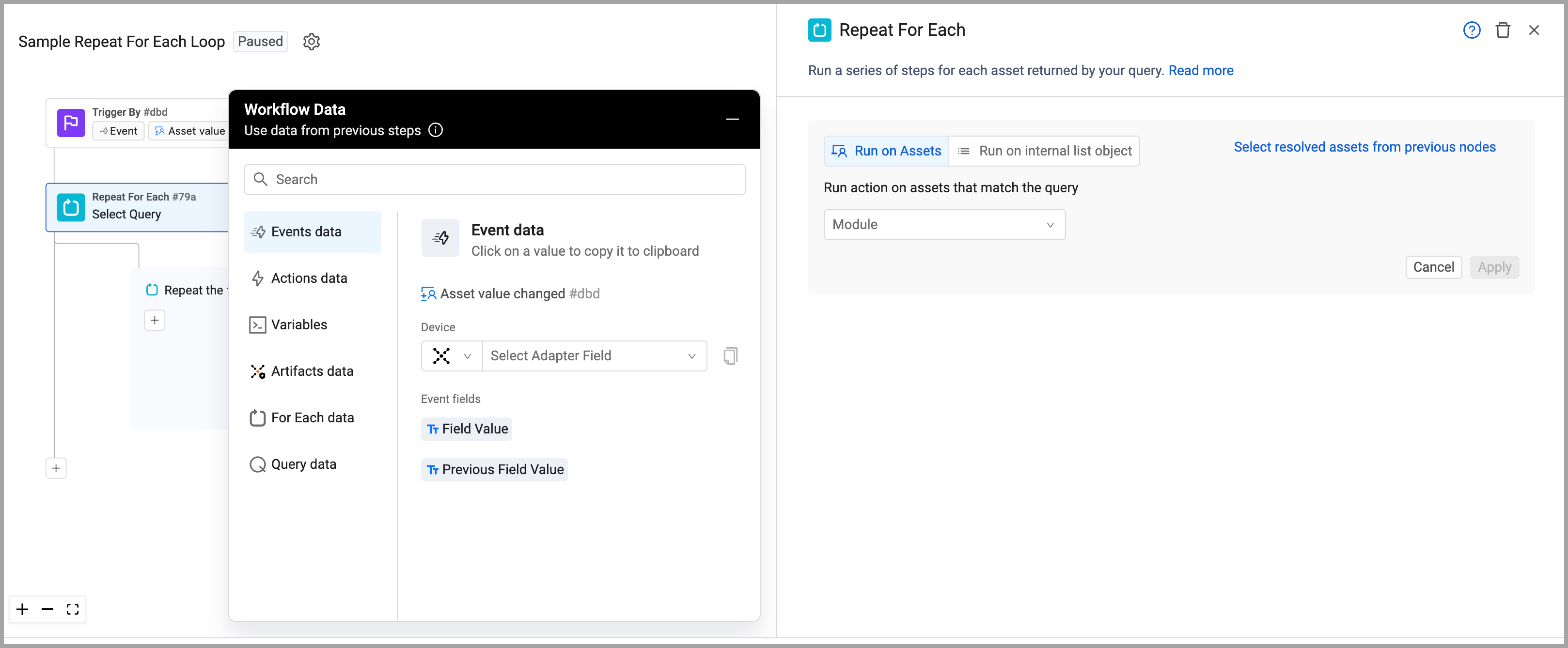
-
Configure what assets the loop will run on. See Selecting the Assets for the Repeat For Each Node.
-
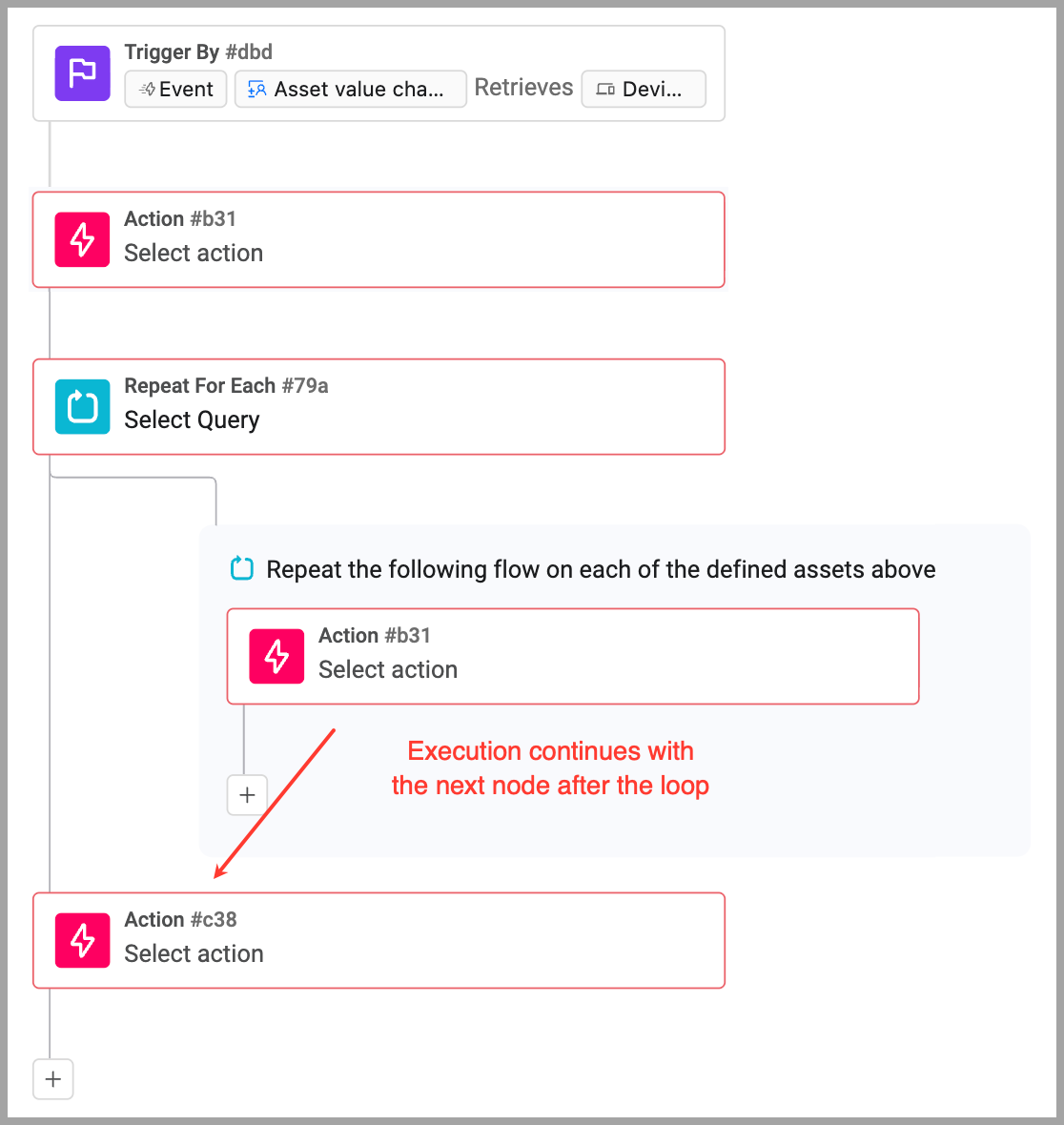
Add the nodes you want to execute on each asset. During a run, each node is executed on each asset passed from a previous node.
-
When execution of the last node is completed, or an Exit Repeat node is encountered, execution returns to the main branch.
Selecting Assets for the Repeat For Each Node
You must configure which assets the Repeat For Each loop will run on. The loop can run on:
- Assets returned by a selected query
- A group of assets that have been returned from any previous non-variable node within the workflow
- A list of assets from a previous node or variable within the workflow
To run the Repeat For Each loop on assets from previous nodes or a query:
-
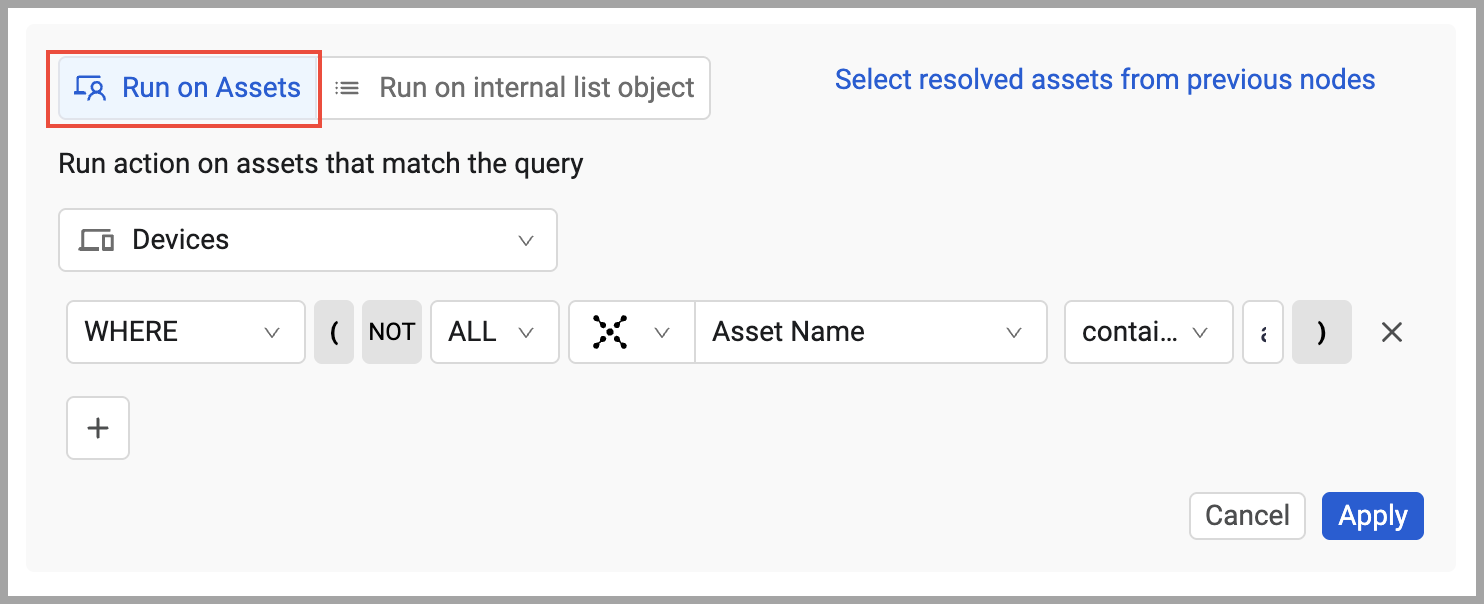
Select Run on Assets. This is the default method.
-
To run the loop on assets returned by one or more queries, click Select assets using the Query Wizard. Then use the Query Wizard to create one or more queries that define on which assets the loop is executed. Click Apply.
-
To run the loop on assets returned by a previous node in the workflow, click Select resolved assets from previous nodes, select the node from the Run action on resolved assets from previous nodes list, and click Apply.
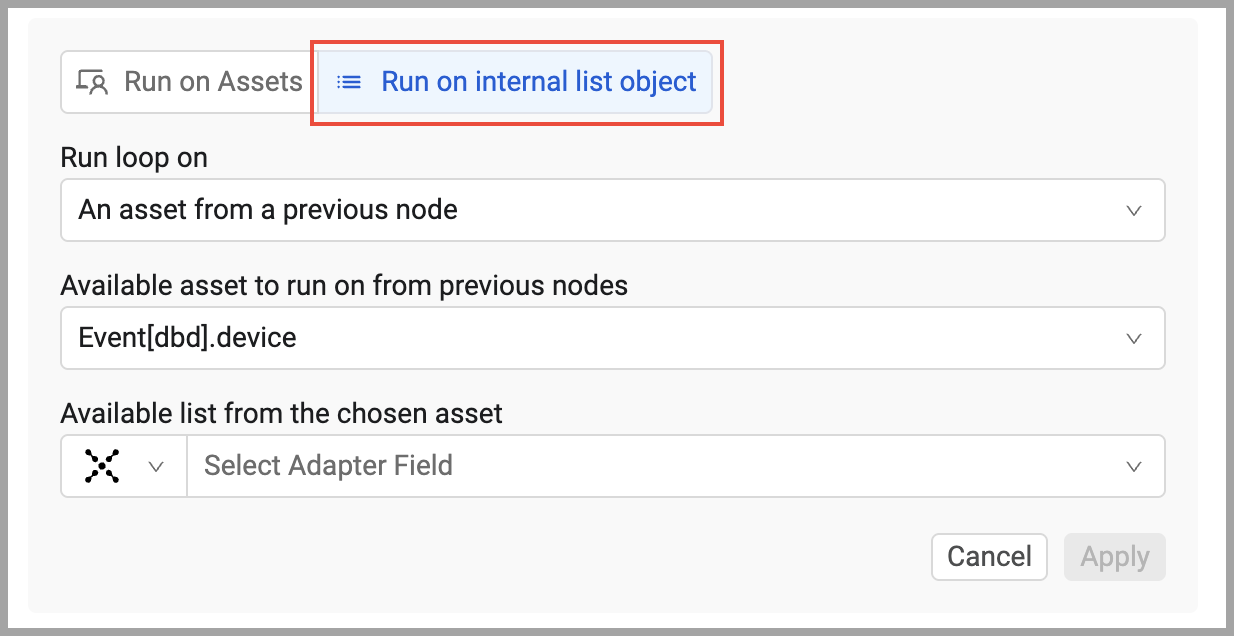
To run the Repeat For Each loop on a list of assets from a previous node (not a Variable node):
-
Click Run on internal list object and then An asset from a previous node
-
In Available asset to run on from previous nodes, select the asset that has a list field with assets.
-
In Available list from the chosen asset, select the specific field that contains the list of assets on which to run the loop.
-
Click Apply.
To run the Repeat For Each loop on a list of assets from a Variable node:
-
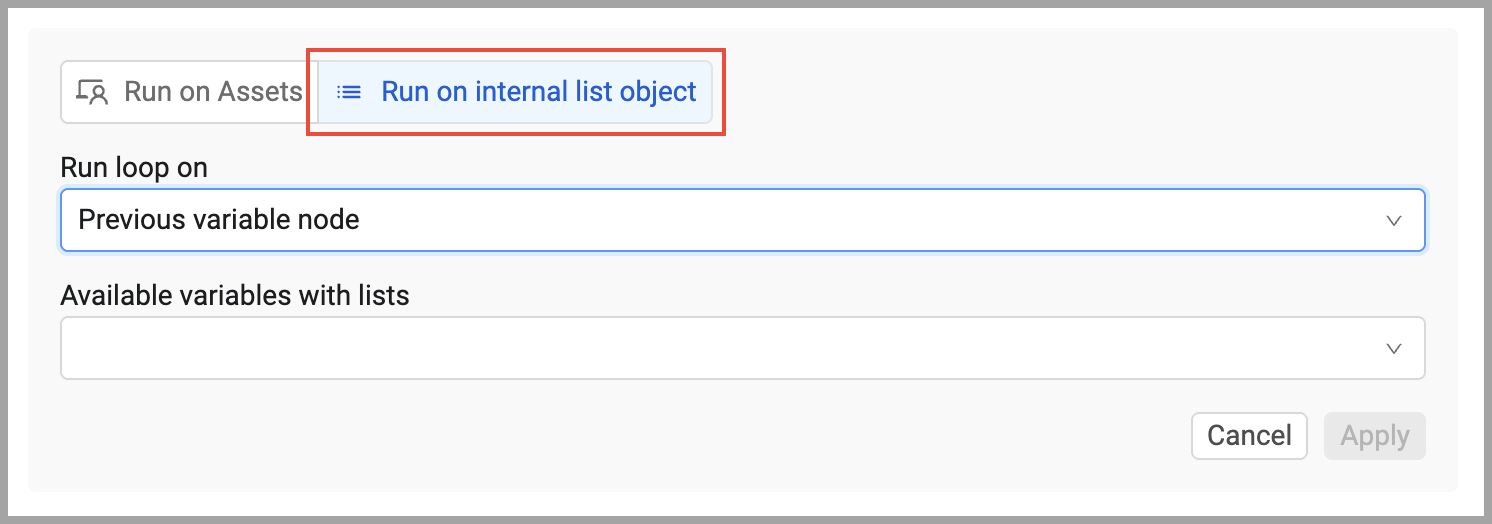
Click Previous variable node.
-
In Available variables with lists, select the variable that contains the list of assets on which you want to run the loop.
-
Click Apply.
Testing a Repeat For Each Node
Test a Repeat For Each node after connecting it to an upstream node to validate which entities the loop will iterate over, and select one for testing downstream nodes.
What You Can Test
When testing a ForEach node, you verify:
- The loop resolves the correct entities
- Entity count is what you expect
- Entity type is correct (assets or array items)
- Entities are available for downstream nodes
Understanding ForEach Types
Asset-Based Loop - Iterates over assets returned by a query (e.g., each device, each user).
Array Field Loop - Iterates over items in an array field from a previous node (e.g., items in a list, IP addresses, subnets).
Prerequisites
Before testing a ForEach node:
- Connect it to an upstream node (Query, Event, or Action)
- The upstream node must have been tested first to provide entities
- Configure the loop type (asset-based or array field)
- Resolve any errors
Testing a ForEach Node
To test a ForEach node during workflow build
-
Click Run Test.
-
System Resolves Entities - The test shows:
- For Asset Loop - "Entities Resolved (N)" displays available assets.
- For Array Loop - "Array Values (N)" displays array items.
- Count indicates how many times the loop will iterate.
-
Select an Entity - Choose one entity to use for testing downstream nodes:
- For assets - Click the dropdown, select an asset by name/ID.
- For arrays - Click the dropdown, select an array item by index, and preview.
- This selection becomes the current iteration context for testing.
-
Review Entity Details (array loops only):
- Selected complex objects show a detailed field breakdown.
- See field titles and values for inspection.
-
Run the Test - Click Run Test. The entity is selected for downstream node tests.
Understanding Test Outcomes
Entities Resolved (N) - Loop will iterate N times in production, once per entity. Each iteration tests on one selected entity.
No Entities Resolved - Loop resolved no entities (query returned 0 assets or array is empty). Loop won't execute downstream nodes.
Entity Selected - Downstream nodes in the loop will test using this specific entity as the current iteration context.
Incorrect Entity Type - Loop resolved wrong entity type. Verify upstream node and loop configuration.
Next Steps After Successful Test
After the ForEach node test succeeds:
- Add nodes inside loop - Add actions, conditions, queries that operate on each entity
- Test those nodes - Build incrementally inside the loop
- Test ForEach-scoped variables - Variables created inside loop reset each iteration
- Run full workflow test - When complete, test end-to-end to see loop execution
Testing Nested ForEach Loops
For nested loops:
- Test outer ForEach loop and select an entity
- Test inner ForEach nodes - they iterate over sub-entities within outer entity
- Review data flow through nested iterations
- Verify inner loop resets correctly for each outer loop iteration
Common Issues
"No entities resolved" - Loop couldn't resolve any entities. Verify upstream node was tested successfully.
"Wrong entity type" - Loop resolved devices when expecting users. Check loop configuration.
"Empty array" - Array field loop found no items. Verify upstream node produces array data.
Updated 4 months ago