
ECI FMAudit
ECI FMAudit is print management software that allows users to remotely monitor print environments and maintain visibility into their operations.
Types of Assets Fetched
This adapter fetches the following types of assets:
- Devices
Before You Begin
Required Ports
Axonius must be able to communicate with the value supplied in Host Name or IP Address via the following ports:
- TCP port 80 or 443
Authentication Methods
- User Name and Password
APIs
Axonius uses the FMAudit SOAP API.
The adapter calls the following SOAP methods:
- GetDeviceList - Retrieves the list of all managed printer devices
- GetDeviceDataForDevice - Fetches detailed device information for each printer
- GetSuppliesCartridgeDataForDevice - Retrieves supplies and meter data (toner levels, page counts, etc.) for each device
Note
The GetSuppliesCartridgeDataForDevice method is called per device to fetch supplies and meter information. This provides detailed consumables tracking and usage metrics for each printer in your environment.
Supported From Version
Supported from Axonius version 4.7
Connecting the Adapter in Axonius
Navigate to the Adapters page, search for ECI FMAudit and click on the adapter tile.
Click Add Connection.
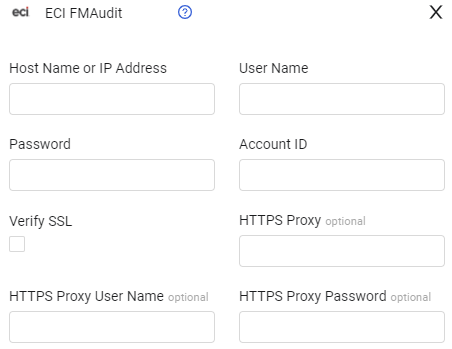
To connect the adapter in Axonius, provide the following parameters:
Required Parameters
-
Host Name or IP Address - The hostname or IP address of the ECI FMAudit server that Axonius can communicate with via the Required Ports.
-
User Name and Password - The credentials for a user account that has the permissions to fetch assets.
-
Account ID - Enter your ECI FMAudit account number.
Optional Parameters
-
Verify SSL - Select whether to verify the SSL certificate of the server against the CA database inside of Axonius. For more details, see SSL Trust & CA Settings.
-
HTTPS Proxy (optional) - Connect the adapter to a proxy instead of directly connecting it to the domain.
-
HTTPS Proxy User Name (optional) - The user name to use when connecting to the value supplied in Host Name or IP Address via the value supplied in HTTPS Proxy.
-
HTTPS Proxy Password (optional) - The password to use when connecting to the server using the HTTPS Proxy.
To learn more about common adapter connection parameters and buttons, see Adding a New Adapter Connection.
Advanced Settings
Note
- Advanced settings can apply to either all connections of this adapter, or to a specific connection. For more detailed information, see Advanced Configuration for Adapters.
- For more general information about advanced settings, see Adapter Advanced Settings.
Fetch Supplies and Meters per Device
- Enable supplies and meters fetching (one API call per device) - Enable this option to fetch supplies and meters per device.
- Number of Days Backward to Fetch Supplies (leave empty to use last 30 days) - Set a number of days backwards for which to fetch supply data
- Parse Hostname from Description - Set this option to parse the hostname from the description.
Updated 6 months ago