
Tripwire Enterprise
Tripwire Enterprise is a security configuration management (SCM) suite that provides fully integrated solutions for policy, file integrity, and remediation management. This adapter connects to the Tripwire Enterprise management server to import information about devices that are managed by that solution.
Use Cases the Adapter Solves
- Enforce Security Baselines Across Managed Devices: Use Tripwire Enterprise data in Axonius to verify that all managed endpoints comply with file integrity and policy configurations, and quickly identify devices with failures or policy violations.
- Audit Installed Software and Agent Coverage: Correlate Tripwire-managed device data with software inventory to detect unauthorized applications, outdated agent versions, or gaps in agent deployment.
- Monitor Database Security Posture: Gain visibility into database assets managed by Tripwire Enterprise, including connection details, engine versions, and assigned tags, to identify misconfigurations or compliance gaps.
Asset Types Fetched
- Devices, Software, SaaS Applications, Databases, Users
Data Retrieved through the Adapter
Devices - Fields such as: Hostname, IP Address, MAC Address, OS Name
Software - Fields such as: Name, Version, Vendor, Install Date
Databases - Fields such as: Name, IP Address, Port, Database Type
Users - fields such as: • Username, Email Address, Groups, Admin Roles, Role ID
Before You Begin
Required Ports
- TCP port 443 (HTTPS)
Authentication Methods
Basic Authentication — the adapter sends credentials as HTTP Basic Auth on every request. You can authenticate with a username and password, or with a username and API token (TE Console 9.4 and later). When using an API token, supply it in place of the password.
APIs
Axonius uses the Tripwire Enterprise REST API (/api/v1). The following endpoints are called:
GET /api/v1/nodes- Retrieves the list of managed nodes (devices) with paginationGET /api/v1/versions/latest?elementName={element_name}- Retrieves the latest app versions for a given element name (used when Apps element names is configured in Advanced Settings)GET /api/v1/versions/{version_id}/content- Retrieves the content of a specific app versionGET /api/v1/users- Retrieves all users; includesroleIdlinking each user to a roleGET /api/v1/roles- Retrieves all roles; correlated to users viaroleIdGET /api/v1/user-groups- Retrieves all user groupsGET /api/v1/user-groups/{id}/users- Retrieves the users within a specific user group
Required Permissions
The value supplied in User Name and Password / API Token must have Read-only permissions to fetch assets.
Use the Swagger to test whether the user-password pair you created has the right permissions assigned. The URL for you to test is: YOUR TRIPWIRE SERVER.domain.com/api
Setting Up Tripwire Enterprise to Work with Axonius
To authenticate with a username and password:
- In the Tripwire Enterprise Console, create a dedicated user account for Axonius integration.
- Assign the account Read-only permissions to the API.
- Note the username and password for use in the Axonius adapter configuration.
To authenticate with an API token (TE Console 9.4 and later):
- In the Tripwire Enterprise Console, generate an API token for the integration account.
- Note the token value — use it in place of the password in the Axonius adapter configuration.
Connecting the Adapter in Axonius
Navigate to the Adapters page, search for Tripwire Enterprise, and click on the adapter tile.
Click Add Connection.
Required Parameters
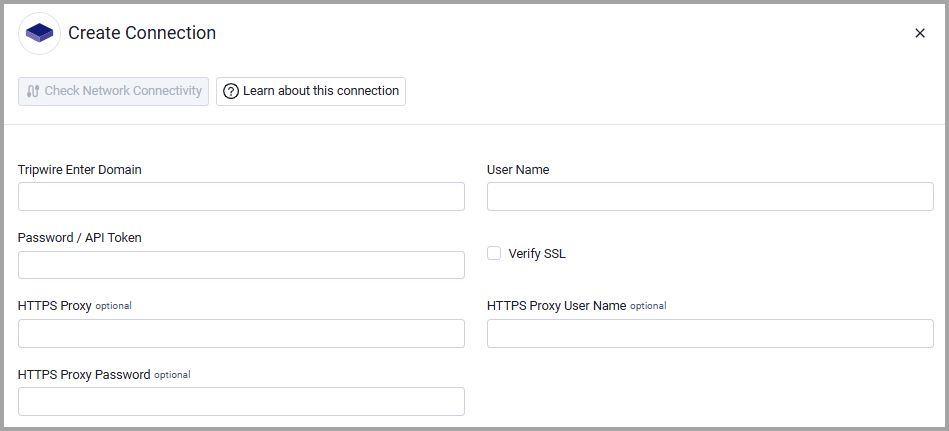
- Tripwire Domain - The hostname or IP address of the Tripwire Enterprise server.
- User Name and Password / API Token - The username and password or API token for an account that has read access to the API. API token authentication is supported for TE Console 9.4 and later.
Optional Parameters
- Verify SSL - Select whether to verify the SSL certificate of the server against the CA database inside of Axonius. For more details, see SSL Trust & CA Settings.
- HTTPS Proxy - Connect the adapter to a proxy instead of directly connecting it to the domain.
- HTTPS Proxy User Name - The user name to use when connecting to the value supplied in Host Name or IP Address via the value supplied in HTTPS Proxy.
- HTTPS Proxy Password - The password to use when connecting to the server using the HTTPS Proxy.
To learn more about common adapter connection parameters and buttons, see Adding a New Adapter Connection.
Advanced Settings
Note
Advanced settings can either apply for all connections for this adapter, or you can set different advanced settings and/or different scheduling for a specific connection, refer to Advanced Configuration for Adapters.
- Apps element names - Enter a comma-separated string of element names. For each element name the adapter fetches the device apps using the endpoint "versions/latest?elementName=
{element_name}". - Node types to fetch - Select one or more node types to fetch from.
Note
To learn more about Adapter Configuration tab advanced settings, see Adapter Advanced Settings.
Updated 21 days ago