
Bitwarden Vault Integration
The Bitwarden Vault integration enables Axonius to securely pull privileged credentials from Bitwarden Vault. The integration helps to ensure that privileged credentials are secured in the Bitwarden Vault, rotated to meet company guidelines, and meet complexity requirements.
Axonius uses the Bitwarden Vault Management API.
Description of Product Integration
Bitwarden Vault is a robust, cloud-hosted password manager and secret storage service that uses end-to-end encryption to protect sensitive information. It helps ensure that access to credentials, API keys, and other secrets is strictly controlled and secure.
Axonius authenticates to the Bitwarden Vault using API token-based authentication. This authentication method ensures that the communication between Axonius and Bitwarden Vault is secure, allowing Axonius to retrieve necessary credentials while maintaining the confidentiality of sensitive data. By leveraging Bitwarden Vault’s encrypted storage capabilities, Axonius can manage and access credentials in a compliant and secure manner.
The credentials are only fetched by Axonius when:
- Creating a new adapter connection
- Updating an existing adapter connection
- Running an enforcement set
- Fetching asset information for adapters during discovery cycles
Axonius does not store the credentials anywhere and deletes any trace of credentials.
To enable fetching credentials from your Bitwarden Vault Server, you need to:
- Install and configure Bitwarden Vault.
- Enable and configure the External Password Managers - Enterprise Password Management Settings in Axonius.
- Configure adapter connection credential to fetch passwords from Bitwarden Vault Server.
Enable Bitwarden Vault Integration
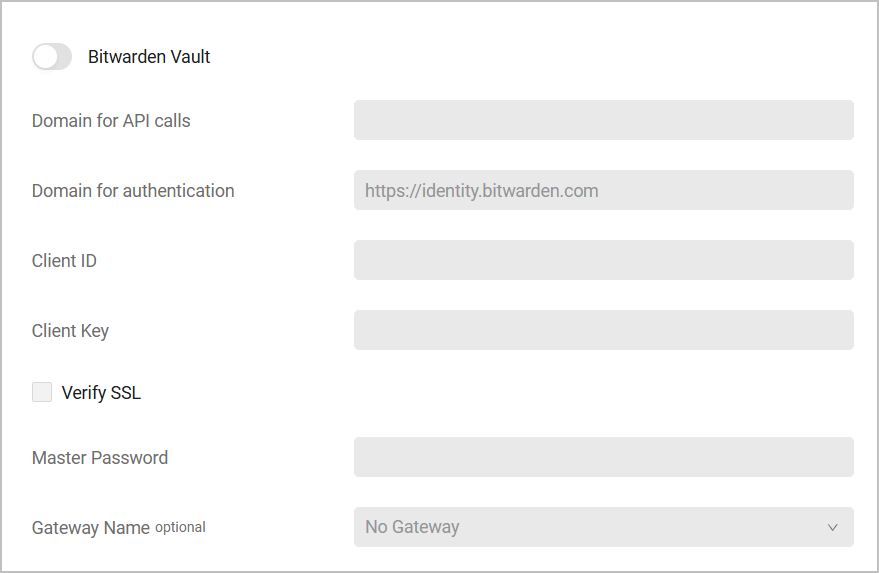
- Toggle on Bitwarden Vault.
- Specify the following parameters — all required unless noted otherwise:
- Domain for API calls - The domain where the "get vault" request will be sent to.
- Domain for authentication - The domain in which to authenticate and get a token. The default value is
https://identity.bitwarden.com. - Client ID and Client Key - To get these, from your Bitwarden account, navigate to Security, select the Keys tab, and then click View API key. The account you use must be an organization account and not a personal account, as the Client ID must start with the word "organization", for example:
organization.32242dc3-2402-34a6-97b0-b26700ccb8f2. - Verify SSL (default: false) - Select whether to verify the SSL certificate offered by the value supplied in Domain for API calls. For more details, see SSL Trust & CA Settings.
- Master Password - The password used to log into your Bitwarden account.
- Gateway Name (optional) - Select the gateway through which to connect to the Bitwarden Vault if required.
Working with Bitwarden Vault
After the Bitwarden Vault integration is enabled in Axonius, a new Bitwarden Vault icon will appear when you configure an adapter or Enforcement Action, in the following field types:
- Password fields
- File fields - such as certificates, private keys, or configuration files in JSON/XML format (in adapters that have such fields)
This allows you to enter a password or upload a file manually OR to fetch the secret from Bitwarden Vault Server.
To fetch a password from Bitwarden Vault
- In a password field, click the Bitwarden Vault icon. If you have configured more than one password manager, click the vault icon
 and select Bitwarden Vault from the drop-down. A Bitwarden Vault password dialog opens.

-
In the dialog, specify the following parameter:
Name to Search - The name of the Bitwarden Vault you want to use. You can find it under Vaults in your Bitwarden console.
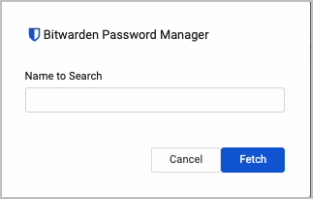
- Click Fetch.
-
If the fetch is successful, a green indication is displayed next to the Bitwarden Vault icon. Hovering over the Bitwarden Vault icon shows the credentials you input.

-
If the fetch is unsuccessful, a red indication is displayed next to the Bitwarden Vault icon. Hovering over the Bitwarden Vault icon shows the error.

-
Note
Typing or deleting any character in the textbox will change the password field back to a manual password input.
To fetch a file from Bitwarden Vault
-
In a file field, click the Bitwarden Vault icon. If you have configured more than one password manager, click the vault icon
and select Bitwarden Vault from the drop-down.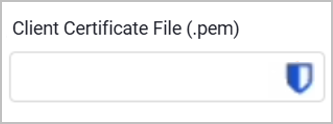
-
A Bitwarden Vault dialog opens. To proceed, follow steps 2-3 listed under "To fetch a password from Bitwarden Vault".
Updated about 1 month ago