
Auth0
Auth0 provides authentication and authorization solutions for web, mobile, and legacy applications.
Use Cases the Adapter Solves
- Audit User Accounts Across Your Auth0 Tenants: Automatically inventory all Auth0 users in Axonius to identify inactive, blocked, or unverified accounts and ensure they comply with your identity governance policies.
- Monitor Tenant Security Configuration: Track critical Auth0 tenant settings — such as session lifetime, legacy grant type flags, and clickjack protection — directly in Axonius to detect misconfigurations and enforce security baselines.
Asset Types Fetched
- Users, Application Settings
Data Retrieved through the Adapter
Users - fields such as: Username, Email, Display Name, Last Login, Created Date, Phone Number, Account Disabled (Blocked), Email Verified, Identities, Type
Application Settings - Fields such as session lifetime, idle session lifetime, session cookie mode, legacy API flags
Before You Begin
Ports
- TCP port 80/443
Authentication Method
- Client ID/Client Secret
APIs
Axonius uses the following Auth0 Management APIs:
To get API Access tokens, see Get Management API Access Tokens for Production.
Note
Before getting the API Access tokens, you need to register your machine-to-machine app with Auth0 according to the instructions in Permissions.
Permissions
The value supplied in Client ID must have read:users permissions to fetch assets.
For additional required permissions, see Advanced Settings.
You must do the following before configuring the Auth0 adapter connection screen:
- Register a new machine-to-machine application with Auth0 and authorize it:Follow steps 1 to 3. In step 3, select the Auth0 Management API, and click Authorize.
- Create credentials using the Post method: Select the Client Secret (Post) method.
- Get a Management API token
- Authorize the Management API to use the credentials, by enabling the settings in the screen below. (Access this page through this path: Applications → API → Management API → Machine to Machine Applications.)
Note
The following permissions are required for the Fetch Organization Members setting:
-
read:organization_member_roles
-
read:organizations OR read:organizations_summary
-
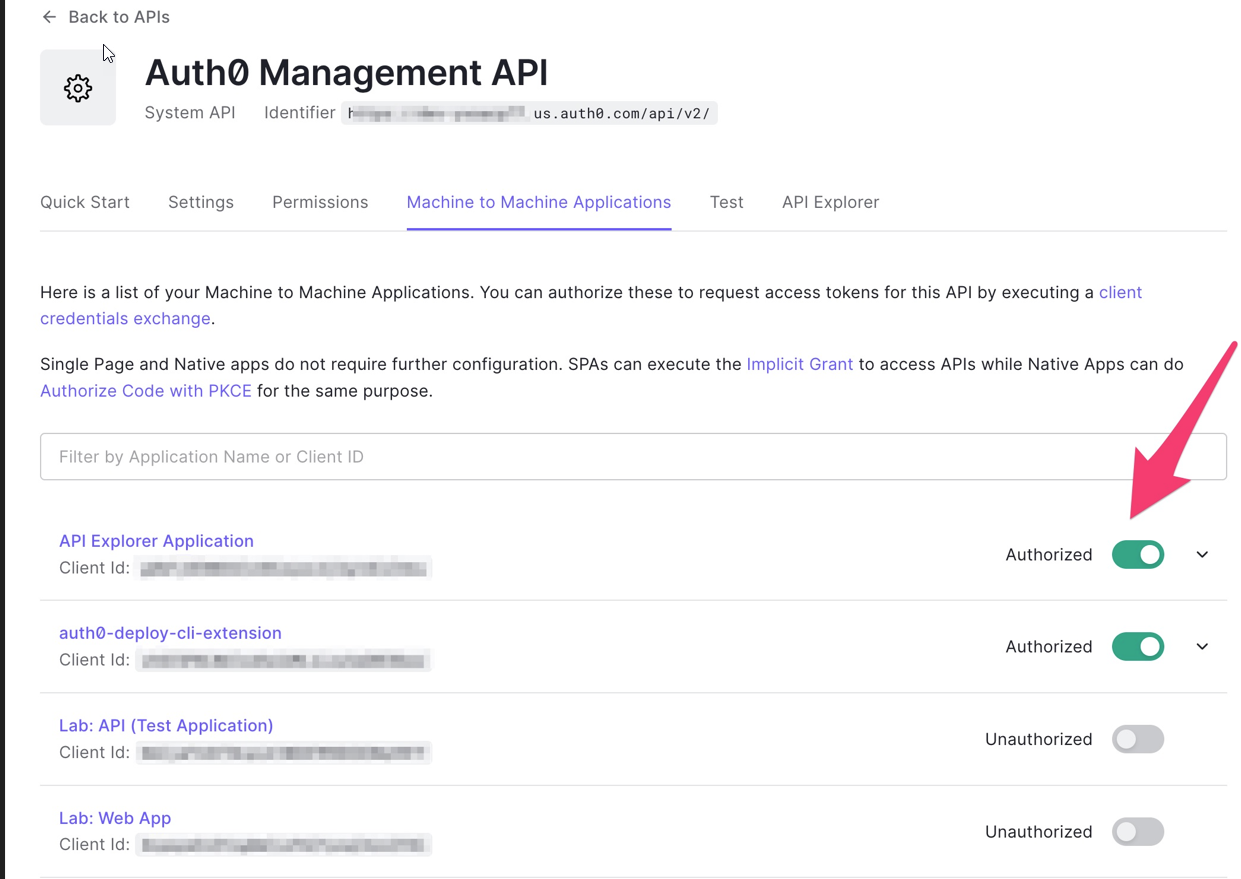
- Once enabled, enter the updated credentials into the Adapter connection screen.
Supported From Version
Supported from Axonius version 4.7
Connecting the Adapter in Axonius
To connect the adapter in Axonius, provide the following parameters:
Required Parameters
- Host Name or IP Address - The hostname or IP address of the Auth0 server.
- Client ID and Client Secret - The credentials for a user account that has the Required Permissions to fetch assets.
To obtain the Client ID and Client Secret, follow the instructions in Authentication API, using the Post method.
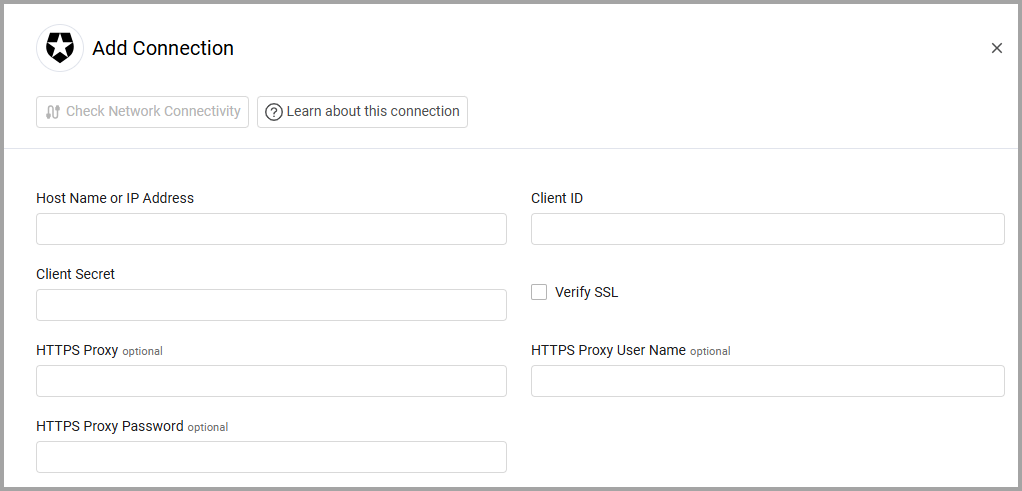
Optional Parameters
-
Verify SSL - Select whether to verify the SSL certificate of the server against the CA database inside of Axonius. For more details, see SSL Trust & CA Settings.
-
HTTPS Proxy - Connect the adapter to a proxy instead of directly connecting it to the domain.
-
HTTPS Proxy User Name - The user name to use when connecting to the value supplied in Host Name or IP Address via the value supplied in HTTPS Proxy.
-
HTTPS Proxy Password - The password to use when connecting to the server using the HTTPS Proxy.
To learn more about common adapter connection parameters and buttons, see Adding a New Adapter Connection.
Application Settings
The Auth0 adapter fetches application settings from the Auth0 Management API (api/v2/tenants/settings). This lets you monitor and validate security-critical tenant configuration settings directly in Axonius, including authentication requirements, session policies, and legacy API controls. |For further information refer to Auth0 Management API - Tenant Settings.
The following tenant settings are fetched:
| Setting | API Field |
|---|---|
| Disable Clickjack Protection Headers | flags.disable_clickjack_protection_headers |
| Enforce Client Authentication On Passwordless Start | flags.enforce_client_authentication_on_passwordless_start |
| Allow Legacy Delegation Grant Type | flags.allow_legacy_delegation_grant_type |
| Allow Legacy RO Grant Type | flags.allow_legacy_ro_grant_type |
| Allow Legacy Token Info Endpoint | flags.allow_legacy_tokeninfo_endpoint |
| Revoke Refresh Token Grant | flags.revoke_refresh_token_grant |
| Disable Management API SMS Obfuscation | flags.disable_management_api_sms_obfuscation |
| No Disclose Enterprise Connections | flags.no_disclose_enterprise_connections |
| Enable Public Signup User Exists Error | flags.enable_public_signup_user_exists_error |
| Trust Azure ADFS Email Verified Connection Property | flags.trust_azure_adfs_email_verified_connection_property |
| Enable ADFS WAAD Email Verification | flags.enable_adfs_waad_email_verification |
| Session Cookie Mode | session_cookie.mode |
| Idle Session Lifetime | idle_session_lifetime |
| Session Lifetime | session_lifetime |
| MFA Show Factor List On Enrollment | flags.mfa_show_factor_list_on_enrollment |
| Change Password Flow V1 | flags.change_pwd_flow_v1 |
| Enable Legacy Profile | flags.enable_legacy_profile |
| Enable ID Token API 2 | flags.enable_idtoken_api2 |
Advanced Settings
Note
Advanced settings can either apply to all connections for this adapter, or to a specific connection. Refer to Advanced Configuration for Adapters.
- Fetch User Roles - Select this option to fetch user roles. Read permissions for roles are required for this setting.
- Fetch Organization Members - Select this option to fetch organization members as Axonius users. If Fetch User Roles is enabled, the adapter will also fetch the roles of the organization members.
Note
The following permissions are required for the Fetch Organization Members setting:
read:organization_member_roles
read:organizations OR read:organizations_summary
- Exclude users that are not organization members - Select this option to not fetch users that are not part of an organization.
Note
To learn more about Adapter Configuration tab advanced settings, see Adapter Advanced Settings.
Updated about 2 months ago