
Exabeam
Exabeam is a cloud-based platform combining SIEM, threat detection, investigation, and response (TDIR) and XDR capabilities. Integrate Exabeam with the Axonius Cybersecurity Asset Management Platform.
Use Cases the Adapter Solves
- Threat Detection and Investigation: Correlate Exabeam SIEM events with asset inventory to identify devices associated with threat activity and accelerate incident response.
- Security Posture Assessment: Surface devices with elevated risk scores or critical risk states to prioritize vulnerability remediation and reduce attack surface.
- SaaS Security Posture Management: Fetch Exabeam application settings — including user statuses and role configurations — to identify misconfigurations and enforce least-privilege access controls.
Asset Types Fetched
This adapter fetches the following types of assets:
- Devices, Users (configurable by Advanced Settings)
- Application Settings (configurable by Advanced Settings)
Data Retrieved through the Adapter
Devices - fields such as: Hostname, IP Address, Risk Score, Risk State, Asset Type, Zone, First Seen, Last Seen
Before You Begin
Required Ports
- TCP port 443 (HTTPS)
Authentication Methods
Exabeam supports three authentication methods. Select the appropriate method when connecting the adapter.
APIs
Axonius uses the Exabeam API Documentation.
GET uba/api/search/assets— fetch DevicesGET access-control/v1/users— fetch Users
When Fetch Application Settings is enabled, the following additional endpoints are called:
POST auth/v1/token— retrieve bearer tokenGET access-control/v1/users— fetch user status settingsGET access-control/v1/roles— fetch role settings
Required Permissions
- Read permissions
- One of the following roles:
advanced_analyst,auditor, oradministrator
Supported From Version
Supported from Axonius version 4.5
Generating a Cluster Authentication Token
When selecting Cluster Authentication Token as the login method, this step is mandatory to be able to connect the adapter in Axonius.
Attention
The token can be generated only by admins.
- From Exabeam, select Settings > Core > Admin Operations > Cluster Authentication Token. The Cluster Authorization Token page is displayed.
- Click the
 symbol. The Setup Token dialog is displayed.
 - Enter the Token Name and Expiry Date in the relevant fields.
Note
Token names can contain only letters, numbers, and spaces.
- In the Permission Level section, select the Default Roles for the token.
- Click Add Token. Use the generated file to allow your APIs to authenticate by token. Ensure that your API uses 'ExaAuthToken' in its requests. For curl clients, the request structure resembles the following:
curl -H "ExaAuthToken:<generated_token>" https://<external_host>:<api_port>/<api_request_path>Connecting the Adapter in Axonius
Required Parameters
-
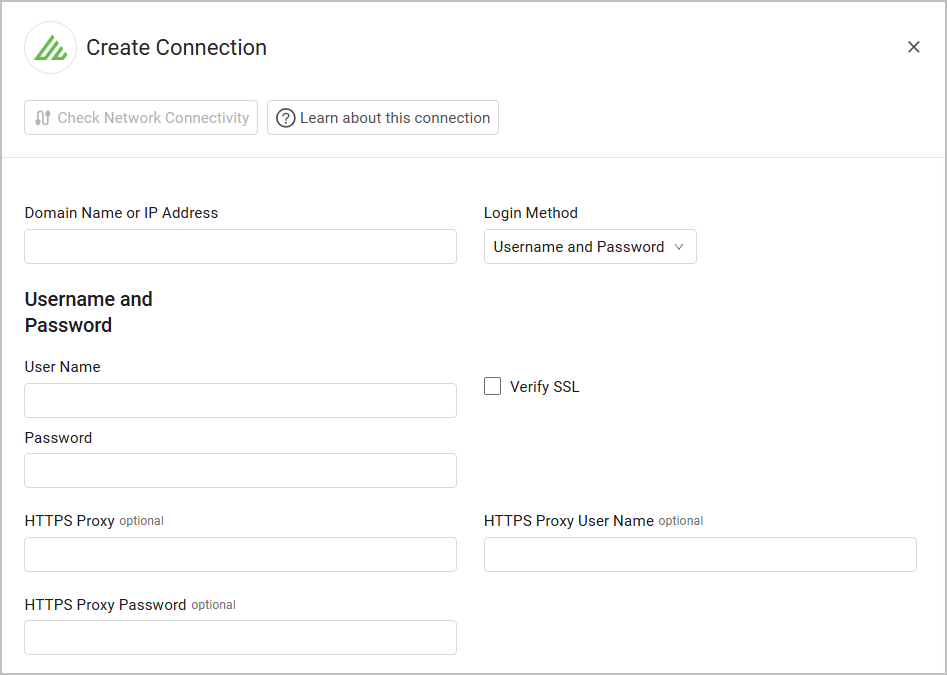
Domain Name or IP Address - The hostname or IP address of the Exabeam server.
-
Login Method (default: Username and Password) - Select from the dropdown whether to login via Username and Password, Cluster Authentication Token, or Access Token.
Specify the credentials for a user account that has the Required Permissions to fetch assets.
An admin must create the token as detailed in Generating a Cluster Authentication Token.
Specify an API Key and an API Key Secret. To learn how to retrieve these parameters, see Exabeam documentation.
Optional Parameters
-
Verify SSL (required, default: false) - Select whether to verify the SSL certificate of the server against the CA database inside of Axonius. For more details, see SSL Trust & CA Settings.
-
HTTPS Proxy (optional, default: empty) - Connect the adapter to a proxy instead of directly connecting it to the domain.
-
HTTPS Proxy User Name (optional, default: empty) - The user name to use when connecting to the value supplied in Host Name or IP Address via the value supplied in HTTPS Proxy.
-
HTTPS Proxy Password (optional, default: empty) - The password to use when connecting to the server using the HTTPS Proxy.
-
To learn more about common adapter connection parameters and buttons, see Adding a New Adapter Connection.
Advanced Settings
Note
Advanced settings can either apply for all connections for this adapter, or you can set different advanced settings and/or different scheduling for a specific connection, refer to Advanced Configuration for Adapters
- Fetch Users (default: false) - Select this to fetch Users as assets.
- Fetch Devices - Selected by default. Clear to not fetch Devices.
- Fetch Application Settings (default: false) - Select to fetch Application Settings assets.
Note
For details on general advanced settings under the Adapter Configuration tab, see Adapter Advanced Settings.
Version Matrix
This adapter was only tested with the versions marked as supported, but may work with other versions. Contact Axonius Support if you have a version that is not listed, which is not functioning as expected.
| Version | Supported | Notes |
|---|---|---|
| Advanced Analytics version i52 or greater | Yes |
Related Enforcement Actions
Updated 18 days ago