
Oomnitza Enterprise Technology Management
Oomnitza Enterprise Technology Management helps IT teams manage technology assets with an agentless solution for endpoints (laptops, mobile devices, monitors, peripherals, and accessories), software (desktop, cloud, virtual machines), and users.
Use Cases the Adapter Solves
- Comprehensive Asset Visibility: Gain complete visibility into technology assets managed in Oomnitza, including endpoints, peripherals, and accessories, to identify gaps in asset management coverage.
- Asset Lifecycle Management: Track asset lifecycle stages including purchase dates, warranty information, end-of-life dates, and assignment status to optimize asset utilization.
Assets Types Fetched
This adapter fetches the following types of assets:
- Devices
- Users
Data Retrieved through the Adapter
Devices - Fields such as Device serial number, device manufacturer, device model, Operating system
Users - Fields such as Username, email, full name, First name, last name
Before You Begin
Required Ports
- TCP port 443 (HTTPS)
Authentication Methods
API Token Authentication
APIs
Axonius uses the Oomnitza API v3. The following endpoints are called:
GET api/v3/assets- Fetches device/asset information with paginationGET api/v3/users- Fetches user information with pagination
Required Permissions
The API token must have permissions to read assets and users from the Oomnitza platform.
Supported From Version
Supported from Axonius version 4.5
Connecting the Adapter in Axonius
Navigate to the Adapters page, search for Oomnitza Enterprise Technology Management, and click on the adapter tile.
Click Add Connection.
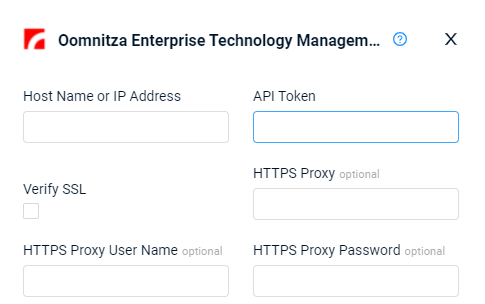
To connect the adapter in Axonius, provide the following parameters:
Required Parameters
-
Host Name or IP Address (required) - The hostname or IP address of the Oomnitza Enterprise Technology Management server.
-
API Token (required) - An API Key associated with a user account that has permissions to fetch assets. To get the API token navigate to the Settings page and select API.
Optional Parameters
-
Verify SSL - Select whether to verify the SSL certificate of the server against the CA database inside of Axonius. For more details, see SSL Trust & CA Settings.
-
HTTPS Proxy (optional) - Connect the adapter to a proxy instead of directly connecting it to the domain.
-
HTTPS Proxy User Name (optional) - The user name to use when connecting to the value supplied in Host Name or IP Address via the value supplied in HTTPS Proxy.
-
HTTPS Proxy Password (optional) - The password to use when connecting to the server using the HTTPS Proxy.
To learn more about common adapter connection parameters and buttons, see Adding a New Adapter Connection.
Advanced Settings
Note
Advanced settings can either apply for all connections for this adapter, or you can set different advanced settings and/or different scheduling for a specific connection, refer to Advanced Configuration for Adapters.
- Assets Status Ignore List (required, default: False) - A comma separated list of asset status that should not be fetched.
- Default values: Decommissioned, Donated, and Retained by Departing User.
- To fetch all assets, clear the default and choose Save.
- Assets Type Ignore List (required, default: False) - A comma separated list of asset types that should not be fetched.
- Use Hostname as Asset Name - Select this option to display the Host Name value in the Asset Name field.
- Include Archived Assets - Select this option to fetch archived/deleted assets from Oomnitza.
- Fetch Users - By default the adapter fetches user data from Oomnitza, clear this option to not fetch users.
Updated 5 months ago