
Rapid7 InsightVM
Rapid7 InsightVM provides visibility and risk prioritization for vulnerabilities found in local, remote, cloud, containerized, and virtual infrastructure.
Note
Axonius uses the InsightVM Cloud Integrations API. This API refers to InsightVM API v4. If you use a previous version of InsightVM that supports Rapid7 InsightVM API v3, use the Rapid7 Nexpose and InsightVM adapter.
Asset Types Fetched
- Devices, Aggregated Security Findings, SaaS Applications
Before You Begin
Authentication Methods
- Organization key
- User-generated key
APIs
Axonius uses the InsightVM Cloud Integrations API. This API refers to InsightVM API v4. If you use a previous version of InsightVM that supports API v3, use the Rapid7 Nexpose and InsightVM adapter.
Required Ports
- TCP port 443
Required Permissions
When authenticating with an organization key:
- The organization key must be generated by a Platform Administrator.
- The Super User privilege is required.
- Required access scopes:
- Fetch All Assets across the organization
- Fetch All Vulnerabilities across the organization
When authenticating with a user key:
The user associated with the key must have the following permission configured in the Insight platform:
| Endpoint | Required Role (InsightVM) | Required Context (Site Access) |
|---|---|---|
| /vm/v4/integration/assets | Read Only (minimum) | All sites (or specific sites) |
| /vm/v4/integration/vulnerabilities | Read Only (minimum) | All sites (or specific sites) |
Connecting the Adapter in Axonius
Required Parameters
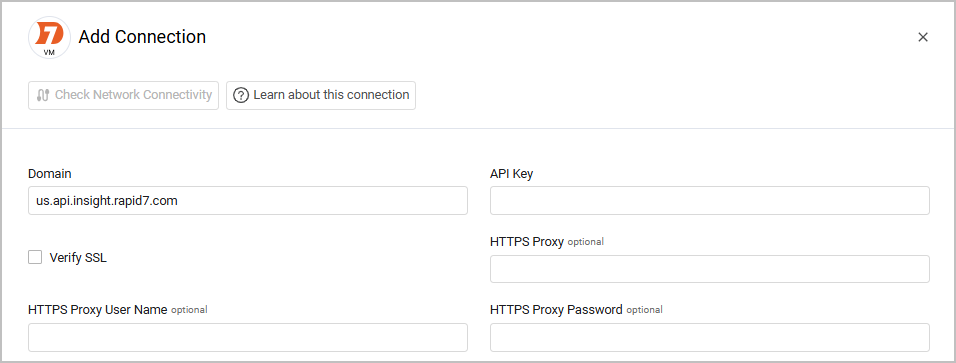
- Domain - The domain of the Rapid7 InsightVM server. The default domain is
us.api.insight.rapid7.com. This value may vary depending on your Rapid7 accounts 'region'. For more information, see Rapid7 Supported Regions. - API Key - An Organization API Key that has permissions to fetch all assets. If your company does not allow the use of an organization key, you must use a user-generated key which can be used with the Rapid7 Nexpose and InsightVM adapter.
Optional Parameters
- Verify SSL - Select whether to verify the SSL certificate of the server against the CA database inside of Axonius. For more details, see SSL Trust & CA Settings.
- HTTPS Proxy - A proxy to use when connecting to the value supplied in Domain.
- HTTPS Proxy User Name - The user name to use when connecting to the value supplied in Domain via the value supplied in HTTPS Proxy.
- HTTPS Proxy Password - The password to use when connecting to the value supplied in Domain via the value supplied in HTTPS Proxy.
To learn more about common adapter connection parameters and buttons, see Adding a New Adapter Connection.
Advanced Settings
Note
Advanced settings can either apply for all connections for this adapter, or you can set different advanced settings and/or different scheduling for a specific connection, refer to Advanced Configuration for Adapters.
- Assets per page (optional, default: 150) - Set the number of assets to fetch per page.
- Exclude devices missing all of the following: IP, Hostname, MAC (optional) - Select this option to exclude devices with no MAC address, no hostname, and no IP address from the fetch. If the devices have none of these fields it is not fetched.
- Tag Keys Include list (optional) - Specify a comma-separated list of Tag Keys in Rapid7 InsightVM. When supplied, all connections for this adapter will only fetch devices from Rapid7 InsightVM with the Tag Keys provided in this list.
- Swap Adapter Tag Key/Value fields - When enabled, the Tag Key will receive the name of the Tag Value, and vice versa.
- For example, when this setting is disabled, the following tag attributes may exist:
- Tag Key: Server
- Tag Value: CUSTOM
- When this setting is enabled, the tag attributes will be:
- Tag Key: CUSTOM
- Tag Value: Server
- For example, when this setting is disabled, the following tag attributes may exist:
Note
Enabling the Swap Adapter Tag Key/Value fields setting will affect whether the tag is part of the Tag Keys include list or not. Example:
If
MyKeyis part of the Tag Keys include list, a tag such asTag Key: MyKey; Tag Value: MyValuewill be considered as part of the include list.If you enable Swap Adapter Tag Key/Value, the same tag will become
Key: MyValue; Value: MyKey, and will no longer be considered as part of the include list.
- Do not fetch devices without Last Seen and no hostname (optional) - Select this option to exclude devices in which Last Seen or hostname information is unavailable.
- Do not fetch devices without a MAC address or Hostname (optional) - Select this option to exclude devices without a MAC address or hostname from the fetch. When the option is cleared, Axonius will fetch devices even if they do not have a MAC address or hostname.
- Remediated vulnerabilities comparison date (optional) - Select a date in which device vulnerabilities are compared to determine if they were subsequently patched. For example, a device had vulnerable software on December 10, 2022. The software was updated on January 10, 2023, remediating the vulnerability; if the selected comparison date is January 1, 2023, then the vulnerability information is fetched and considered a remediated vulnerability. If no date is selected, then remediated vulnerabilities aren't fetched.
- Relative remediated vulnerabilities comparison date (in days) - Specify a number of days to which device vulnerabilities are compared to determine if they were subsequently patched. This setting takes precedence over Remediated vulnerabilities comparison date.
- Include inter-snapshot remediations - Select this to include in the fetch vulnerabilities remediated between the comparison date and the current time that are discovered after the comparison time.
- Deduplicate devices by hostname, ip, and mac - This API often yields the same device multiple times (matching MAC, hostname, IP). Enable this option to choose only the device with the latest last-seen timestamp.
- Deduplicate devices only by hostname - Enable this to discard duplicate devices only if their hostnames match.
- Classify adapter property based on open ports - Select this option to classify the adapter property as
Agentwhen the asset's ports 22, 135, and 445 are open and status =SUPPLIED_SUCCESS. - Vulnerability Advanced Settings - When you enable this, the following configurations become available:
- Vulnerability Findings to Fetch - Select which vulnerability severity level to fetch. The options are Moderate, Severe, and Critical (all selected by default).
- Do not ingest remediated vulnerabilities as Security Findings - When selected, vulnerabilities with a "remediated" state in Rapid7 are not added to the Security Findings table or create Exposure entries. They still appear in the Remediated and Rapid7 Vulnerabilities tables.
- Fetch vulnerabilities data (default: true) - When you disable this, the adapter won't parse Device fields related to vulnerabilities: Vulnerable Software, Vulnerabilities, Rapid7 Vulnerabilities, Solution IDs, and Remediated.
- Do not ingest duplicate CVEs (default: true) - Select this option to avoid fetching duplicate CVEs.
- Insert both CVE and Plugin as vulnerable software - Select this option to parse each CVE ID and plugin ID in the vulnerability as vulnerable software.
- Don’t split source vulnerabilities into CVEs - Select this option to present each source vulnerability as a vulnerability of its own, represented as a single row on the vulnerability page instead of being broken down into each CVE in the vulnerability.
- Ingest non-CVE Rapid7 Plugin as vulnerable software - When this is enabled, Rapid7 InsightVM vulnerability findings without a CVE ID (Common Vulnerabilities and Exposures Identifier) are added to the asset's Vulnerable Software list, with the raw Rapid7 Plugin ID used as the identifier. When this is disabled, non-CVE findings are still processed as Rapid7 Vulnerabilities, but are not added to the Vulnerable Software list. This capability helps get a more comprehensive vulnerability coverage, including vendor-specific checks.
- Prefetch devices to local database (default false) - Select this option to prefetch devices to a local temporary database before processing. This may be useful in environments with specific memory or processing requirements.
- Only fetch devices if they have a MAC address and a hostname and an IP address - Select this option to only fetch devices that have all the previously-mentioned identifiers.
- Heavy Fields Settings
- Enable granular heavy fields selection - Enable this to select specific heavy fields to ingest. When enable, unselected fields are not populated, reducing database size and improving performance. When disabled, the global heavy fields setting are used.
- Heavy Fields to Ingest - Fields available for selection:
- Solution Fix - Remediation instructions for vulnerabilities
- Solution Summary - Summary of the solution or fix
- Proof - Proof or evidence of the vulnerability finding
- Title - Vulnerability title or description
- Each adapter connection can have different heavy field configurations
Note
To learn more about Adapter Configuration tab advanced settings, see Adapter Advanced Settings.
Troubleshooting
Make sure you perform monthly maintenance and tuning on your On-Premise Rapid7 Postgresql database as explained by Rapid7. This ensures optimzed Axonius fetch performance.
- Rapid7 Configuring maximum performance in an enterprise environment
- Rapid7 Planning for Capacity Requirements.
Related Enforcement Actions
Updated 3 months ago