
Initial Settings and Policies
Agent Deployment Status
Before configuring agent coverage monitoring, you must first establish the scope of devices to be monitored. You must review and configure these baseline scopes before proceeding with agent-specific coverage rules, to ensure that your coverage focuses on the right devices.
Agent Coverage operates on two fundamental device classifications:
- Managed Devices - Devices that must have agents installed according to your organization's policy. These represent your core coverage requirements.
- Active Devices - Devices that remain operationally active within your environment (excluding decommissioned or retired systems).
The workspace displays charts that summarize your coverage state - how many devices are included in your scope, and the proportions of the different device categories (Active vs. Inactive, In-Scope vs. Out-of-Scope). You can click Hide Charts to remove the dashboards from display, if needed.
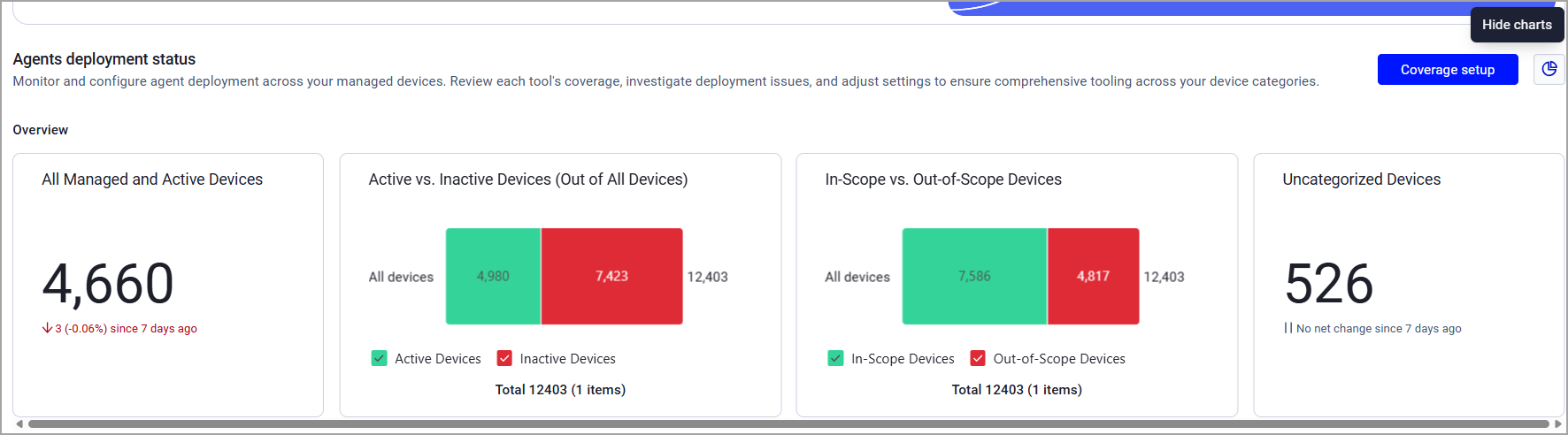
The most effective implementation monitors devices that are both managed and active. However, these definitions vary significantly between organizations based on their specific policies and operational requirements.
To get started, click Coverage setup.
Attention
You must click Save on each of the following configuration pages to apply your changes.
Out-of-Scope Devices
Create or select a query to exclude devices from coverage. The scope of agent coverage depends on your security policies. For example, you may want to exclude devices of a specific type, like employees' personal phones.
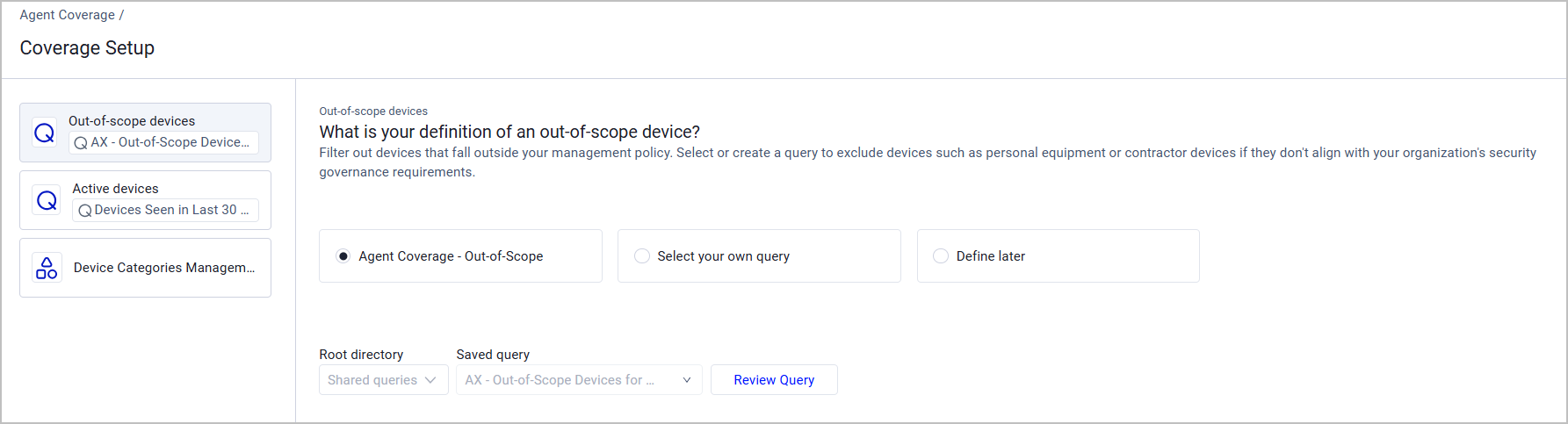
You have three options to define out-of-scope devices:
- Agent Coverage - Out-of-Scope - An Axonius predefined query that cannot be edited. Click Review Query to see which field it uses to define out-of-scope devices. The query covers scope aspects such as data cleaning, devices that were not seen by any agent-based adapter, or devices that were seen only by a single adapter.
- Select your own query - Define a Devices Query tailored to your needs. It is most recommended to use the Axonius predefined query as a baseline, as it excludes low fidelity devices from your scope. For example, you can include it as a saved query and add more fields:
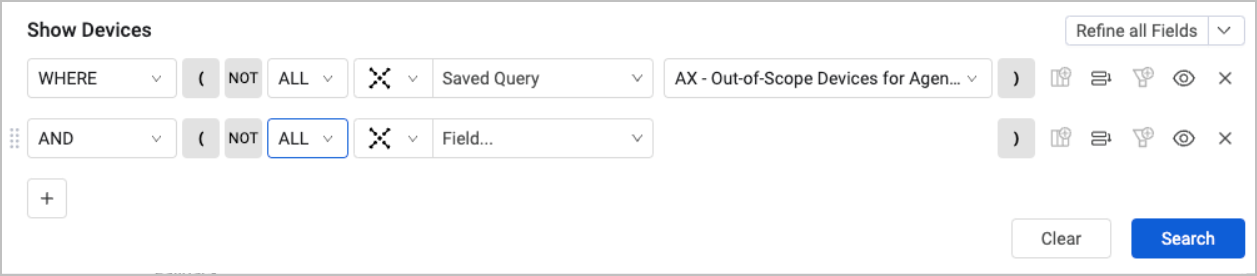
- Define later - You can choose to address the question of out-of-scope devices at a later time. However, your inventory may contain devices that should not be managed by policy and therefore, shouldn't have agents installed on them. If you do not exclude these devices from coverage, they might appear as potential issues, which will result in lower-fidelity findings. We recommend coming back to defining out-of-scope devices as soon as possible.
Active Devices
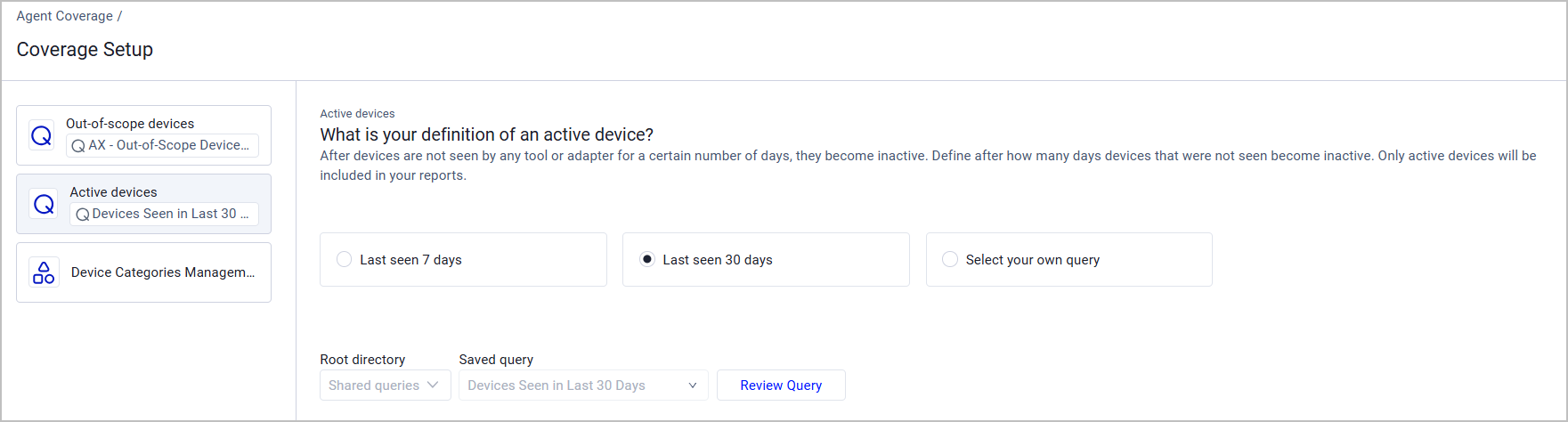
After devices are not seen by any tool or adapter for a certain number of days, they become inactive. You need to define after how many days devices that were not seen become inactive.
You can define that active devices are devices that were seen either in the last 7 or 30 days; or, you can select your own query and define a custom range.
Device Categories
Your device inventory is grouped by different categories, predefined by Axonius (but you can also create your own). The responsibility for various parts of the network is often divided between teams, and different devices employ different tools. Device categories are based on that information.
Device categories are dynamic: the number of devices in each category changes according to the configurations you've made for out-of-scope and active devices. For example, if you change the definition of active devices from "Last seen in 7 days" to "Last seen in 30 days", this might affect the inventory in the device categories. Review the number of devices in each category to make sure they make sense.
Each device category comprises the following criteria:
- Device type - server, laptop, physical workstation, etc.
- Operating system - Linux, Windows, MacOS
- Deployment type - cloud, on-prem, or physical deployment for end-user devices
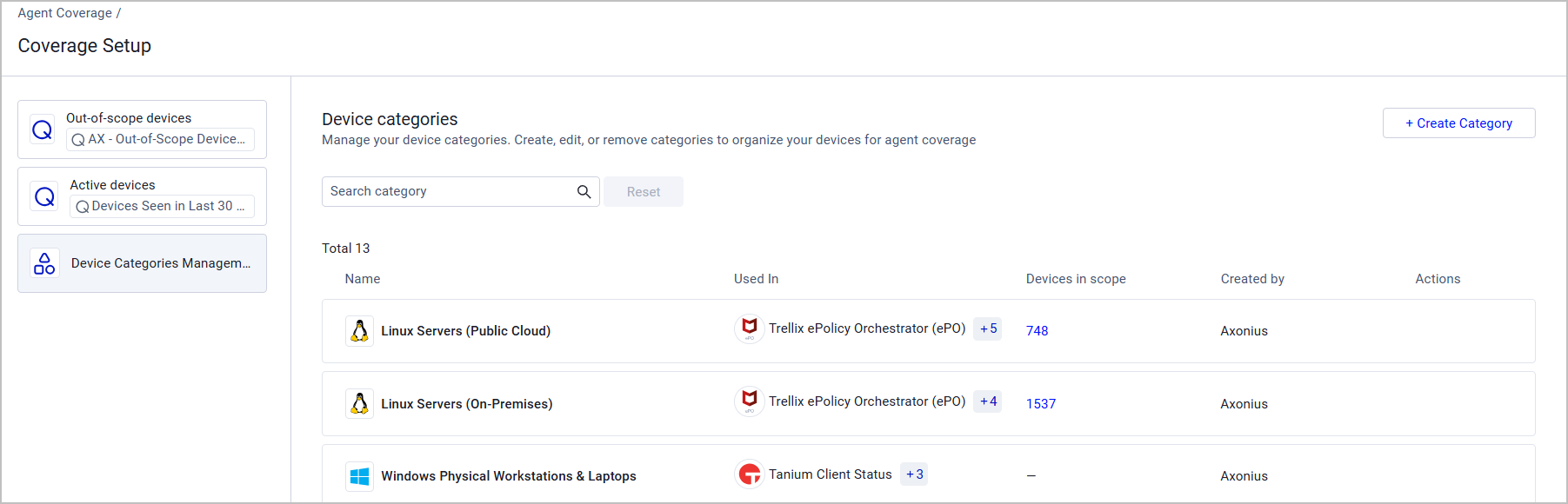
Creating Custom Device Categories
Create your own device categories to ensure granular control over tool monitoring across the entire workspace. Select any shared Devices query to define the new category.
Note
Each category is global and is available for all tools once created.
- From the Device categories page, click + Create Category.
- Enter a category name.
- From the Saved Query dropdown, select a Devices query, or click + Add Query to define a new query.
- Save your changes.
Once your custom category is added, you can edit or delete it by clicking the Edit/Delete icon under Actions. Note that Axonius predefined categories cannot be edited or deleted.
Deployment Status Table
This table at the bottom of the workspace homepage shows the status of your covered devices: which of them are active, and are there any issues involving missing, unhealthy or inactive agents.
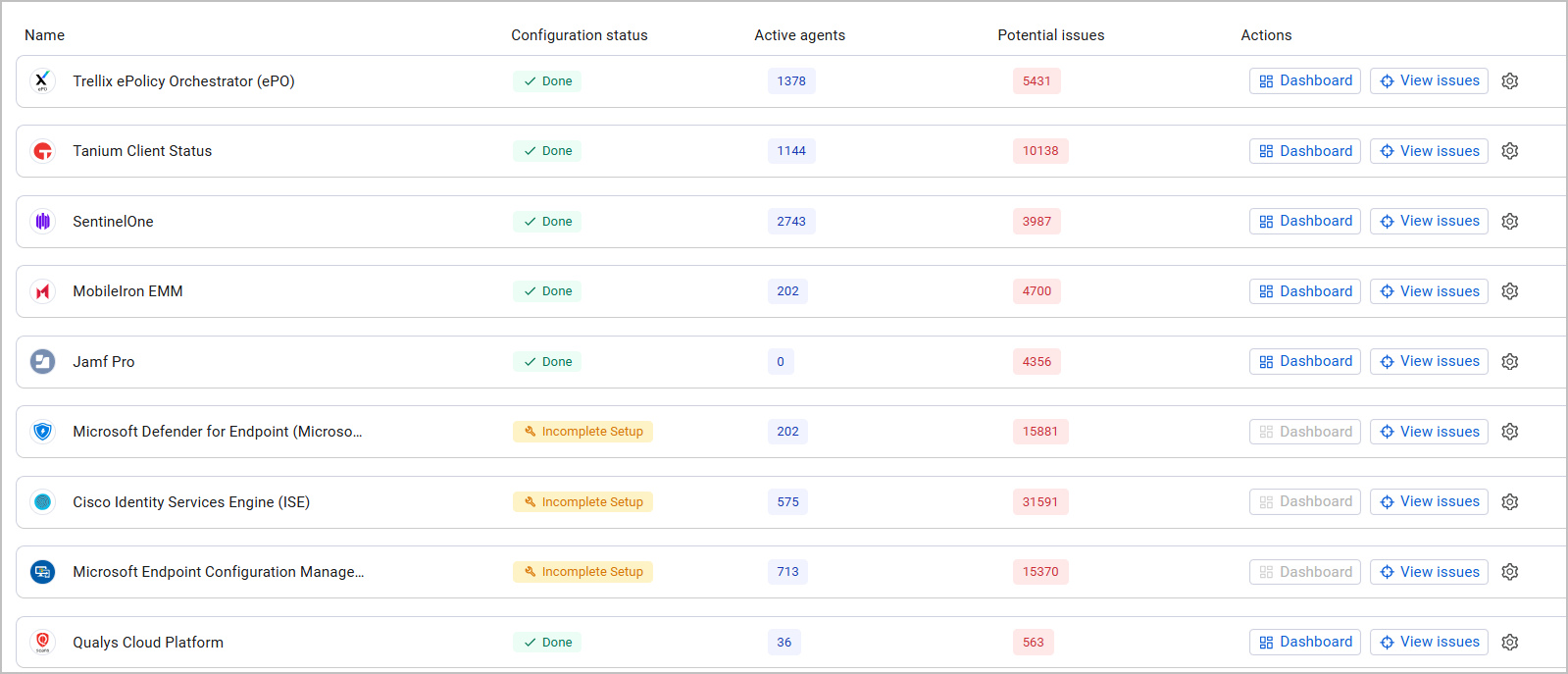
The table contains the following columns:
- Name - The name of the tool.
- Status - Possible statuses are either Done or Incomplete Setup.
- Done - You've completed all configurations required to define this tool's coverage scope.
- Incomplete Setup - You have several more configurations to complete to ensure proper coverage.
Note
When you first start to use the Agent Coverage, all statuses for all tools are "Incomplete setup". We recommend completing all required configurations as soon as possible.
- Active Agents - The number of active agents detected by the adapter. An agent is active when it's installed on an active, in-scope (managed) device and is functioning properly.
- Potential issues and Actions
Updated 2 months ago