
Microsoft Dynamics 365
Microsoft Dynamics 365 Finance is a Microsoft enterprise resource planning system for medium to large organizations.
Asset Types Fetched
- Devices
Data Retrieved by the Adapter
The adapter fetches Devices' fixed asset data such as Asset Group, Acquisition Date, Acquisition Cost, Location, Department, Responsible Person, and more.
Before You Begin
APIs
Axonius uses the Microsoft Dynamics 365 Finance API reference. The endpoint used is data/AssetFixedAssets (direct OData API).
Required Ports
- TCP port 80/443
Creating Service Principal Credentials in Azure Active Directory
- Navigate to Azure Active Directory > App registrations.
- Select New registration.
- Enter a name, for example, "Axonius Dynamics 365 Integration".
- Select Accounts in this organizational directory only.
- Click Register.
- Your Application (client) ID and Directory (tenant) ID are created.
- In your new app registration, navigate to Certificates & secrets.
- Select New client secret.
- Enter a description and select expiration period.
- Click Add
- Copy the secret value immediately, as it won't be shown again.
Required Permissions
When registering your app in Azure AD, you need to add permissions from Dynamics ERP (this is how Microsoft Dynamics 365 Finance and Operations appears in the API permissions list). Then, you must register the application in Dynamics 365.
To access the Dynamics Connector Service APIs, the following Application permission is required:
- Connector.FullAccess
To assign permissions:
- Go to your app registration and select API permissions.
- Click Add a permission.
- Search for and select Dynamics ERP (or Microsoft Dynamics ERP).
- Under, Application permissions, select Connector.FullAccess.
- Click Add permissions.
- Click Grant admin consent for [your domain].
To register the app in Dynamics 365 F&O:
- Open Dynamics 365 Finance and Operations.
- Navigate to Modules → System administration → Setup → Azure Active Directory applications.
- Click New.
- Enter the Application (Client) ID from Azure AD.
- Enter a name for the application.
- Select a User ID (a service account with appropriate permissions).
- Click Save.
Connecting the Adapter in Axonius
Required Parameters
-
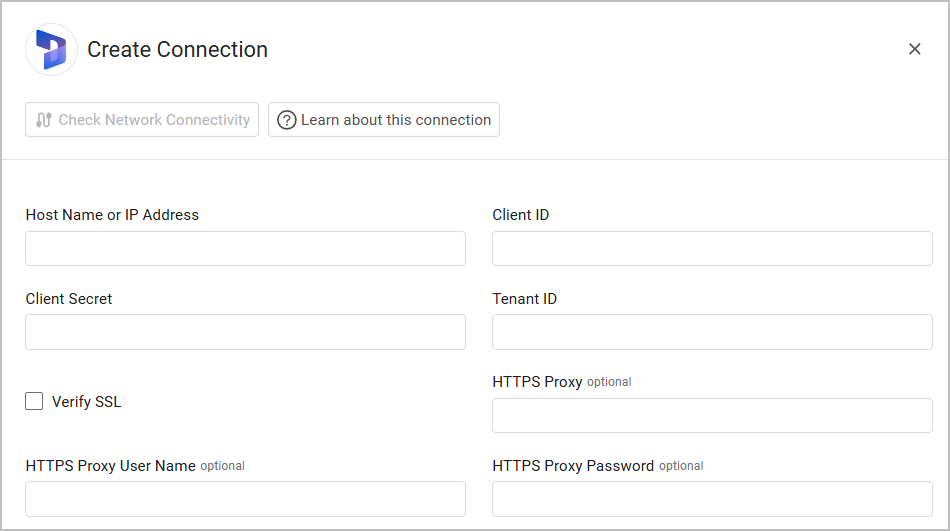
Host Name or IP Address - The hostname or IP address of the Microsoft Dynamics 365 Finance server that Axonius can communicate with via the Required Ports.
-
Client ID and Client Secret - Credentials provided by Microsoft Dynamics 365 Finance for authentication to the API for read access.
-
Tenant ID - A globally unique identifier (GUID) that is different than the organization name or domain. This identifier is needed when configuring OneDrive policies.
See Creating Service Principal Credentials in Azure Active Directory for explanation on generating these credentials.
Optional Parameters
-
Verify SSL - Select this option to verify the SSL certificate of the server against the CA database inside of Axonius. To learn more, see SSL Trust & CA Settings.
-
HTTPS Proxy - Connect the adapter to this proxy instead of directly connecting it to the domain.
-
HTTPS Proxy User Name - The user name to use when connecting to the value supplied in Host Name or IP Address via the value supplied in HTTPS Proxy.
-
HTTPS Proxy Password - The password to use when connecting to the server using the HTTPS Proxy.
To learn more about common adapter connection parameters and buttons, see Adding a New Adapter Connection.
Supported From Version
Supported from Axonius version 4.8
Updated 6 months ago