
Silverfort
Silverfort is a unified identity protection platform that integrates with IAM solutions to provide secure access to company resources.
Asset Types Fetched
- Users
Before You Begin
APIs
Axonius uses the Silverfort REST API.
Required Permissions
- All API endpoints Read permissions (listed under Obtaining API Keys) require Read permission.
- The Service Accounts and Policies endpoints also require Write permission.
Supported From Version
Supported from Axonius version 6.1
Obtaining API Keys
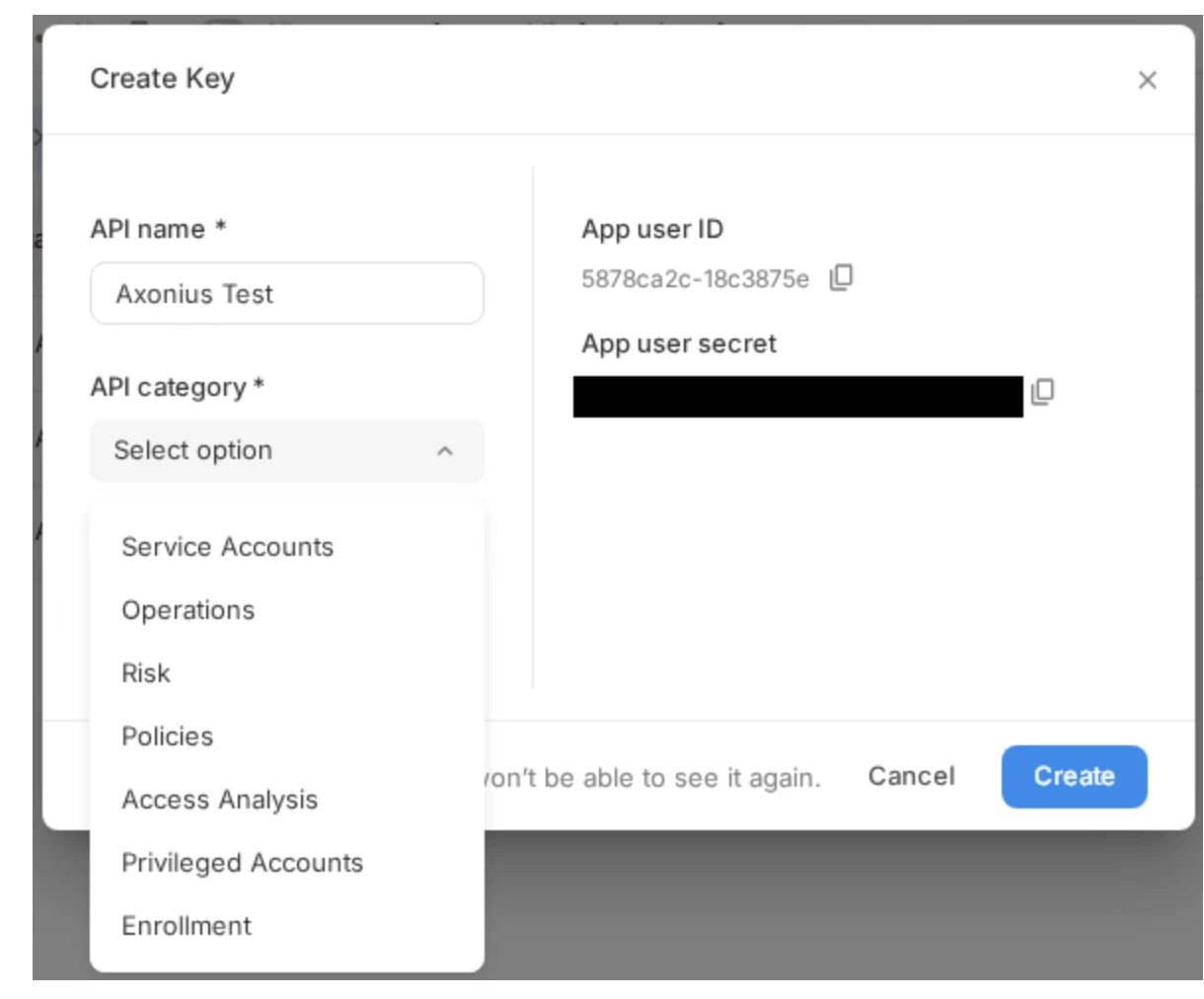
Silverfort's API uses category-specific API keys to control access to different API endpoints. To connect the adapter in Axonius, 5 of these API keys are required. To obtain them:
-
Log in to your Silverfort Admin Console.
-
Navigate to Settings > API Access (or an equivalent section for API key management).
-
Generate separate API keys for the following categories:
- Service Accounts (Endpoint:
GET /getServiceAccountsInsights) - Operations (Endpoint:
GET /getBootStatus) - Risk (Endpoint:
GET /getEntityRisk) - Policies (Endpoint:
GET /v2/public/policies) - Enrollment (Endpoint:
GET /getUsersEnrollment)
- Service Accounts (Endpoint:
Connecting the Adapter in Axonius
Note
The exact steps to generate API keys should be confirmed with your Silverfort administrator or Silverfort support, as the API documentation may vary based on your Silverfort version.
Required Parameters
-
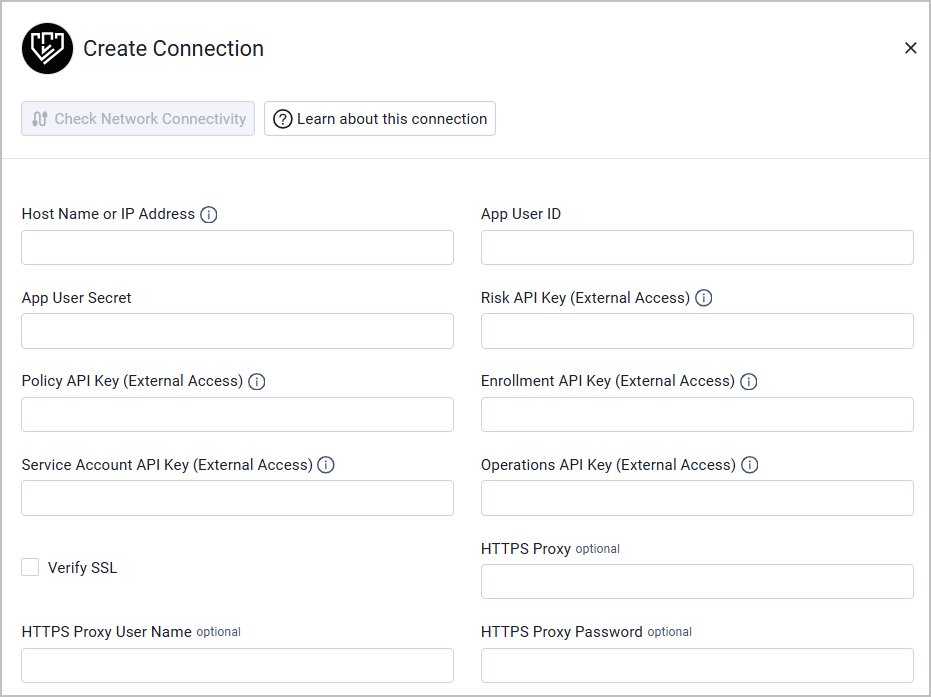
Host Name or IP Address - The hostname or IP address of the Silverfort server.
-
External API Key - A shared API key for all Silverfort API requests.
-
App User ID (Category: Enrollment) - App User ID for the Enrollment API Key.
-
App User Secret (Category: Enrollment) - App User Secret for the Enrollment API Key.
-
App User ID (Category: Operations) - App User ID for the Operations API Key.
-
App User Secret (Category: Operations) - App User Secret for the Operations API Key.
-
App User ID (Category: Risk) - App User ID for the Risk API Key.
-
App User Secret (Category: Risk) - App User Secret for the Risk API Key
-
App User ID (Category: Service Account) - App User ID for the Service Account API Key.
-
App User Secret (Category: Service Account) - App User Secret for the Service Account API Key.
-
App User ID (Category: Policy) - App User ID for the Policy API Key.
-
App User Secret (Category: Policy) - App User Secret for the Policy API Key.
Optional Parameters
- Verify SSL - Select whether to verify the SSL certificate of the server against the CA database inside of Axonius. For more details, see SSL Trust & CA Settings.
- HTTPS Proxy (optional) - Connect the adapter to a proxy instead of directly connecting it to the domain.
- HTTPS Proxy User Name (optional) - The user name to use when connecting to the value supplied in Host Name or IP Address via the value supplied in HTTPS Proxy.
- HTTPS Proxy Password (optional) - The password to use when connecting to the server using the HTTPS Proxy.
To learn more about common adapter connection parameters and buttons, see Adding a New Adapter Connection.
Advanced Settings
Note
Advanced settings can either apply to all connections for this adapter, or to a specific connection. Refer to Advanced Configuration for Adapters.
- Enrich Service Account Insights with Policies - Enable this to enrich service accounts (fetched as Users) with policies.
Note
To learn more about Adapter Configuration tab advanced settings, see Adapter Advanced Settings.
Updated about 2 months ago