
Jira Service Management
Jira Service Management (Service Desk) enables to receive, track, manage, and resolve requests from customers. Use to fetch assets from the Jira Insight platform. This is intended to be used with Jira Service Management.
Asset Types Fetched
- Devices, Users, Business Applications, Tickets, Application Services, SaaS Applications, Networks, Certificates, Software, Domains, URLs, Groups
Note
To fetch full Jira Tickets information, use the Jira Service Management (Service Desk) Fetch Tickets adapter.
Before You Begin
To correlate data correctly in Axonius, define the following fields in your system as follows:
| Field Name | Accepted Field Name(s) in Jira |
|---|---|
| MAC Address | MAC, Mac Address, MAC Address, mac address |
| IP Address | IPs, Ip Address, IP Address, ip address |
APIs
Axonius uses the Get AQL Objects API.
Minimum Scope Sets
To fetch all asset types, the following minimum scope sets are required:
read:issue:jira
read:field:jira
read:user:jira
read:attachment:jira
read:cmdb-object:jira
read:cmdb-schema:jira
read:servicedesk-request
To fetch assets AND use Enforcement Actions, the following minimum scope sets are required:
read:issue:jira
read:field:jira
read:project:jira
read:issue-type:jira
read:user:jira
read:attachment:jira
read:cmdb-object:jira
read:cmdb-schema:jira
write:issue:jira
write:attachment:jira
delete:attachment:jira
write:cmdb-object:jira
delete:cmdb-object:jira
Supported From Version
Supported from Axonius version 4.5
Connecting the Adapter in Axonius
Using Scoped Credentials
The Jira Service Management adapter detects and supports four credential modes based on the field values provided. The credential mode is determined automatically - no need to configure any additional settings in the adapter's Add Connection screen.
The credential mode is auto-detected based on the following decision tree (evaluated top-to-bottom):
| Priority | Condition | Credential Mode | Authentication Method |
|---|---|---|---|
| 1 | Not cloud OR cloud without a username | On-prem / Bearer token | Authorization: Bearer <token> |
| 2 | Cloud + Username contains no @ | OAuth 2.0 2LO (Client Credentials)
| Bearer (fetched via OAuth token endpoint) |
| 3 | Cloud + Username ends with @serviceaccount.atlassian.com | Service account scoped API token | Basic auth (username:token) |
| 4 | Domain already starts with api.atlassian.com/ex/jira/<cloudId> | Scoped API token (user or service account, pre-configured URL) | Basic auth (username:token) |
| 5 | Cloud + Standard email username + Standard .atlassian.net domain | Classic cloud API token (non-scoped) | Basic auth (username:token) |
Notes
- Mode 1 is for on-prem/server installations.
- Modes 2, 3, and 4 use granular scoped credentials and require specific OAuth scopes - classic scopes such as
read:jira-workorwrite:jira-workare not sufficient. The OAuth app or service account must be granted the specific granular scopes listed in the relevant minimum scope set.- Mode 5 uses classic API tokens where scopes are not applicable.
Prerequisites
- The scoped API base URL is
(https://api.atlassian.com/ex/jira/<cloudId>/rest/... - "Fetch Comments" does not require the
read:comment:jirapermission - comments are explicitly excluded from API responses by the adapter (fields: ["*all", "-comment"]). - The Jira Service Management - Update Tickets Enforcement Action requires the
delete:attachment:jirascope when an existing CSV attachment is present. This scope is easy to miss during the permission setup, so make sure you include it.
How to configure each mode in the Axonius interface
Each credential mode requires different values for the Axonius fields when connecting the adapter:
Mode 2: OAuth 2.0 Client Credentials (Service Account)
| Axonius Field | Required Value |
|---|---|
| User Name | OAuth Client ID |
| API Token | OAuth Client Secret |
- The adapter will automatically fetch a Bearer token from
https://auth.atlassian.com/oauth/token. - Token has a 1-hour TTL and is refreshed automatically.
Mode 3: Service Account Scoped API Token
| Axonius Field | Required Value |
|---|---|
| User Name | Service account email (must end with @serviceaccount.atlassian.com |
| API Token | The Scoped API Token |
| Host Name or IP Address | Your standard Jira domain, for example, https://your-domain.atlassian.net |
Mode 4: Scoped API Token (Pre-configured URL)
| Axonius Field | Required Value |
|---|---|
| User Name | Your Atlassian account email |
| API Token | The Scoped API Token |
| Host Name or IP Address | The scoped API gateway URL: https://api.atlassian.com/ex/jira/<your-cloud-id>
|
Mode 5: Classic API Token (Default Behavior)
| Axonius Field | Required Value |
|---|---|
| User Name | Your Atlassian account email |
| API Token | A classic API Token |
| Host Name or IP Address | Your standard Jira domain, for example https://your-domain.atlassian.net |
Scoped API Routing
When using scoped credentials (modes 2, 3, or 4), all Jira REST API calls are automatically routed through Atlassian's unified cloud endpoint:
- Standard (classic):
https://<site>.atlassian.net/rest/<api_suffix> - Scoped:
https://api.atlassian.com/ex/jira/<cloudId>/rest/<api_suffix>
Note
The Cloud ID is auto-discovered when using modes 2 or 3 - you don't need to supply it manually. The adapter retrieves it from
https://your-domain.atlassian.net/_edge/tenant_info. If you prefer to specify the Cloud ID manually, you can set the Domain field to the scoped API gateway URL format (mode 4).
Connection Parameters - Axonius Interface
Required Parameters
-
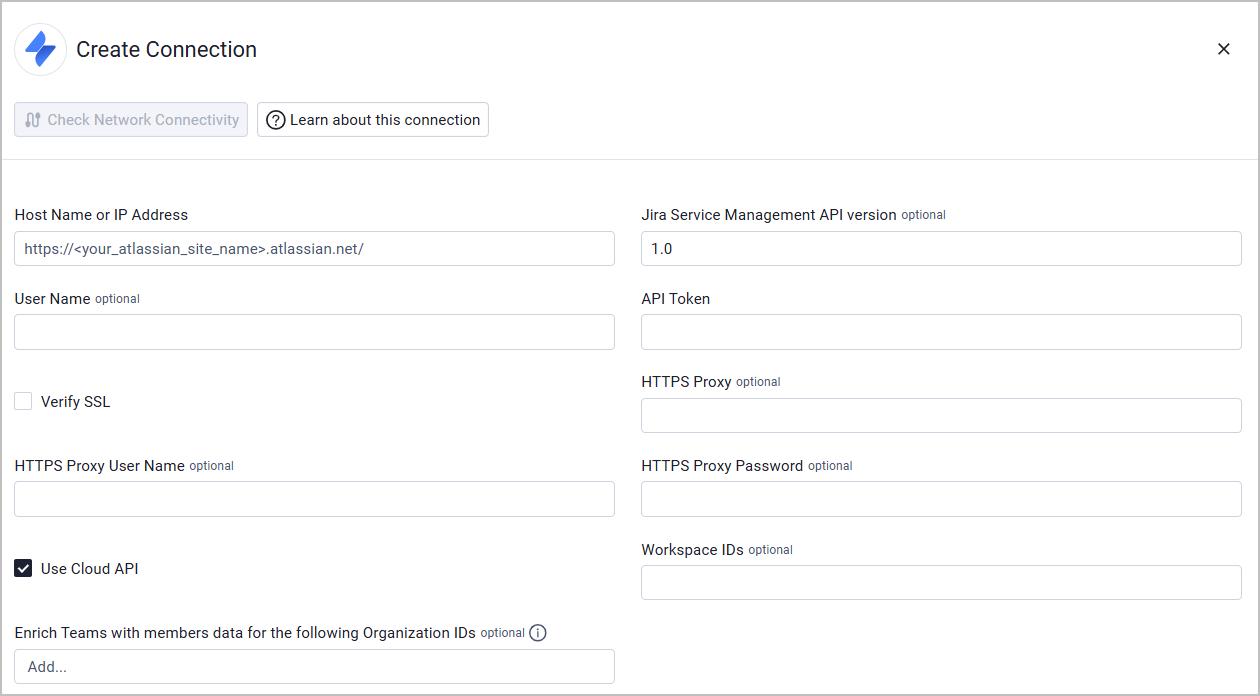
Host Name or IP Address, User Name and API Token - See Using Scoped Credentials for information on the different authentication methods and the values required for each of these fields.
Note
The API Token is not the same as the Admin Key. For information on how to create an API Token, see Manage API tokens for your Atlassian account.
-
Verify SSL - Select whether to verify the SSL certificate offered by the value supplied in Host Name or IP Address. For more details, see SSL Trust & CA Settings.
Optional Parameters
- Jira Service Management API version - The version type. The default value is 1.0
- HTTPS Proxy - A proxy to use when connecting to the value supplied in Host Name or IP Address.
- HTTPS Proxy User Name - The user name to use when connecting to the value supplied in Host Name or IP Address via the value supplied in HTTPS Proxy.
- HTTPS Proxy Password - The password to use when connecting to the value supplied in Host Name or IP Address via the value supplied in HTTPS Proxy.
- Use Cloud API - Use this option to add support for cloud-based installations of Jira Service Management (Service Desk) with Jira Insight.
- Workspace IDs - Enter an optional list of Workspace IDs to use. If no Workspace IDs are entered, the adapter queries the configured hosts for all Workspace IDs.
- Enrich Teams with members data for the following Organization IDs - Organization ID is required to enrich Tickets with Jira Team data and memberships. Enter one or more Organization IDs as an array of strings. Then, when you run a fetch:
-
The adapter automatically detects if tickets have a Team field assigned.
-
Team information is fetched from the Jira Teams API for the organizations you specified.
-
Team member lists are retrieved for each team.
-
Tickets are enriched with team data and member information. The enriched data includes Team ID, Display Name, Creator ID, Team Type, Member Account IDs, and more.
To find your Jira Organization ID:
- Log in to your Jira Cloud instance as an administrator.
- Navigate to Settings > Products.
- The Organization ID is displayed in the organization details.
-
To learn more about common adapter connection parameters and buttons, see Adding a New Adapter Connection.
Advanced Settings
Note
Advanced settings can either apply to all connections for this adapter, or to a specific connection. Refer to Advanced Configuration for Adapters.
- IQL query (Override Filter Device object types) - Enter a custom IQL query so that only devices matching the IQL or object type will be fetched. Note that using this setting will override the configuration value set in Filter Device object types.
- Filter Device object types - Enter a comma-separated list of objects that the client wants to fetch, for example 'Servers, laptops, desktops'. Then only these object types are fetched.
Note
If you do not define the object types using this setting, then ALL assets, regardless of type, are mapped as devices.
-
IQL query for Users (Override Filter Users object types) - Enter a custom IQL query so that only users matching the IQL or object type will be fetched. Note that using this setting will override the configuration value set in Filter Users object types.
-
Filter Users object types - Enter a comma-separated list of objects to parse as users, for example: ‘Employees’.
-
IQL query to asset mapping - From the Axonius Asset Type dropdown, select an asset type. In the IQL query for Jira field, map a relevant IQL query to fetch the selected asset from Jira. Click
+to add more assets to fetch. -
Use asset name for hostname - Select this option to use the asset name for the hostname if the hostname doesn't exist.
-
Use Device 'Updated' as 'Last Seen' - Select this option to use the "Updated" field as "Last Seen".
-
Additional MAC Address Field Names - Enter a list of Jira field names that the adapter should recognize as MAC address fields. To add each field name, type the value and then press Enter to create a new entry.
-
Additional IP Address Field Names - Enter a list of Jira field names that the adapter should recognize as IP address fields. To add each field name, type the value and then press Enter to create a new entry.
-
Ignore SaaS Applications Repository when parsing applications - Select this option to fetch all applications even if they are not listed in Axonius SaaS Applications Repository.
-
Custom schema entry (JSON) (Custom devices schema, Custom users schema) - Use these settings to add a JSON file to fetch information from one object to another. Refer to Using Custom Schema Entries to add a JSON file to Fetch Information from One Object to Another for details of how to configure these fields.
-
Enable Custom Parsing - Enable this option to define how to parse specific fields from the raw data fetched. You can choose to parse the data into an already existing field, or create a new one. See Adapter Custom Parsing for more information.
-
Exclude devices with the following statuses - Enter a comma-separated list of statuses. Devices with one of these statuses will not be ingested into the system.
Note
To learn more about Adapter Configuration tab advanced settings, see Adapter Advanced Settings.
Object Names Object names in Axonius are set according to the following parameters:
- The naming attribute in Jira. This is the attribute of the Jira object set as a label attribute (could be an attribute called 'green').
or
- The 'Name' attribute in the Jira object
or
- The 'objectKey' of the Jira object
in this order.
Using Custom Schema Entries to Add a JSON File to Fetch Information from One Object to Another
You can use Custom devices schema and Custom users schema to add a JSON file to fetch information from one object to another, for example - to enrich a laptop with information from another object. You can add more than one JSON file. The JSON file must be of the format:
{
        “type”: “link”,
        “link_type”: “reference”,
        “source_table”: “Manufacturer”,
        “source_field”: “Software”,
        “destination_table”: “Software”,
        “linked_record_identifier”: “objectKey”,
        “destination_table_fields”: [“Type”, “Vendor”],
        “destination_table_query”: “objectTypeId=5"
}
For more information on custom asset schema and the format of the JSON file, refer to ServiceNow Advanced Settings - Custom Asset Schema.
Version Matrix
This adapter was only tested with the versions marked as supported, but may work with other versions. Contact Axonius Support if you have a version that is not listed, which is not functioning as expected.
| Version | Supported | Notes |
|---|---|---|
| JIRA Service Desk 3.6.2 | Yes | |
| docs.atlassian.com/jira-servicedesk/REST/3.6.2/ | Deprecated |
Related Enforcement Actions
- Jira Service Management - Create Ticket
- Jira Service Management - Create Ticket per Asset
- Jira Service Management - Update Tickets
- Jira Service Management - Create Insight Asset per Asset
- Jira Service Management - Update Insight Asset
- Jira Service Management - Remove Insight Asset
- Jira Service Management - Notify Issue
Updated 16 days ago