
Cisco Identity Services Engine (ISE)
The Cisco Identity Services Engine (ISE) adapter connects to the Cisco ISE management interface in order to enable the creation and enforcement of security and access policies for endpoint devices connected to managed routers and switches.
Asset Types Fetched
- Devices, Users, Certificates, Network Devices
Before You Begin
Required Ports
Axonius must communicate with Cisco ISE Domain through the following ports:
-
External RESTful Services (ERS) REST API: 9060
-
Cisco Platform Exchange Grid (pxGrid) API: 8910
-
Management API (If fetching auth sessions): 443
-
Cisco ISE Open API: 443 (for certificate fetching)
-
For more details, see Cisco ISE Ports Reference and Cisco Developer Documentation.
Authentication Methods
- User Name and Password
APIs
Axonius uses the following Cisco ISE APIs:
- External RESTful Services (ERS) API - For endpoint and user data retrieval
- Cisco Platform Exchange Grid (pxGrid) API - For live session data
- Cisco ISE Open API - For fetching system certificates and trusted certificates
Note
The adapter uses the Cisco ISE Open API to fetch both system certificates and trusted certificates from the ISE deployment. This provides comprehensive certificate inventory and expiration tracking for your ISE infrastructure.
Required Permissions
- The value supplied in User Name must have Read-only access to devices.
- The user must be assigned to one of the following admin groups: Super Admin, System Admin or MnT Admin when the 'Fetch Endpoints' or 'Enrich Endpoints….’ advanced settings are enabled.
- To fetch certificates Open API read permissions are required.
To create a service account for Axonius with the sufficient permissions for calling the Cisco ISE API, follow these steps:
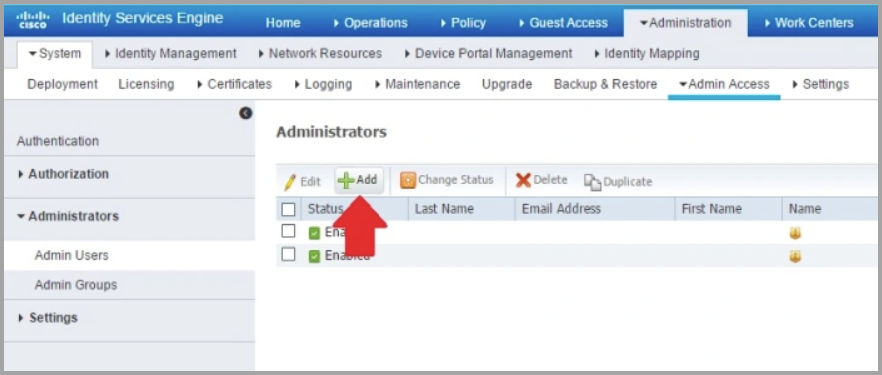
- Navigate to Administration
>Admin Access>Administrators>Admin Users and click Add.
-
Add the user to one of the following Admin Groups: ERS Admin or ERS Operator. When Fetch or Enrich Endpoints Advanced Settings are enabled you will need Super Admin, System Admin or MnT Admin access.
-
Assign an access type. Select ReadOnly. You can choose between Read/Write or ReadOnly.
-
Enable ERS (External RESTful Services) to allow REST calls. To do this, navigate to Administration
>System>Settings>ERS Settings then select Enable ERS for Read/Write under the Primary Administration Node:(594).png)
Note
The ERS setting must be enabled after each upgrade as it is reset to "disabled" during each upgrade. If you plan on utilizing this adapter, we recommend adding a note to your Cisco ISE upgrade process documentation that the REST API should be enabled at the end of each upgrade.
Related Enforcement Actions
Next Steps
Updated about 1 month ago