
OpenStack
OpenStack is an open source software solution for creating private and public clouds.
Use Cases the Adapter Solves
- Cloud Image Inventory: Maintain a complete inventory of virtual machine images, snapshots, and container images available across OpenStack Glance, including format, size, and visibility metadata.
- Security and Compliance: Identify unprotected or publicly visible compute images across your OpenStack environment to ensure compliance with organizational security policies.
Asset Types Fetched
This adapter fetches the following types of assets:
- Devices, Users, Compute Services, Networks , Load Balancers, Network Services, Compute Images, Secrets
Data Retrieved through the Adapter
Devices - fields such as: Name, Status, VM State, Availability Zone
Compute Services (Hypervisors) - Fields such as Hypervisor Type, Host IP, Uptime, CPUs
Networks (Networks, Subnets, Floating IPs) - Fields such as Cloud ID, Name, State, Created At, CIDR Blocks
Network Services (Routers, Security Groups) - Fields such as Cloud ID, Name, Status, Created At
Load Balancers - Fields such as Cloud ID, Name, Private IPs, Public IPs,
Users - Fields such as Username, Email, Description, Domain
Compute Images - Fields such as Cloud ID, Name, State, Size
Before You Begin
Required Ports
- TCP port 443 (HTTPS)
- TCP port 5000 (OpenStack Identity/Keystone API, if not proxied via HTTPS)
- TCP port 9292 (OpenStack Image/Glance API, if not proxied via HTTPS)
APIs
Axonius uses the OpenStack API.
The following endpoints are called:
Authentication
POST /v3/auth/tokens
Devices
GET /compute/v2.1/servers/detailGET /compute/v2.1/flavors/{id}GET /compute/v2.1/images/{id}
Hypervisors (optional — Fetch Hypervisors as Assets)
GET /compute/v2.1/os-hypervisors/detail
Networks (optional — Fetch Networks)
GET /v2.0/networks
Subnets (optional — Fetch Subnets)
GET /v2.0/subnets
Floating IPs (optional — Fetch Floating IPs)
GET /v2.0/floatingips
Routers (optional — Fetch Routers)
GET /v2.0/routers
Security Groups (optional — Fetch Security Groups)
GET /v2.0/security-groups
Load Balancers (optional — Fetch Load Balancers)
GET /v2/lbaas/loadbalancers
Users (optional — Fetch Users, requires admin)
GET /v3/users
SSH Keypairs (optional — Fetch SSH Keypairs, requires admin)
GET /compute/v2.1/os-keypairs
Compute Images (optional — Fetch Compute Images)
GET /image/v2/images
Authentication Methods
- Username and Password
- Application Credentials
Required Permissions
The following permissions are required:
Read more in Default Roles
Standard User Role (Minimum)
Assign the reader or member role on the relevant OpenStack project. This is sufficient for fetching the following assets within the project scope:
- Devices (servers)
- Networks, Subnets, Floating IPs, Routers, Security Groups
- Load Balancers
- Compute Images (Glance
GET /v2/images)
Note: Without admin access, the adapter only retrieves data from a single project, and Compute Images returns only images owned by or shared with that project.
Administrator Role (Required for certain features)
The admin role is required for the following:
- Fetch Hypervisors as Assets — calls
GET /compute/v2.1/os-hypervisors/detail, which is restricted to admin by default - Fetch Users — calls
GET /v3/users, which requires admin or system-scoped reader - Fetch SSH Keypairs — calls
GET /compute/v2.1/os-keypairsfor all users; non-admin users can only retrieve their own keypairs - Run as Admin User — enables fetching data across multiple projects
Connecting the Adapter in Axonius
Required Parameters
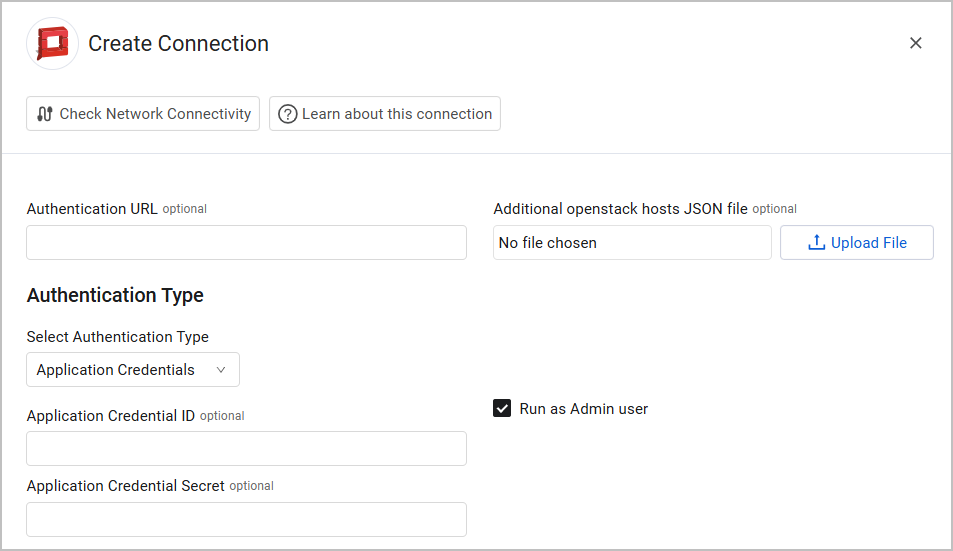
- Authentication Type - Select between Username & Password and Application Credentials.
Required parameters for Username & Password authentication:
- User Name and Password - The credentials for a user account that has the permissions to fetch assets.
- User Domain – The domain where the user account is defined, for example default, cisco, ldap, etc.
- Project - The project name.
- Project Domain - The domain where the project/tenant is defined.
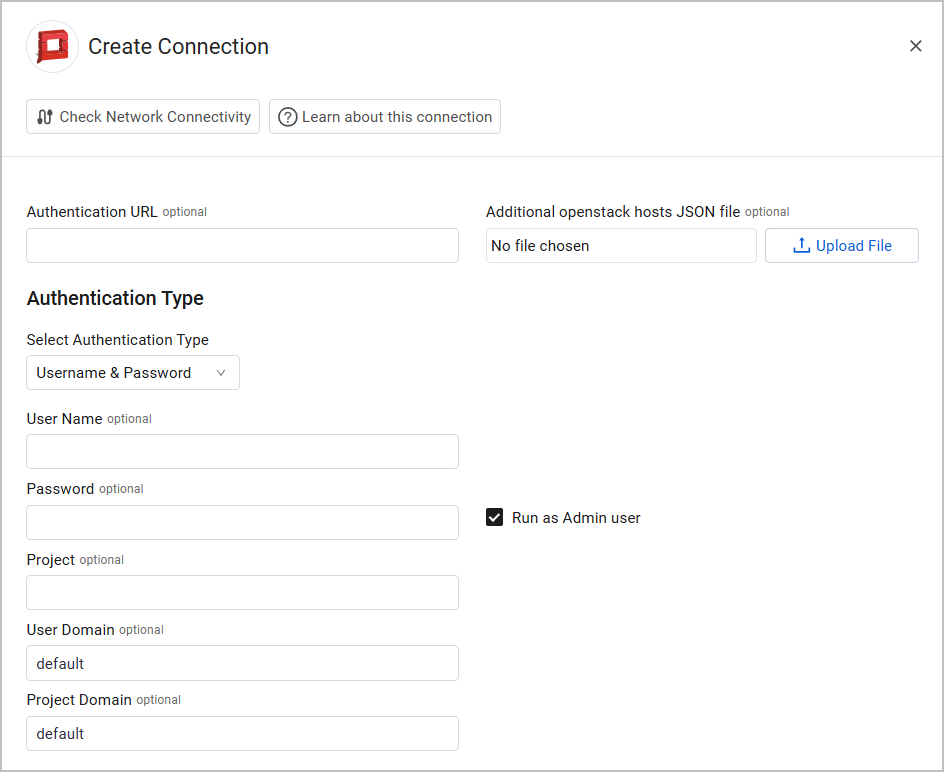
Required parameters for Application Credentials authentication:
- Application Credential ID and Application Credential Secret - See the following example (includes mock data):
example-appcred:
  auth:
    auth_url: http://example.com/identity
    application_credential_id: 0123456789abcdef0123456789abcdef
    application_credential_secret: MOCK_SECRET_KEEP_IT_LONG_AND_RANDOM_STAY_SAFE_12
  auth_type: v3applicationcredential
  region_name: RegionOne
Optional Parameters
-
Authentication URL - An authentication URL for the Identity service.
-
Additional openstack hosts JSON file - You can configure a connection using parameters in this dialog box, or upload additional connection parameters them from a JSON file. The JSON file is in the format of a single list containing dictionaries, where each dictionary must contain:
- The Authentication URL
- Additional connection parameters, depending on the authentication method selected.
Attention
Each connection parameter must be configured either in the dialog box or in the JSON file (or both). When the parameters are configured in the JSON file, their values are used for that specific connection; If they are not configured in the JSON file, their values taken from the dialog box.
Example JSON file:
[
  {
    "auth_url": "<auth url>", # (1)
    "username": "<username>", # (2)
    "password": "<password>", # (2)
    "project": "<project>", # (3)
    "domain": "<domain>", # (4)
    "verify": True/False # Verify SSL
  }
]-
Run as Admin user (default: enabled) - This option requires the user to have an admin role in OpenStack. If the user is not an admin, the connection will fail. Disable it to connect with non-admin credentials.
Note
Admin credentials can fetch data from multiple projects to which they are assigned. Non-admin credentials can only fetch data from a single project.
-
Verify SSL - Select whether to verify the SSL certificate of the server against the CA database inside of Axonius. For more details, see SSL Trust & CA Settings.
To learn more about common adapter connection parameters and buttons, see Adding a New Adapter Connection.
Advanced Settings
Note
Advanced settings can either apply for all connections for this adapter, or you can set different advanced settings and/or different scheduling for a specific connection, refer to Advanced Configuration for Adapters.
Endpoint Config
This section lists different options to fetch specific asset types from specific endpoints. Enable the settings relevant to your needs.
- Example: Enable Fetch Networks of sub-type floating_ips from Floating IPs to fetch Floating IP networks as Network assets in Axonius.
- Fetch Hypervisors as Assets - Select this option to fetch Hypervisor entities as assets.
- Fetch Compute Images - Enable this setting to fetch compute image data from OpenStack Glance. When enabled, the adapter retrieves virtual machine images, snapshots, and container images along with their metadata. Default value: False.
Notes about endpoint settings
- To fetch Users, you must have an admin user account with access to the Keystone Identity API (
/v3/users)- To fetch Secrets from SSH Keypairs, you must have an admin user account with access to keypairs across all users via the Nova Compute API.
If the adapter connection is configured with a non-admin account, these endpoints will be automatically disabled.
Note
To learn more about Adapter Configuration tab advanced settings, see Adapter Advanced Settings.
Updated 3 months ago