
Configuring Notification Settings
Use Notifications to have Axonius send a notification email to configured email addresses according to these settings.
To configure Notification Settings:
- From the top right corner of any page, click
.png) . The System Settings page opens.
. The System Settings page opens. - In the Categories/Subcategories pane of the System Settings page, expand System, and select Notifications.
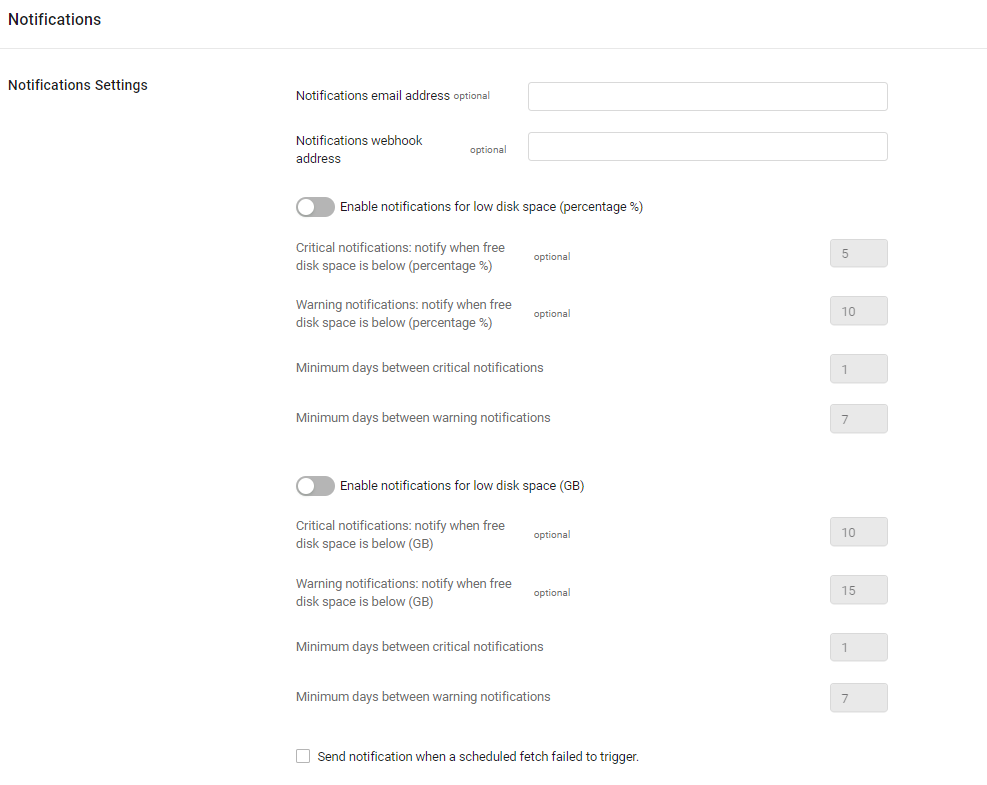
Note
The Enable notifications for low disk space (percentage %) and Enable notifications for low disk space (GB) options in the above screen are visible for customer-hosted (on-premises / private cloud) deployments only; not for Axonius-hosted (SaaS) deployment.
- Notifications email address - Configure a comma-separated list of email addresses to receive an email:
- When there is a connection issue with any of the adapter connections, the email contains a table of affected adapters with relevant details.
- When a node has not communicated for over three hours.
- When the available free disk space is below the limit defined (if configured).
- Notifications webhook address - Configure the webhook URL to receive a message. The message sent is the same as the message included in the email.
- When there is a connection issue with any of the adapter connections.
- When the available free disk space is below the limit defined (if configured).
- Enable notifications for low disk space (percentage %)
- Visible for customer-hosted (on-premises / private cloud) deployments only.
- When toggled on, the system monitors the available free disk space percentage for all nodes and creates critical or warning notifications based on the following settings:
- Critical notifications: notify when free disk space is below (percentage %) (optional, default: 5) - Set the percentage of free disk space, below which the system creates a critical notification.
- Warning notifications: notify when free disk space is below (percentage %) (optional, default: 10) - Set the percentage of free disk space, below which the system creates a warning notification.
- Minimum days between critical notifications (required, default: 1) - Set the minimum number of days that need to pass since the last time a critical disk space notification based on percentage was created per node.
- Minimum days between warning notifications (required, default: 7) - Set the minimum number of days that need to pass since the last time a warning disk space notification based on percentage was created per node.
- Enable notifications for low disk space (GB)
- Visible for customer-hosted (on-premises / private cloud) deployments only.
- When toggled on, the system monitors the available free disk space in GB for all nodes and creates critical or warning notifications based on the following settings:.
- Critical notifications: notify when free disk space is below (GB) (optional, default: 10) - Set the amount of free disk space (GB), below which the system creates a critical notification.
- Warning notifications: notify when free disk space is below (GB) (optional, default: 15) - Set the amount of free disk space (GB), below which the system creates a critical notification.
- Minimum days between critical notifications (required, default: 1) - Set the minimum number of days that need to pass since the last time a critical disk space notification based on available space in GB was created per node.
- Minimum days between warning notifications (required, default: 7) - Set the minimum number of days that need to pass since the last time a warning disk space notification based on available space in GB was created per node.
- Send notification when a scheduled fetch failed to trigger - Enable this option to activate adapter fetch notifications. When enabled, you can configure the following sub-options:
- Notify if an adapter did not complete a fetch in the last X days - When toggled on, sends an email notification if an adapter has not triggered any fetch within the specified number of days.
- Number of days (default: 7) - Set the number of days after which an adapter with no fetch is flagged.
- Notify if an adapter did not complete a successful fetch in the last X days - When toggled on, sends an email notification if an adapter has not completed a successful fetch within the specified number of days.
- Number of days (default: 7) - Set the number of days after which an adapter with no successful fetch is flagged.
- Notify if an adapter did not complete a fetch in the last X days - When toggled on, sends an email notification if an adapter has not triggered any fetch within the specified number of days.
Note
- When an adapter fails to trigger, an adapter fetch fails, or an adapter connection fails, a Monitoring alert is automatically created and appears in the Monitoring- Alerts table. However, the sub-options under this setting send notification emails only for the specific condition each covers (no fetch triggered in X days, or no successful fetch in X days); not for adapter connection failures.
Note
Axonius cloud customers are not required to configure an email server in order to receive notification emails.
-
Notify when at least one gateway is running an outdated agent version - When selected, weekly notifications are sent when at least one gateway is running a version lower than the Axonius instance and can be upgraded. Additionally, a banner is displayed in both the Gateways page and in the details drawer of the outdated gateway. See Upgrading a Gateway.
In order to send notifications via email, the email settings in External Integrations must be configured. See Configuring Email Settings.
Updated 3 months ago