
Managing Rules
Editing a Custom Rule
You can edit a custom rule.
To edit the custom rule configuration:
- In the rules table on the Monitoring page, click a rule.
- In the details drawer, in the header, click the Edit
 icon.
icon. - Update fields and settings, as required. Refer to Creating a Rule for field and setting explanations. The Save Changes button becomes enabled.
- Modify the external notification or Remove the external notification, if required.
- Click Save Changes.
Note
- When you modify a rule's configuration, it might begin triggering alerts on different assets than before. For example, when you configure the rule with a different query.
- When you pivot from the latest alert in the Alerts History tab to the list of assets that triggered the alert, it opens the list of assets resulting from the alert based on the original rule (i.e., before the rule was modified). This is because the asset list is based on a historical snapshot of the assets at the time of the alert .
Modifying the External Notification
In a custom rule, you can choose an alternate enforcement action for an external notification or modify the configuration of the existing one.
To modify the external notification:
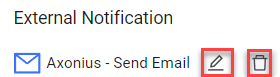
- Hover over the defined external notification, and click the
 Edit icon that appears (see figure below).
 - Modify the configuration of the external notification by doing one of the following:
- In Select Action, choose another enforcement action and fill in the required fields.
- Modify the configuration of the current enforcement action.
- Click Apply.
Removing the External Notification
You can remove an external notification from a Findings Custom rule.
To remove an external notification
-
Hover over the defined external notification, and click the
 Trashcan icon that appears (see figure below). The external notification is removed.
 -
Click Apply. The external notification is removed from the Findings Notification Enforcements folder in the Enforcement Center.
Updating the Status of a Rule Alert
In the row of a rule in the rules table, you can manually change the status of its latest alert. Learn how to change the alert status. You can also change the status of a rule's alert in the Alerts History table - Status column.
Deleting Rules
From the rules table, you can delete one or more rules. Only custom rules can be deleted.
To delete one or more rules:
-
In the rules table on the Monitoring page, click on the More Actions menu at the end of the row and click
Delete Rule, or select the checkboxes of one or more rules, and then on the top right of the table, click the Delete Rule action.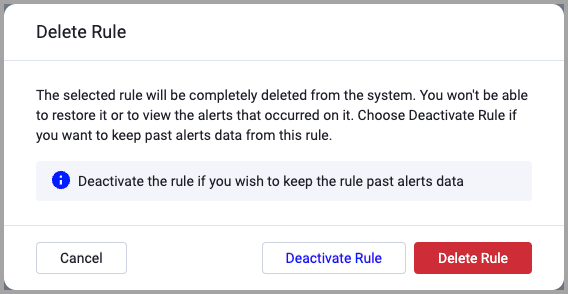
-
In the Delete Rule box, click Delete Rule. The selected rules are totally removed from the system, they are deleted from the rules table and Total decreases accordingly.
Deactivating Rules
You can deactivate one or more custom rules from the rules table or deactivate a single custom rule from its configuration drawer. A deactivated rule stops running in the system, but keeps past alert data.
To deactivate a rule from its configuration drawer:
- In the rule details drawer, toggle off Activate (default).
- Click Save Changes. The Finding's Activity Status changes to Inactive.
To deactivate one or more rules from the rules table:
- In the rules table on the Monitoring page, click the More Actions menu at the end of the row, and clickDelete Rule, or select the checkboxes of one or more rules, and then on the top right of the table, click Delete Rule.
- In the Delete Rule box that opens (see above), click Deactivate Rule. The Finding's Activity Status changes to Inactive.
Activating a Rule
A rule runs only while it is activated. You can activate a single custom rule from its configuration.
To activate a rule:
- In the rules table on the Monitoring page, click a rule, and in the details drawer that opens, toggle on Activate (default).
- Click Save Changes. The rule's Activity Status changes to Active.
Updated 2 months ago