
Genesys Cloud
Configure the Genesys Cloud adapter in Axonius, including authentication, required APIs, permissions, and connection parameters.
Genesys Cloud is a cloud-based contact center and customer experience platform that provides omnichannel customer engagement, workforce optimization, and analytics capabilities for organizations managing customer interactions.
Use Cases the Adapter Solves
- Monitor User Access and Permissions: Gain visibility into Genesys Cloud user accounts, roles, and divisions to ensure proper access controls and identify potential security risks.
- Track Security Configuration Settings: Monitor critical security settings across voicemail, fax, chat, and analytics to maintain compliance with data privacy regulations and organizational security policies.
- Ensure Data Protection Compliance: Verify PII masking, data retention, and encryption key configurations are properly set to meet regulatory requirements for customer data protection.
Asset Types Fetched
- Users, Application Settings, Roles, Permissions
Data Retrieved through the Adapter
Users - Fields such as Username, Email Address, Display Name, Department, Roles, Divisions, Permissions
Application Settings - Fields such as Voicemail PII Protection, Fax Email PII Disable, Analytics PII Masking, Chat Message Retention
Roles - Fields such as Role Name, Role ID, Description, Is Built-In, Permissions
Before You Begin
Required Ports
- TCP port 443 (HTTPS)
Authentication Methods
OAuth 2.0 Client Credentials Grant
The adapter authenticates using the OAuth 2.0 client credentials flow. You must create an OAuth client in Genesys Cloud and provide the Client ID and Client Secret to Axonius. The adapter obtains an access token from the /oauth/token endpoint and uses it to authenticate all subsequent API requests.
APIs
Axonius uses the Genesys Cloud Platform API v2. The following endpoints are called:
POST /oauth/token- Obtains OAuth access token for authenticationGET /api/v2/users- Retrieves user account informationGET /api/v2/voicemail/policy- Retrieves voicemail policy settingsGET /api/v2/analytics/reporting/settings- Retrieves analytics and reporting configurationGET /api/v2/routing/settings/transcription- Retrieves transcription settingsGET /api/v2/fax/settings- Retrieves fax configuration settingsGET /api/v2/organizations/authentication/settings- Retrieves organization authentication settingsGET /api/v2/geolocations/settings- Retrieves geolocation service settingsGET /api/v2/chats/settings- Retrieves chat configuration settingsGET /api/v2/conversations/keyconfigurations- Retrieves conversation encryption key configurationGET /api/v2/recording/keyconfigurations- Retrieves recording encryption key configurationGET /api/v2/authorization/divisionspermitted/paged/me- Retrieves division permissionsGET /api/v2/authorization/subjects/{subjectId}- Retrieves role assignments, divisions, and permissions for each user (one call per user; enabled via the Role Assignments advanced setting)
Required Permissions
The OAuth client used for the adapter must have appropriate permissions to read user data and security settings.
It is possible to use an OAuth client with administrative read permissions to ensure access to all required endpoints.
The following permissions are required to fetch application settings
| Endpoint | Required Permission (Role) | Required OAuth Scope(s) |
|---|---|---|
/api/v2/voicemail/policy | telephony:plugin:all | voicemail or voicemail:readonly |
/api/v2/analytics/reporting/settings | None | analytics or analytics:readonly |
/api/v2/routing/settings/transcription | routing:transcriptionSettings:view | routing or routing:readonly |
/api/v2/fax/settings | None | fax or fax:readonly |
/api/v2/organizations/authentication/settings | directory:organization:admin | organization or organization:readonly |
/api/v2/flows/instances/settings/loglevels/characteristics | architect:flowLogLevel:view | architect or architect:readonly |
/api/v2/analytics/reporting/settings/dashboards/query | analytics:dashboardConfigurations:view | analytics or analytics:readonly |
/api/v2/analytics/dataretention/settings | analytics:dataretention:view | analytics or analytics:readonly |
/api/v2/chats/settings | chat:settings:view | chat or chat:readonly |
/api/v2/conversations/messages | None | conversations or conversations:readonly |
/api/v2/geolocations/settings | None | geolocations or geolocations:readonly |
/api/v2/identityproviders/pureengage | sso:provider:view | identity-providers or identity-providers:readonly |
Setting Up Genesys Cloud to Work with Axonius
To configure Genesys Cloud for Axonius integration, you need to create an OAuth client with the Client Credentials grant type:
- Log in to your Genesys Cloud organization as an administrator
- Navigate to Admin > Integrations > OAuth
- Click Add Client
- Provide a name for the OAuth client (e.g., "Axonius Integration")
- Select Client Credentials as the Grant Type
- Assign appropriate roles to the OAuth client.
- Click Save
- Copy the Client ID and Client Secret - you will need these for the Axonius adapter configuration
Important: Keep the Client Secret secure. It will only be displayed once during creation.
Connecting the Adapter in Axonius
Navigate to the Adapters page, search for Genesys Cloud, and click on the adapter tile.
Click Add Connection.
To connect the adapter in Axonius, provide the following parameters:
Required Parameters
-
Genesys Cloud API Domain - The full Genesys Cloud API URL for your region. Examples:
- US East:
https://api.mypurecloud.com - EU (Ireland):
https://api.mypurecloud.ie - EU (Frankfurt):
https://api.mypurecloud.de - Asia Pacific (Sydney):
https://api.mypurecloud.com.au - Asia Pacific (Tokyo):
https://api.mypurecloud.jp - Canada:
https://api.mypurecloud.caYou can also provide just the region domain (e.g.,mypurecloud.com) and the adapter will construct the full URL automatically.
- US East:
-
OAuth Client ID - The Client ID from your OAuth client credentials grant in Genesys Cloud.
-
OAuth Client Secret - The Client Secret from your OAuth client credentials grant in Genesys Cloud.
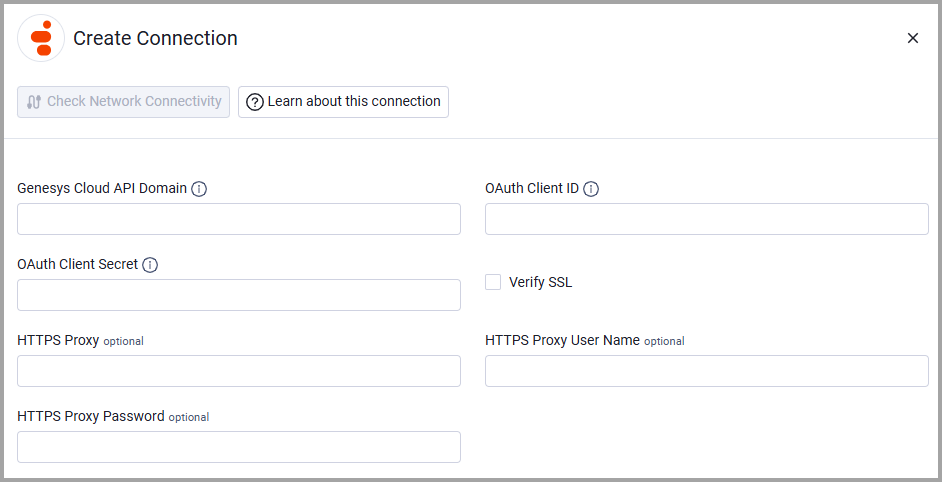
Optional Parameters
- Verify SSL - Select whether to verify the SSL certificate of the server against the CA database inside of Axonius. For more details, see SSL Trust & CA Settings.
- HTTPS Proxy - Connect the adapter to a proxy instead of directly connecting it to the domain.
- HTTPS Proxy User Name - The user name to use when connecting to the value supplied in Genesys Cloud API Domain via the value supplied in HTTPS Proxy.
- HTTPS Proxy Password - The password to use when connecting to the server using the HTTPS Proxy.
To learn more about common adapter connection parameters and buttons, see Adding a New Adapter Connection.
Advanced Settings
Note
Advanced settings can either apply to all connections for this adapter, or to a specific connection. Refer to Advanced Configuration for Adapters.
- Role Assignments (optional, default: Disabled) - Select this option to fetch role assignments for each user via the Genesys Cloud Authorization API. This enriches users with admin roles and creates Security Role and Permission assets. Makes one API call per user.
Note
To learn more about Adapter Configuration tab advanced settings, see Adapter Advanced Settings.
Updated about 1 month ago