
Zabbix
Zabbix is an open source monitoring software tool for networks, servers, virtual machines and cloud services.
Use Cases the Adapter Solves
- Unmanaged Asset Detection: Identify devices monitored in Zabbix that are missing from your inventory or security agents.
- Infrastructure Visibility: Gain a comprehensive view of servers and virtual machines by correlating Zabbix monitoring data with other infrastructure sources.
Asset Types Fetched
 Devices |
  Software |
  SaaS Applications
Before You Begin
Ports
- TCP port 80/443 (or 8080 depending on configuration)
Authentication Method
API Token or User Name and Password
APIs
Axonius uses the Zabbix API.
Permissions
The following permissions are required:
Admin or Super Admin Roles are required, refer to User Roles.
For User Name and Password Authentication the user account needs sufficient permissions to access host data via the Zabbix API. For more details about creating users in Zabbix, see Zabbix documentation - Users and user groups.
Setting Up Zabbix to Work with Axonius
Refer to API Tokens for information about how to create an API Token.
Connecting the Adapter in Axonius
Navigate to the Adapters page, search for Zabbix, and click on the adapter tile.
Click Add Connection.
To connect the adapter in Axonius, provide the following parameters:
Required Parameters
- Zabbix Domain - The hostname/IP address, method, and port of the Zabbix API. Specify the appropriate port (80 or 8080) and method (HTTPS/HTTP) in this field.
- Examples:
http://www.example.com:80,https://www.example.com:8080
- Examples:
- Default Zabbix Url Path - The path to the parent directory of 'api_jsonrpc.php'. Unless customized, the value should be a forward slash:
/ - Authentication can be either User Name and Password or API Token.
The credentials for a user account that has Permissions to fetch assets.
An API Token that can be used for Authenication.
- Connection Label - A label to help you distinguish between multiple connections for the same adapter. See Connection label.
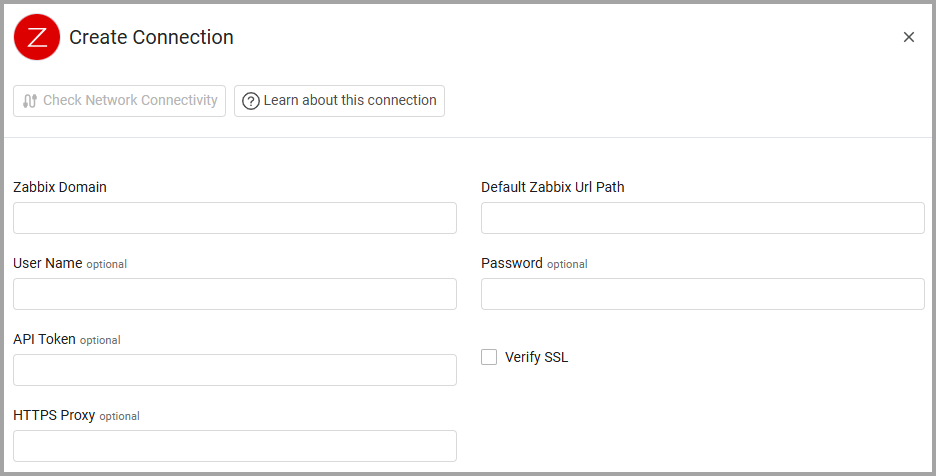
Optional Parameters
- Verify SSL - Select whether to verify the SSL certificate of the server against the CA database inside of Axonius. For more details, see SSL Trust & CA Settings.
- HTTPS Proxy - Connect the adapter to a proxy instead of directly connecting it to the domain.
-
Select Gateway – Select the Axonius Gateway to use when connecting adapters whose sources are only accessible by an internal network and not from the primary Axonius instance, which may be an Axonius-hosted (SaaS) instance or Customer-hosted (on-premises / private cloud). To use this option, you need to set up an Axonius Gateway.
To learn more about common adapter connection parameters and buttons, see Adding a New Adapter Connection.
Advanced Settings
Note:
Advanced settings can either apply to all connections for this adapter, or to a specific connection. Refer to Advanced Configuration for Adapters.
To learn more about Adapter Configuration tab advanced settings, see Adapter Advanced Settings.
- Fetch items - Select this option to fetch items. Items are individual metrics on the host, for instance processor load average, incoming traffic on some network interfaces, memory usage, etc. refer to Items for more information.
- Preferred fields for Hostname parsing - Configure which sources to use for determining device hostnames, in priority order. The adapter uses the first source that has a non-empty value. Available options:
- Default ("host" or "name" fields) - Uses the standard Zabbix host field, falling back to the name field if host is empty
- Items ("hostname" or "Host name" items) - Extracts hostname from items that contain "hostname" or "Host name" keys
- Inventory name - Uses the name field from the Zabbix inventory section
- DNS from interfaces - Uses the DNS field from Zabbix interfaces
- Custom Select items to fetch (comma separated) - Enter a comma-separated list of additional items to fetch.
- Fetch problems - Select this option to enrich devices with corresponding problems.
Updated 3 months ago