
Importing and Exporting Enforcement Sets
Use the Import/Export Enforcement Sets capability to share enforcement sets with other users, different data scopes, and across Axonius environments. You can import or export multiple enforcement sets at the same time.
Permissions
The following permissions are required to import or export enforcement sets:
- Add/Import Enforcement
- Export Enforcement
Refer to the Action Center Permissions List to learn more.
Importing Enforcement Sets
To import one or more enforcement sets from the Action Center page
-
From the Create Enforcement Set dropdown, click Import Enforcement Set.
-
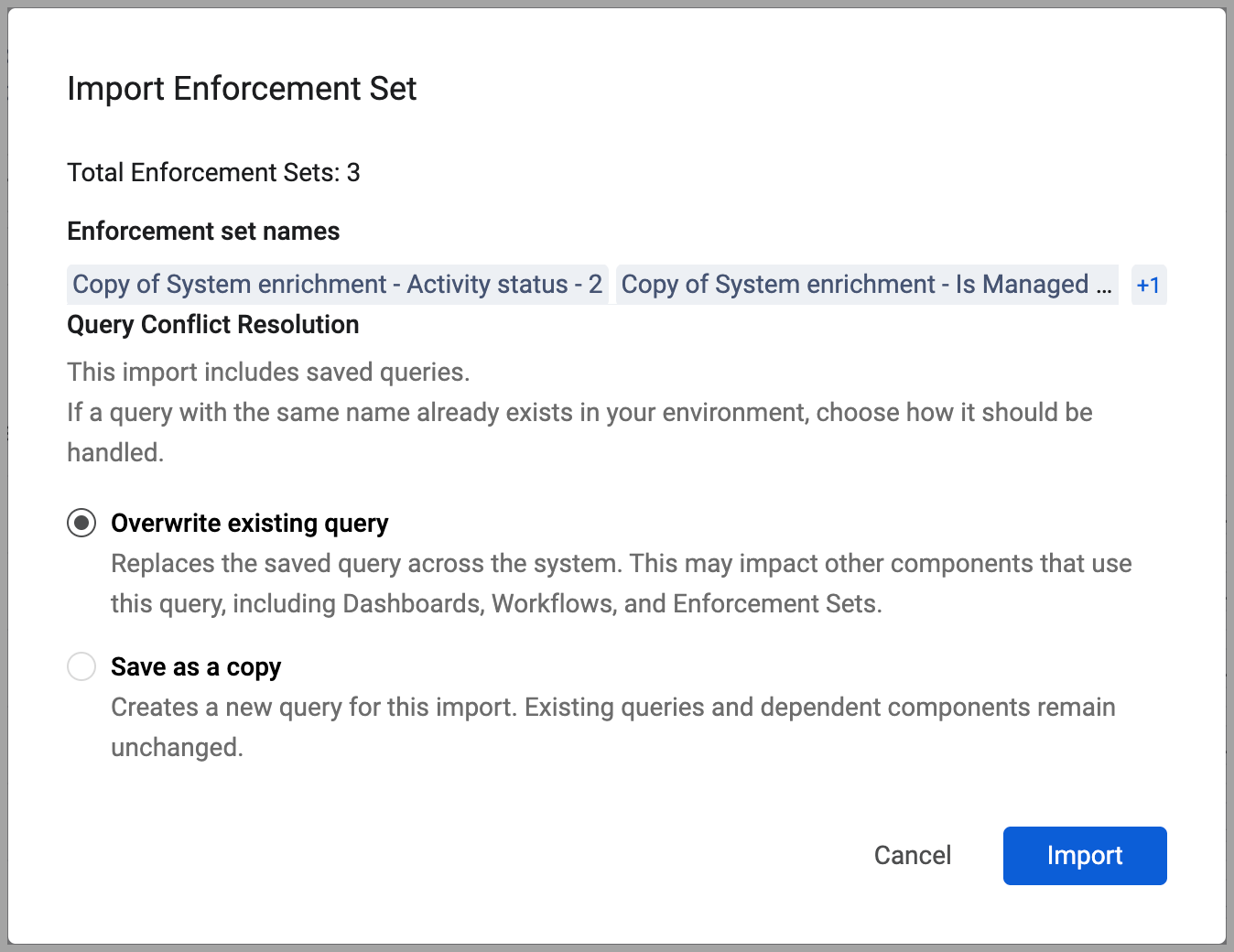
If a query or other data already exists in the environment to which you are importing the workflow, a warning dialog is displayed.
-
For each instance of conflict, select how you want to resolve it:
- Save as copy - Creates a copy of the item.
- Overwrite - Overwrites the existing item with the one being imported.
-
Click Import. The imported workflow is added to the Workflows page, and the selections from the previous step are implemented.
It is recommended to refresh the page once the import process is finished to ensure the new enforcement sets appear in the table.
If the import process fails, an Import Failed dialog appears, detailing the reason for the failure. The possible reasons are:
- File size exceeded maximum size
- The file is not a ZIP file
- Invalid or corrupted import file
- There is no enforcement set to import
You can try again by selecting another file (click Select Another File).
Exporting Enforcement Sets
You can export one or more enforcement sets at a time.
To export one enforcement set:
-
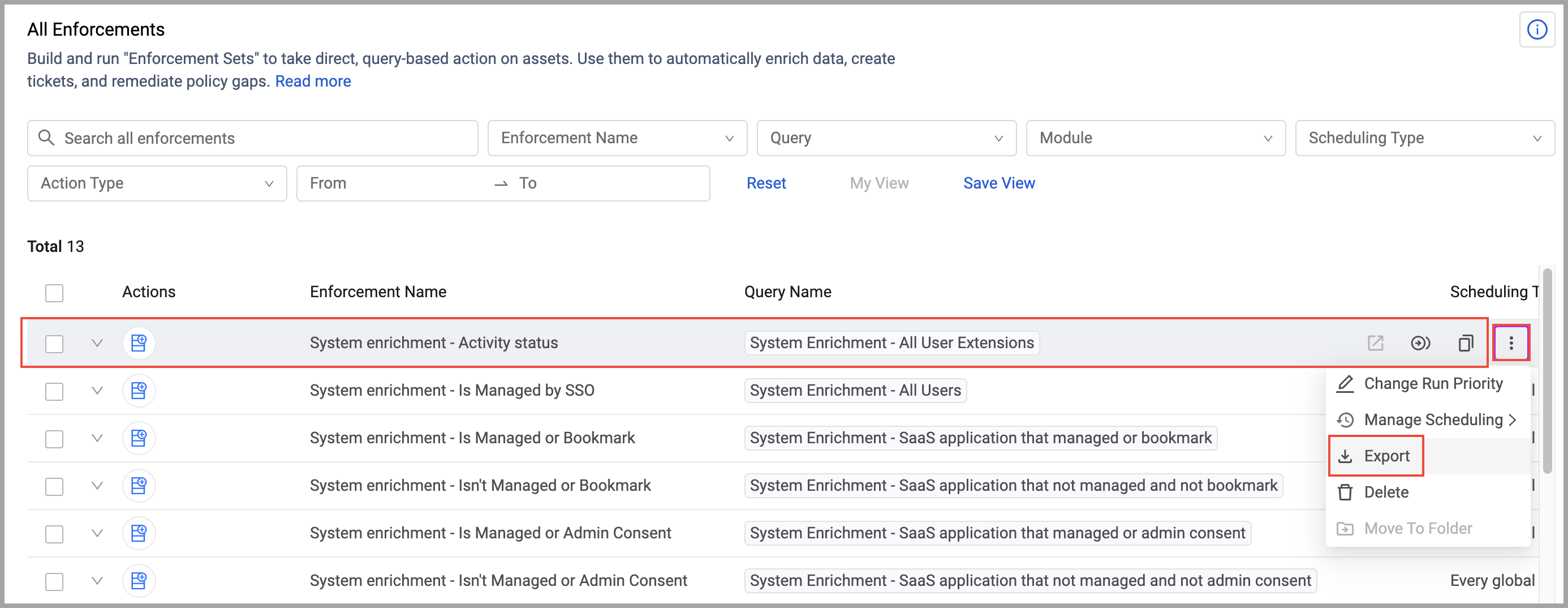
To export a single enforcement set, hover over the enforcement set you want to export, click the 3-dot menu for that enforcement set, and select Export.
-
A pop-up notifies you that credentials and sensitive inputs are excluded and must be reconfigured when reimporting this enforcement set. To continue and export, click Export. The selected enforcement set is exported to a ZIP file.
To export multiple enforcement sets:
-
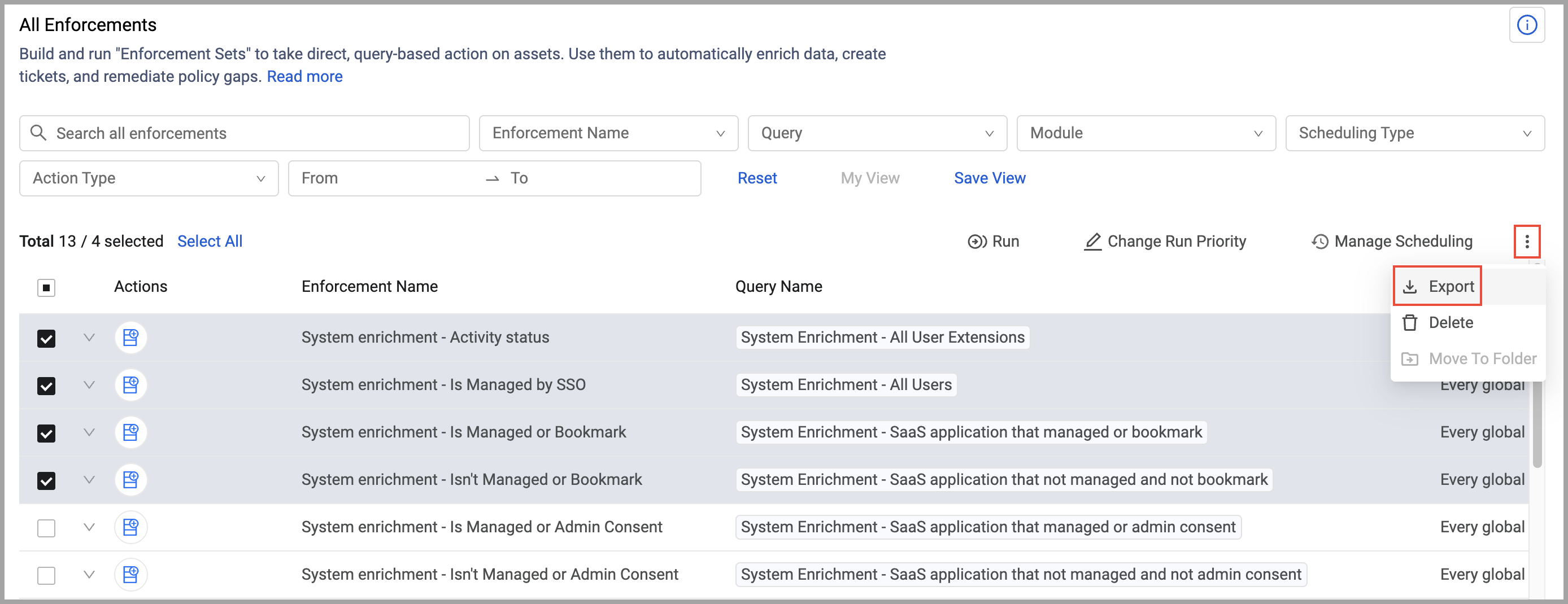
Select the checkboxes of all the enforcement sets you want to export, click the 3-dot menu above the table, and select Export.
-
A pop-up notifies you that credentials and sensitive inputs are excluded and must be reconfigured when reimporting these enforcement sets. To continue and export, click Export. The selected enforcement sets are exported in a ZIP file.
Updated 5 months ago